
Introduction
This manual provides essential information for the proper setup, operation, and maintenance of your ProLite B2280HS-1 LED Monitor. Please read this manual thoroughly before using the product to ensure safe and efficient operation. Keep this manual for future reference.
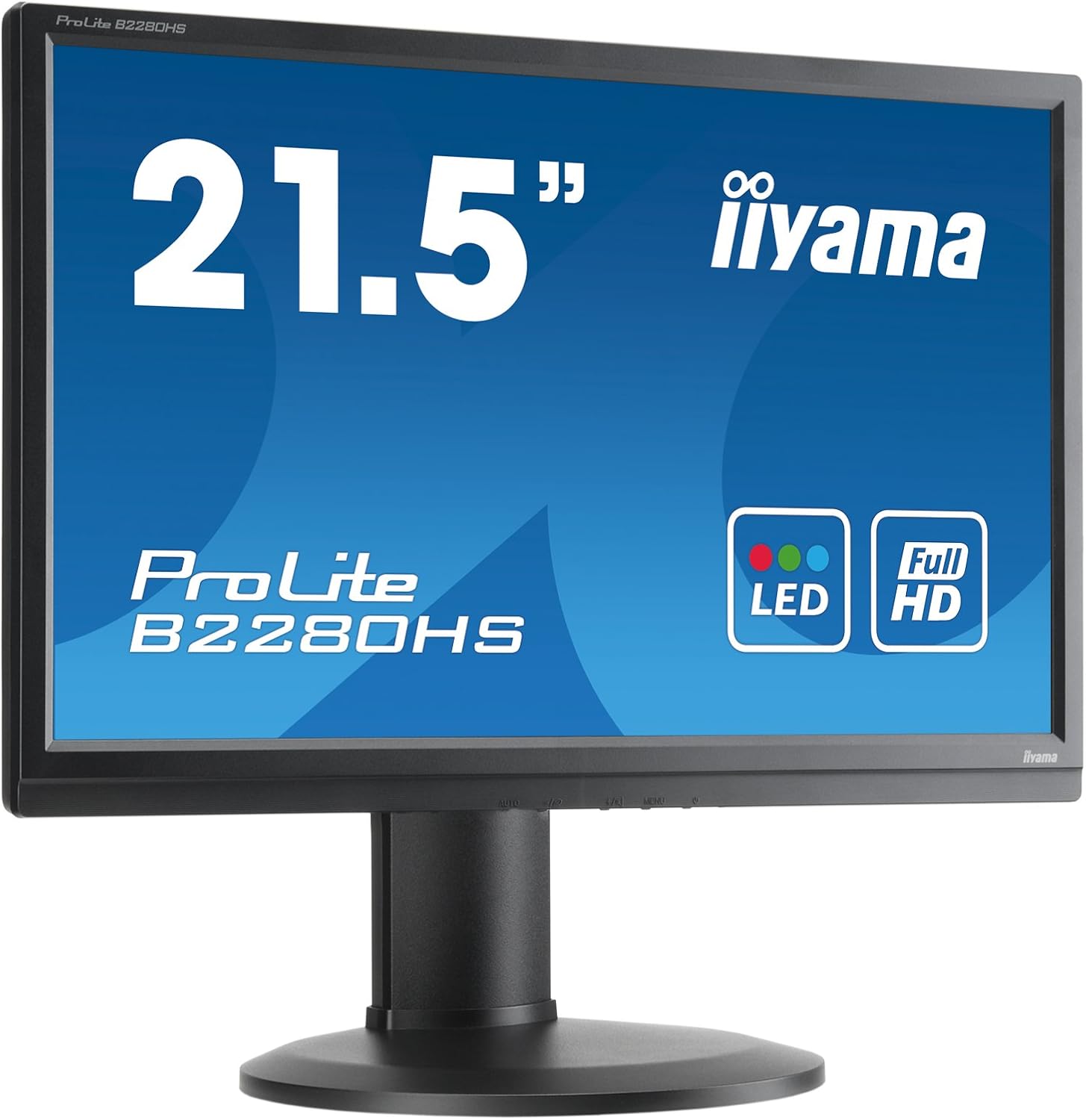
Figure 1: Front view of the ProLite B2280HS-1 LED Monitor.
Safety Information
- Ensure the monitor is placed on a stable, level surface to prevent accidental falls.
- Do not block ventilation openings. Proper airflow is essential to prevent overheating.
- Use only the power cord supplied with the monitor or a suitable replacement.
- Avoid exposing the monitor to moisture or extreme temperatures.
- Do not attempt to service the monitor yourself. Refer all servicing to qualified service personnel.
- Disconnect the power plug from the wall outlet if the monitor will be unused for a long period.
Package Contents
Verify that all items are present in the package:
- ProLite B2280HS-1 LED Monitor
- Power Cable
- DVI-D Cable (as noted in customer reviews, may be included)
- Audio Cable (if applicable)
- User Manual (this document)
- Quick Start Guide
Setup
1. Assembling the Stand
- Carefully remove the monitor and stand components from the packaging.
- Attach the stand base to the stand neck, securing it with the provided screw (if applicable).
- Align the assembled stand with the mounting holes on the back of the monitor.
- Secure the stand to the monitor using the screws or locking mechanism.

Figure 2: Rear view of the monitor with stand assembly.
2. Connecting the Monitor
The ProLite B2280HS-1 monitor supports multiple input types:
- HDMI: Connect an HDMI cable from your computer's HDMI output to the monitor's HDMI input.
- DVI-D: Connect a DVI-D cable from your computer's DVI-D output to the monitor's DVI-D input.
- VGA: Connect a VGA cable from your computer's VGA output to the monitor's VGA input.
- Audio: If using an analog audio source, connect an audio cable from your computer's audio output to the monitor's audio input.
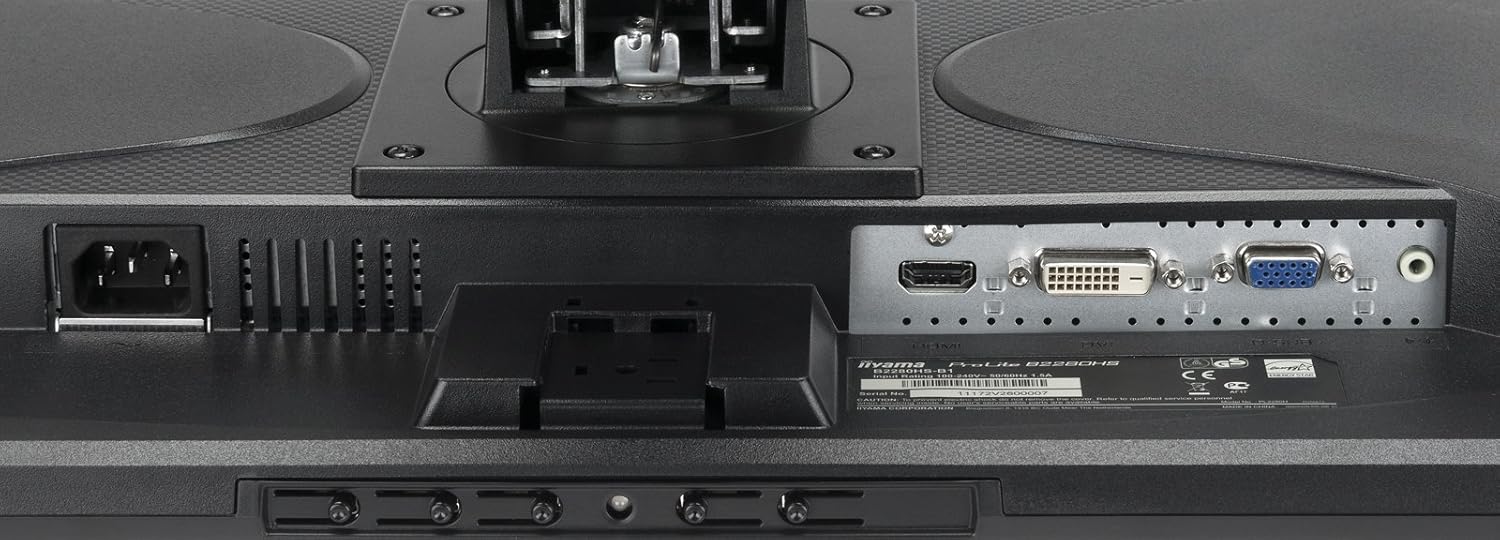
Figure 3: Available input ports on the monitor.
After connecting the video cable, connect the power cable to the monitor and then to a wall outlet.
Operating
Powering On/Off
Press the power button located on the front or bottom bezel of the monitor to turn it on or off. The power indicator light will illuminate when the monitor is on.

Figure 4: Location of control buttons.
Adjusting Display Settings
Use the OSD (On-Screen Display) menu to adjust various display settings. The OSD menu is typically accessed via buttons on the monitor's bezel.
- Brightness/Contrast: Adjust the overall luminance and contrast of the display.
- Color Settings: Modify color temperature, RGB levels, or select preset color modes.
- Input Select: Manually switch between HDMI, DVI-D, or VGA inputs.
- Picture Mode: Select from various picture modes optimized for different content (e.g., Standard, Game, Movie).
- Aspect Ratio: Adjust the display's aspect ratio (e.g., 16:9, 4:3).
Ergonomic Adjustments
The ProLite B2280HS-1 features a highly adjustable stand for optimal viewing comfort:
- Height Adjustment: Raise or lower the monitor to eye level.
- Tilt: Adjust the screen's vertical angle to reduce glare.
- Swivel: Rotate the monitor horizontally on its base.
- Pivot (Portrait Mode): Rotate the screen 90 degrees for portrait viewing, useful for documents or web browsing.


Figure 5: Monitor in portrait mode (left) and side view showing stand adjustability (right).
Maintenance
Cleaning the Monitor
- Always unplug the monitor from the power outlet before cleaning.
- Use a soft, lint-free cloth slightly dampened with water or a non-abrasive screen cleaner.
- Do not spray cleaner directly onto the screen.
- Avoid using harsh chemicals, abrasive pads, or solvents.
Storage
If storing the monitor for an extended period, disconnect all cables and store it in a cool, dry place, preferably in its original packaging to protect it from dust and physical damage.
Troubleshooting
| Problem | Possible Cause | Solution |
|---|---|---|
| No image on screen | Power cable not connected; Video cable not connected; Incorrect input selected. | Check power and video cable connections; Press the 'Input Select' button to cycle through inputs. |
| Image is blurry or distorted | Incorrect resolution; Loose video cable; Graphics card driver issue. | Set display resolution to 1920 x 1080; Ensure video cable is securely connected; Update graphics drivers. |
| No sound from monitor speakers (if applicable) | Audio cable not connected; Volume too low; Monitor not selected as default audio device. | Connect audio cable; Increase monitor volume via OSD; Set monitor as default audio output in OS settings. |
| Monitor flickers | Refresh rate mismatch; Interference. | Adjust refresh rate in display settings; Ensure no strong electromagnetic devices are nearby. |
Specifications
| Feature | Detail |
|---|---|
| Model Number | B2280HS-B1 |
| Screen Size | 21.5 inches (54.61 cm) |
| Resolution | 1920 x 1080 (Full HD) |
| Aspect Ratio | 16:9 |
| Image Brightness | 250 cd/m² |
| Response Time | 5ms |
| Contrast Ratio | 1000:1 |
| Input Ports | VGA, DVI-D (HDCP), HDMI |
| USB Ports | 1 |
| Product Dimensions (L x W x H) | 9.63 x 20.06 x 15.47 inches |
| Item Weight | 11.22 pounds |
| Manufacturer | IIYAMA |
| Date First Available | August 8, 2012 |
Warranty and Support
For warranty information and technical support, please refer to the official website of the manufacturer, IIYAMA, or contact their customer service department. Details regarding warranty periods and service procedures are typically provided with your purchase documentation or on the manufacturer's support pages.
Please have your model number (B2280HS-B1) and serial number ready when contacting support.


