
Introduction
This manual provides detailed instructions for the VIZIO XRT010 Remote Control, designed to seamlessly operate a wide range of VIZIO television models. This remote offers essential functions for daily television use, ensuring a straightforward and reliable user experience.
The VIZIO XRT010 is compatible with numerous VIZIO TV models, including but not limited to: D39h-C0, D43-C1, E191VA, E220VA, E221-A1, E221VA, E240AR, E241-A1, E261VA, E291-A1, E320-A0, E320-A1, E320AR, E321VL, E321VT, E370-A0, E370VLE, E371VL, E390-A1, E390-B0, E390-B1, E390-C0, E390VL, E420-A0, E420AR, E420-B1, E420VSE, E421VO, E461-A1, E470-A0, E471VLE, E480-B2, and E500AR.
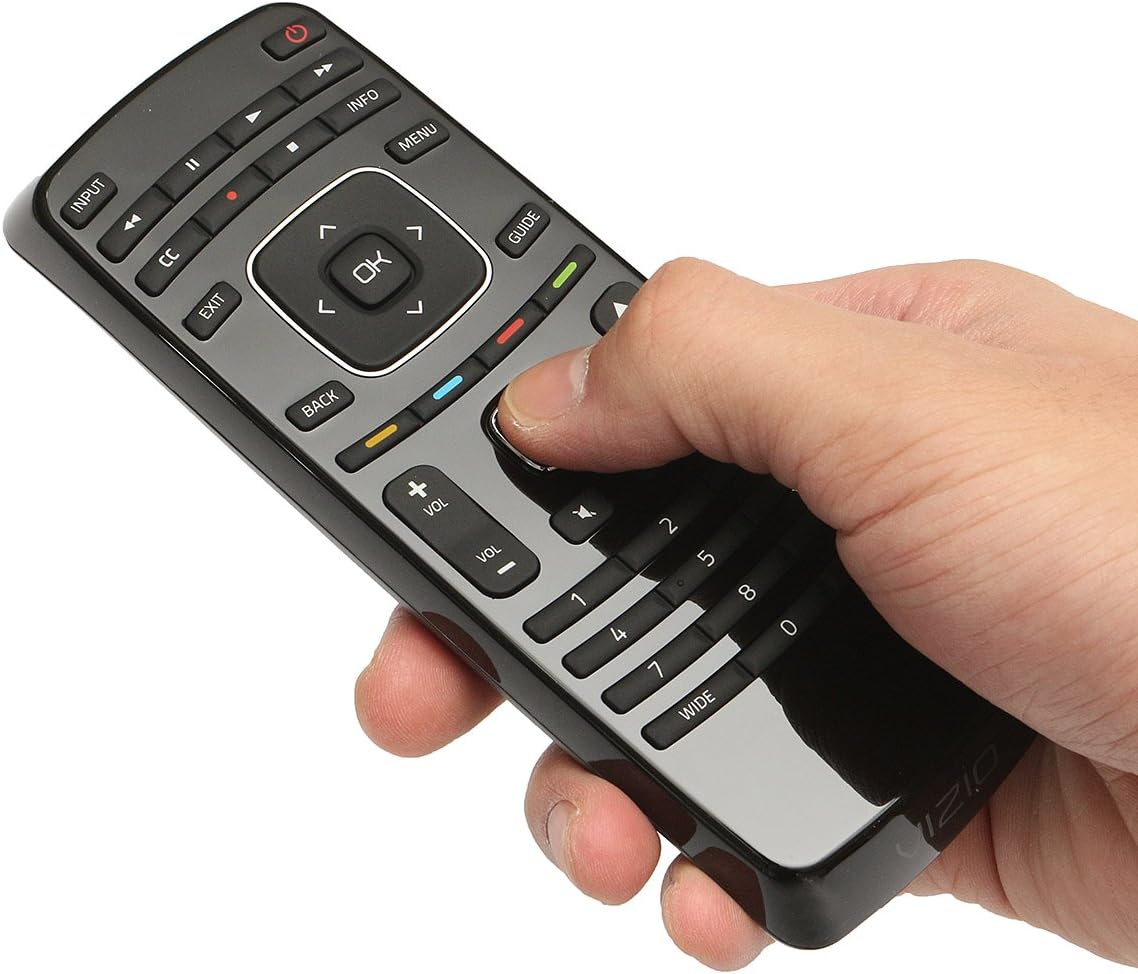
Image: The VIZIO XRT010 Remote Control, demonstrating its comfortable fit in hand and accessible button arrangement.
Setup
Battery Installation
The VIZIO XRT010 Remote Control requires two (2) AAA batteries for operation. These batteries are typically included with the remote. Follow these steps to install them:
- Locate the battery compartment cover on the back of the remote control.
- Press down on the tab and slide the cover downwards to open the compartment.
- Insert two AAA batteries, ensuring that the positive (+) and negative (-) ends align correctly with the markings inside the compartment. Incorrect insertion can prevent the remote from functioning.
- Slide the battery compartment cover back into place until it clicks securely.

Image: The VIZIO XRT010 Remote Control with its battery cover removed, illustrating the battery insertion process.
Once batteries are installed, the remote is ready for immediate use with compatible VIZIO televisions; no programming or pairing is typically required.
Operating Instructions
The VIZIO XRT010 Remote Control provides intuitive access to your television's primary functions. Below is a guide to its main buttons and their uses:

Image: A clear overhead view of the VIZIO XRT010 Remote Control, highlighting the layout of its functional buttons.
- Power Button (P): Turns the television on or off.
- Input: Cycles through available video input sources (e.g., HDMI 1, AV, Component).
- CC (Closed Caption): Toggles closed captions on or off.
- Exit: Closes on-screen menus or returns to the previous screen.
- Back: Navigates back within menus or previous channel.
- Menu: Opens the television's main settings menu.
- Info: Displays information about the current program or input.
- Guide: Accesses the electronic program guide (if supported by your TV/service).
- Navigation Pad (Up, Down, Left, Right, OK): Used to navigate through menus and select options. The OK button confirms selections.
- Volume Up/Down (VOL +/-): Adjusts the audio volume.
- Mute: Silences the television audio.
- Channel Up/Down (CH +/-): Changes the television channel.
- Number Pad (0-9): Directly enters channel numbers.
- Wide: Adjusts the screen aspect ratio (e.g., Normal, Zoom, Wide).
Maintenance
To ensure the longevity and optimal performance of your VIZIO XRT010 Remote Control, follow these simple maintenance guidelines:
- Cleaning: Use a soft, dry cloth to wipe the remote's surface. For stubborn dirt, slightly dampen the cloth with water or a mild, non-abrasive cleaner. Avoid using harsh chemicals or abrasive materials, as they can damage the remote's finish or buttons.
- Battery Replacement: Replace batteries when the remote's responsiveness decreases or it stops functioning. Always replace both batteries at the same time with new ones of the same type (AAA).
- Storage: Store the remote in a cool, dry place away from direct sunlight, extreme temperatures, and excessive humidity. If the remote will not be used for an extended period, remove the batteries to prevent leakage and potential damage.
- Avoid Drops: Protect the remote from physical impact. Dropping the remote can damage internal components or cause buttons to malfunction.
Troubleshooting
If you encounter issues with your VIZIO XRT010 Remote Control, try the following troubleshooting steps:
- Remote Not Responding:
- Check the batteries. Ensure they are inserted correctly with the correct polarity (+/-).
- Replace old batteries with fresh AAA batteries.
- Ensure there is a clear line of sight between the remote and the television's infrared (IR) sensor. Obstructions can block the signal.
- Buttons Not Working:
- If only specific buttons are not working, try cleaning around the buttons with a cotton swab lightly dampened with rubbing alcohol to remove any debris.
- Ensure the remote is pointed directly at the TV.
- Limited Range:
- Replace the batteries, as low battery power can reduce the remote's effective range.
- Ensure no strong light sources (like direct sunlight or bright fluorescent lights) are interfering with the IR signal.
- Remote Still Not Working:
- Perform a soft reset by removing the batteries, pressing each button on the remote a few times to discharge any residual power, and then reinserting the batteries.
- Verify that your television model is listed as compatible with the VIZIO XRT010 remote.
Specifications
Key technical specifications for the VIZIO XRT010 Remote Control:
| Model Number | XRT100 |
| Product Dimensions | 8 x 2 x 0.5 inches (approximately) |
| Item Weight | 2.4 ounces (approximately) |
| Batteries Required | 2 x AAA (included) |
| Color | Black |
| Max Number of Supported Devices | 1 (Television) |
| Compatible Devices | VIZIO Televisions (specific models listed in Introduction) |
| Manufacturer | Vizio |
Warranty and Support
For information regarding product warranty, please refer to the documentation provided with your VIZIO television or visit the official VIZIO support website. VIZIO provides customer support for their products, including replacement parts and troubleshooting assistance.
If you require further assistance or have questions not covered in this manual, please contact VIZIO Customer Service through their official website or support channels. Have your product model number (XRT100) and television model number ready when contacting support.
For the most up-to-date support information, please visit: www.vizio.com/support