
Introduction
This manual provides comprehensive instructions for setting up, operating, and maintaining your Linksys AC1750 Wi-Fi Wireless Dual-Band+ Router, model EA6500. This device is designed to optimize your network access from anywhere, offering high-speed wireless connectivity for various applications including HD video streaming, file transfers, and online gaming.
The EA6500 features dual-band N (2.4 GHz and 5 GHz) technology to minimize interference and maximize throughput, along with high-power amplifiers for extended range and coverage. It also includes USB ports for sharing printers and storage, and supports Simple Tap technology for easy device integration.
Package Contents
Before you begin, ensure all items are present in the package:
- Linksys AC1750 Wi-Fi Wireless Dual-Band+ Router (EA6500)
- Software CD with User Documents
- Ethernet Cable
- Power Adapter
- Simple Tap Card
Setup Guide
Follow these steps to set up your Linksys EA6500 router for the first time.
1. Connect Your Router
- Position the Router: Place the router in a central location to ensure optimal Wi-Fi coverage throughout your home or office. Avoid placing it near large metal objects, concrete walls, or other electronic devices that may cause interference.
- Connect to Modem:
a. Disconnect the power from your modem.
b. Connect one end of the provided Ethernet cable to the yellow Internet port on the back of your Linksys EA6500 router.
c. Connect the other end of the Ethernet cable to the Ethernet port on your modem.
- Power On Devices:
a. Reconnect the power to your modem and wait for it to fully boot up (usually indicated by stable indicator lights).
b. Connect the power adapter to the router's power port and plug the other end into a wall outlet. Wait for the router's power indicator light to become solid.
- Connect a Computer (Optional, for initial setup): For the easiest initial setup, connect a computer directly to one of the blue Ethernet (LAN) ports on the router using another Ethernet cable. Alternatively, you can connect wirelessly using the default Wi-Fi name (SSID) and password found on the Simple Tap Card or on the bottom of the router.
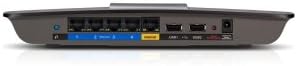
Image: Rear view of the Linksys EA6500 router, highlighting the yellow Internet port, blue LAN ports, USB ports, and power input.
2. Initial Configuration
- Access Setup Page: Open a web browser on the connected computer. The router should automatically redirect you to the Linksys Smart Wi-Fi setup page. If not, type
myrouter.localor192.168.1.1into the browser's address bar and press Enter. - Follow On-Screen Instructions: The setup wizard will guide you through configuring your Internet connection, setting up your Wi-Fi network name (SSID), and creating a secure password. It is highly recommended to change the default Wi-Fi name and password for security.
- Create Linksys Smart Wi-Fi Account: You will be prompted to create a Linksys Smart Wi-Fi account. This account allows you to manage your router settings from anywhere using the Smart Wi-Fi app or a web browser.
Operating Your Router
Understand the key features and how to utilize your Linksys EA6500 router effectively.
Dual-Band Wireless Technology
The EA6500 operates on two distinct Wi-Fi bands: 2.4 GHz and 5 GHz. This dual-band capability allows for optimized network performance.
- 2.4 GHz Band: Provides wider coverage and better penetration through walls, suitable for general internet browsing, email, and devices that are further from the router.
- 5 GHz Band: Offers faster speeds and less interference, ideal for high-bandwidth activities such as HD video streaming, online gaming, and large file transfers. Devices closer to the router will benefit most from this band.
Linksys Smart Wi-Fi App
The Linksys Smart Wi-Fi App allows you to manage and monitor your home network from your smartphone or tablet, anywhere with an internet connection.
- Guest Access: Create a separate, secure Wi-Fi network for guests.
- Parental Controls: Restrict access to certain websites or block internet access during specific times for connected devices.
- Device Prioritization (QoS): Prioritize bandwidth for specific devices or applications to ensure smooth performance for critical tasks like gaming or video calls.
- Network Map: View all connected devices on your network.
Download the Linksys Smart Wi-Fi App from your device's app store (Apple App Store or Google Play Store).
USB Ports for Storage and Printers
The router features two USB ports (one USB 3.0 and one USB 2.0) that allow you to connect external storage devices (like USB hard drives) or printers to your network. This enables all connected devices to access shared files or print wirelessly.
- Network Storage: Connect a USB storage device to share files across your network. Access these files from any computer or device connected to the router.
- Network Printer: Connect a USB printer to make it accessible to all computers on your network without needing a dedicated print server.
SimpleTap Technology
SimpleTap technology simplifies connecting NFC-enabled devices to your Wi-Fi network. By tapping your NFC-enabled device against the Simple Tap Card (included in the package) or the router itself, your device can automatically connect to your Wi-Fi network without manually entering the password.
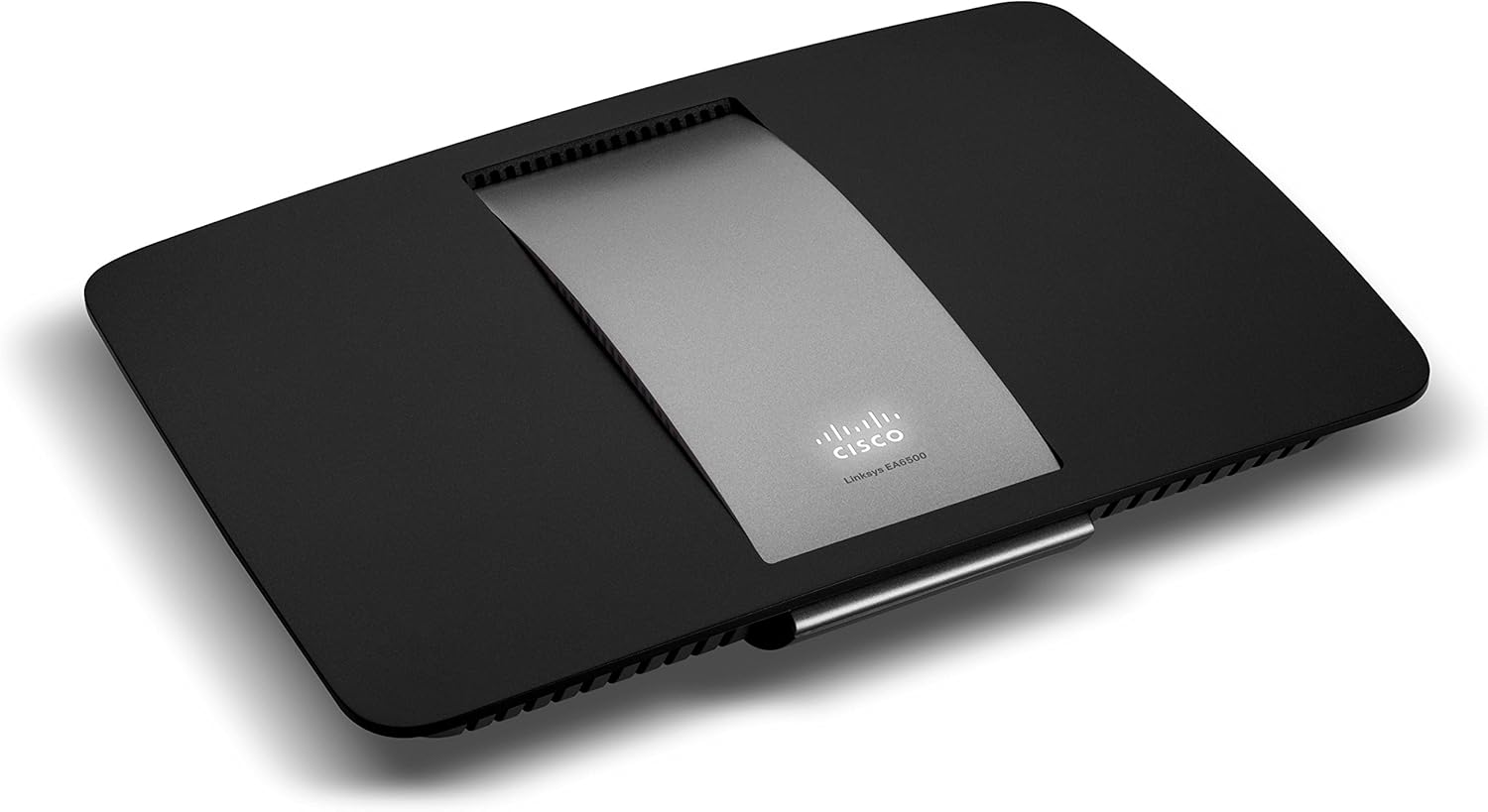
Image: Top view of the Linksys EA6500 router, showcasing its sleek design and central branding.
Maintenance
Regular maintenance ensures optimal performance and security for your router.
- Firmware Updates: Periodically check for and install firmware updates. Firmware updates often include security patches, bug fixes, and performance enhancements. You can usually find these updates through the Linksys Smart Wi-Fi interface or the Linksys support website.
- Router Placement: Ensure the router remains in an open, central location, away from obstructions and other electronic devices that could cause interference.
- Cleaning: Keep the router clean and free of dust. Use a soft, dry cloth to wipe the exterior. Do not use liquid cleaners.
- Restarting: If you experience network slowdowns or connectivity issues, try restarting your router by unplugging its power adapter for 10-15 seconds and then plugging it back in.
- Security: Regularly review your Wi-Fi password and router administration password. Use strong, unique passwords.
Troubleshooting
This section addresses common issues you might encounter with your Linksys EA6500 router.
No Internet Connection
- Check Cables: Ensure all Ethernet cables are securely connected to the correct ports on both the router and the modem.
- Power Cycle: Power cycle your modem first, then your router. Unplug both devices from power for 30 seconds, then plug the modem back in and wait for it to fully boot. After the modem is ready, plug in the router.
- Modem Status: Check the indicator lights on your modem to ensure it has an active internet connection.
- ISP Issue: If the modem lights indicate no connection, contact your Internet Service Provider (ISP).
Slow Wi-Fi Speed or Intermittent Connection
- Router Placement: Move the router to a more central location, away from obstacles and interference sources (cordless phones, microwaves, Bluetooth devices).
- Channel Interference: Log into your router's settings (
myrouter.local) and try changing the Wi-Fi channel for both 2.4 GHz and 5 GHz bands. Use a Wi-Fi analyzer app to find less congested channels. - Dual-Band Usage: Connect devices that require high bandwidth (streaming, gaming) to the 5 GHz band, and other devices to the 2.4 GHz band.
- Firmware: Ensure your router's firmware is up to date.
- Too Many Devices: If many devices are connected and actively using the network, consider prioritizing critical devices using the Quality of Service (QoS) feature in the Smart Wi-Fi settings.
Cannot Access Router Setup Page
- Correct Address: Ensure you are typing
myrouter.localor192.168.1.1correctly into the browser's address bar. - Wired Connection: Try connecting your computer directly to one of the router's LAN ports with an Ethernet cable.
- Firewall/Antivirus: Temporarily disable any firewall or antivirus software on your computer that might be blocking access.
- Reset Router: As a last resort, perform a factory reset. Locate the reset button (often a small pinhole) on the router, press and hold it for 10-15 seconds with a paperclip until the power light flashes. Note: A factory reset will erase all your custom settings, and you will need to reconfigure the router from scratch.
Specifications
| Feature | Detail |
|---|---|
| Model Name | EA6500 |
| Wireless Type | 802.11ac |
| Frequency Band Class | Dual-Band (2.4 GHz & 5 GHz) |
| Wireless Speed | Up to N450 Mbps (2.4 GHz) + AC1300 Mbps (5 GHz) |
| Ethernet Ports | 1x Gigabit WAN, 4x Gigabit LAN |
| USB Ports | 1x USB 3.0, 1x USB 2.0 |
| Security Features | WPA2 encryption, Integrated Firewall |
| Dimensions (LxWxH) | 2.56 x 12.63 x 9.38 inches |
| Item Weight | 2.15 pounds |
| Operating System Compatibility | Windows 7, Mac OS (and newer versions) |
| Special Features | WPS, SimpleTap Technology, Beamforming |
Warranty and Support
Linksys products typically come with a limited warranty. For specific warranty terms and conditions, please refer to the warranty card included with your product or visit the official Linksys website.
For technical support, frequently asked questions, and additional resources, please visit the Linksys support portal:
You can also find community forums and contact information for customer service on their website.