1. Introduction
The Wacom Cintiq 22HD (model DTK2200) is a 21.5-inch HD pen display tablet designed for creative professionals. It combines a wide-format LCD with advanced pen input capabilities, allowing users to work directly on the screen surface. This manual provides essential information for setting up, operating, maintaining, and troubleshooting your device to ensure optimal performance and longevity.
Key features include a 22-inch HD display with wide viewing angles, Wacom's pressure and tilt-sensitive pen technology for natural drawing, and customizable ExpressKeys for efficient workflow.
2. Safety Information
Please read and follow these safety guidelines to prevent damage to the device or personal injury:
- Do not expose the device to water or excessive moisture.
- Avoid placing the device in direct sunlight or near heat sources.
- Use only the power adapter supplied with the device.
- Keep the device away from strong magnetic fields.
- Do not attempt to disassemble or repair the device yourself. Refer to qualified service personnel.
- Ensure proper ventilation around the device during operation.
3. Package Contents
Verify that all items are present in the package:
- Wacom Cintiq 22HD Pen Display
- Pro Pen
- Pen Stand
- Power Adapter and Cable
- Video Cable (DVI-I to DVI-D, DVI-I to VGA)
- USB Cable
- Installation CD (drivers and manual)
- Quick Start Guide
4. Setup
4.1 Physical Connection
- Place the Cintiq 22HD on a stable surface. Adjust the stand to your preferred working angle (rotation up to 180° right/left, incline 10°-65°).
- Connect the USB cable from the Cintiq to an available USB port on your computer.
- Connect the appropriate video cable (DVI-D or VGA) from the Cintiq to your computer's video output. If your computer uses HDMI or DisplayPort, an adapter may be required (not included).
- Connect the power adapter to the Cintiq and then plug it into a power outlet.
- Power on the Cintiq using the power button.

Figure 4.1: Wacom Cintiq 22HD Pen Display Tablet with its components.
4.2 Driver Installation
For full functionality, install the latest Wacom drivers:
- Visit the official Wacom support website.
- Navigate to the drivers section and download the latest driver for your operating system (Windows or macOS) and Cintiq 22HD model.
- Follow the on-screen instructions to complete the installation. Restart your computer if prompted.
4.3 Display and Pen Calibration
After driver installation, calibrate your display and pen for accurate input:
- Open the Wacom Tablet Properties from your system settings or applications folder.
- Select the 'Display Toggle' tab to configure multiple monitors if applicable.
- Go to the 'Calibration' tab and follow the instructions to align the pen tip with the cursor on the screen.
- Adjust display settings (brightness, contrast, color) using the Cintiq's on-screen display (OSD) menu, accessed via the physical buttons on the device.
5. Operating the Cintiq 22HD
5.1 Pen Usage
The Wacom Pro Pen offers advanced pressure and tilt sensitivity, replicating traditional art tools. Hold the pen naturally and apply varying pressure for different line weights and effects. The pen features customizable side switches for functions like right-click or undo.
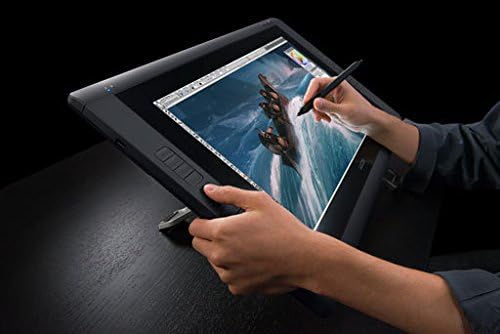
Figure 5.1: A user drawing directly on the Cintiq 22HD screen.
5.2 ExpressKeys and Touch Rings
The Cintiq 22HD features customizable ExpressKeys and Touch Rings located on both sides of the display. These provide quick access to frequently used functions, modifiers, and navigation controls.
- ExpressKeys: These buttons can be programmed for specific keyboard shortcuts, mouse clicks, or application-specific functions.
- Touch Rings: The Touch Rings allow for intuitive control over functions like zooming, scrolling, or brush size adjustment.
Customize these settings via the Wacom Tablet Properties to optimize your workflow for different applications.

Figure 5.2: Overhead view demonstrating the use of the Cintiq 22HD, highlighting the ExpressKeys on the side.
5.3 Display Adjustments
The integrated stand allows for significant adjustment to suit various working postures. You can rotate the display up to 180 degrees to the right or left and incline it from 10 to 65 degrees. Use the physical buttons on the display to access the On-Screen Display (OSD) menu for adjusting brightness, contrast, color temperature, and other display parameters.
6. Maintenance
6.1 Cleaning
To maintain optimal performance and appearance:
- Screen: Use a soft, lint-free cloth slightly dampened with water or a screen cleaner specifically designed for LCD displays. Do not use harsh chemicals or abrasive materials.
- Casing: Wipe the casing with a soft, dry cloth.
- Pen: Gently wipe the pen with a dry cloth. Avoid getting moisture into the pen's internal components.
6.2 Storage
When not in use, store the Cintiq in a clean, dry environment. If transporting, ensure it is securely packed to prevent damage to the screen or internal components.
7. Troubleshooting
If you encounter issues with your Cintiq 22HD, try the following steps:
- No Display: Check all video cable connections. Ensure the Cintiq is powered on and your computer's display settings are configured to detect an external monitor.
- Pen Not Responding: Verify the USB cable is securely connected. Reinstall the Wacom drivers. Check the pen nib for wear and replace if necessary.
- Inaccurate Pen Tracking: Recalibrate the pen in the Wacom Tablet Properties. Ensure there are no strong electromagnetic sources nearby.
- ExpressKeys Not Working: Check the Wacom Tablet Properties to ensure ExpressKeys are enabled and correctly assigned.
- Driver Issues: Uninstall existing Wacom drivers, restart your computer, and then install the latest drivers from the official Wacom website.
For further assistance, refer to the official Wacom support resources.
8. Specifications
| Feature | Specification |
|---|---|
| Model Number | DTK2200 |
| Screen Size | 21.5 Inches |
| Screen Resolution | 1920x1080 (Full HD) |
| Pressure Sensitivity | 8192 Levels |
| Connectivity Technology | USB |
| Operating System Compatibility | Windows, macOS |
| Item Weight | 18.7 pounds |
| Product Dimensions (LxWxH) | 25.5 x 2.2 x 15.7 inches |
| Color | Black |
| Power Source | AC (12 Volts) |
9. Warranty and Support
Wacom products are covered by a limited warranty. For detailed warranty information, product registration, technical support, and driver downloads, please visit the official Wacom website. You can also find additional resources and FAQs there.
For the most current user guide in PDF format, please refer to the official Wacom documentation available online.
Wacom Official Website: www.wacom.com


