Introduction
This manual provides comprehensive instructions for the setup, operation, maintenance, and troubleshooting of your ASUS TF700T-B1-CG 10.1-Inch Tablet. Please read this manual thoroughly to ensure proper use and to maximize the performance and longevity of your device.
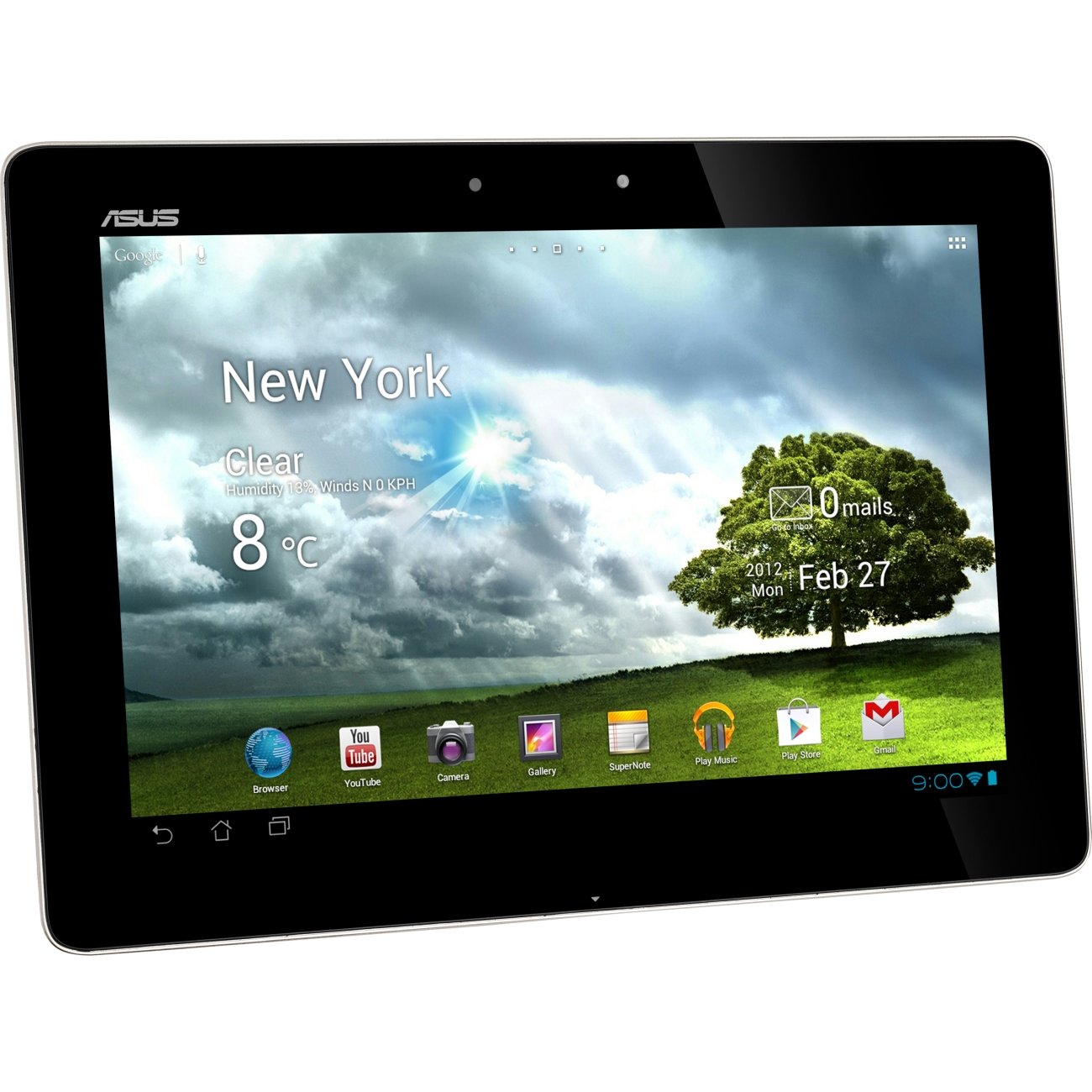
The image displays the ASUS TF700T-B1-CG 10.1-Inch Tablet in Champagne color. The screen is active, showing a home screen with a weather widget indicating 'New York, Clear, 8°C' and various application icons including Browser, YouTube, Camera, Gallery, SuperNote, Play Music, Play Store, and Gmail. The tablet features a sleek design with a black bezel and the ASUS logo visible at the top left.
Initial Setup
Charging the Device
Before first use, fully charge your tablet. Use the provided power adapter and USB cable.
- Connect the small end of the USB cable to the tablet's charging port.
- Connect the larger end of the USB cable to the power adapter.
- Plug the power adapter into a wall outlet.
- The charging indicator will illuminate. Allow several hours for a full charge.
Powering On/Off
- To Power On: Press and hold the Power button located on the side of the tablet until the ASUS logo appears.
- To Power Off: Press and hold the Power button until a menu appears. Select 'Power off' and confirm.
- To Restart: From the power menu, select 'Restart'.
First-Time Use and Basic Configuration
Upon first power-on, the tablet will guide you through initial setup steps.
- Select your preferred language.
- Connect to a Wi-Fi network to enable internet access and download updates.
- Sign in with your Google account or create a new one. This is essential for accessing the Google Play Store and other Google services.
- Review and accept the terms and conditions.
- Set up date, time, and location services.
Operating Your Tablet
Navigation and User Interface
The ASUS TF700T-B1-CG features a capacitive touchscreen for intuitive navigation.
- Tap: Lightly touch the screen to select an item or open an application.
- Touch and Hold: Press and hold an item to access context-sensitive menus or move icons.
- Swipe: Drag your finger across the screen to scroll through pages or lists.
- Pinch-to-Zoom: Place two fingers on the screen and move them apart to zoom in, or together to zoom out.
Connecting to Wi-Fi
- Go to 'Settings' > 'Wi-Fi'.
- Toggle the Wi-Fi switch to 'On'.
- Select your desired network from the list.
- If prompted, enter the network password and tap 'Connect'.
Using Applications
Applications can be launched from the home screen or the app drawer. The Google Play Store allows you to download and install new applications.
- To open an app, tap its icon.
- To switch between open apps, tap the 'Recent Apps' button (usually a square icon).
- To close an app, swipe it away from the 'Recent Apps' screen or force stop it via 'Settings' > 'Apps'.
Camera Functionality
Your tablet is equipped with both front (2MP) and rear (8MP) cameras. The Camera application allows you to capture photos and videos.
- Open the 'Camera' app from the home screen or app drawer.
- Tap the camera icon to switch between front and rear cameras.
- Tap the shutter button to take a photo or start/stop video recording.
- Access captured media in the 'Gallery' app.
Maintenance and Care
Cleaning the Tablet
To maintain the tablet's appearance and functionality, follow these cleaning guidelines:
- Power off the tablet before cleaning.
- Use a soft, lint-free cloth, slightly dampened with water or a screen cleaner solution.
- Wipe the screen gently to remove smudges and dust.
- Avoid using harsh chemicals, abrasive cleaners, or aerosol sprays directly on the tablet.
Battery Care
Proper battery care can extend the lifespan of your tablet's battery.
- Avoid exposing the tablet to extreme temperatures (hot or cold).
- Do not allow the battery to fully discharge frequently.
- If storing the tablet for an extended period, charge it to about 50% before turning it off.
- Use only the original or certified compatible chargers.
Troubleshooting
This section addresses common issues you might encounter with your ASUS TF700T-B1-CG Tablet.
| Issue | Possible Cause | Solution |
|---|---|---|
| Device does not power on | Low battery, software crash | Charge device for at least 30 minutes. Perform a forced restart by holding the power button for 10-15 seconds. |
| Wi-Fi connection issues | Incorrect password, router issues, signal interference | Verify Wi-Fi password. Restart router and tablet. Move closer to the Wi-Fi source. |
| Applications crashing or freezing | App conflict, low memory, outdated app | Close and reopen the app. Clear app cache/data. Update the app. Restart the tablet. |
| Screen is unresponsive | Software glitch, physical damage | Restart the tablet. If issue persists, perform a factory reset (note: this will erase all data). |
| Short battery life | High screen brightness, excessive background apps, constant Wi-Fi/GPS | Adjust screen brightness. Close unused apps. Disable Wi-Fi/GPS when not in use. Use power-saving mode. |
If problems persist after attempting these solutions, consider performing a factory reset (backup your data first) or contact customer support.
Technical Specifications
| Feature | Detail |
|---|---|
| Display Size | 10.1 Inches |
| Screen Resolution | 1920 x 1200 Pixels (WUXGA) |
| Processor | NVIDIA Tegra 3 (1.6 GHz) |
| RAM | 1 GB DDR3 |
| Storage | 32 GB Flash Memory |
| Graphics Coprocessor | NVIDIA GeForce |
| Wireless Connectivity | 802.11bgn, Bluetooth 3.0 |
| Average Battery Life | 9.5 Hours |
| Operating System | Android 4.1 Jelly Bean |
| Rear Camera | 8 MP |
| Front Camera | 2 MP |
| Weight | 1.32 pounds |
| Dimensions (LxWxH) | 0.35 x 0.33 x 7.12 inches |
| Ports | Micro HDMI Port, Micro SD Card Slot, Audio-out |
Warranty and Support
Your ASUS TF700T-B1-CG Tablet comes with a 1 Year North America Warranty. Please retain your proof of purchase for warranty claims.
For technical support, warranty service, or additional information, please visit the official ASUS support website or contact their customer service. Refer to the documentation included in your product packaging for specific contact details.
For more information, you may visit the ASUS Store on Amazon.


