
1. Introduction
The Cisco Small Business 16-Port Gigabit Switch SG100-16 is an unmanaged network switch designed to provide basic network connectivity and reliability for small business environments. This device offers wire-speed Gigabit Ethernet connectivity, enabling high-performance data transfer for various business applications, including bandwidth-intensive video services. It is designed for ease of use, requiring no software installation or configuration.
Key features include:
- Plug-and-Play Operation: No configuration required; ports automatically adjust for optimal speed and duplex mode.
- High Performance: Supports Gigabit Ethernet speeds for fast file transfers and smooth application performance.
- Flexible Deployment: Available in desktop and rack-mount models with wall-mount options for discreet placement.
- Quality of Service (QoS): Supports advanced features to prioritize network traffic.
2. Setup
This section outlines the steps for setting up your Cisco SG100-16 Gigabit Switch. The switch is designed for simple, plug-and-play installation.
2.1 Package Contents
Verify that your package contains the following items:
- Cisco SG100-16 Gigabit Switch
- Power Adapter/Cord
- Rack-mount brackets (if applicable)
- Rubber feet for desktop placement
- Documentation (Quick Start Guide)
2.2 Physical Placement
Choose a suitable location for the switch, considering:
- Ventilation: Ensure adequate airflow around the device to prevent overheating.
- Power Source: Proximity to a reliable power outlet.
- Cable Management: Easy access for network cables.
- Environment: Avoid areas with excessive dust, moisture, or extreme temperatures.
The switch can be placed on a desktop, mounted on a wall, or installed in a rack using the provided brackets.

Figure 1: Front view of the Cisco SG100-16 Gigabit Switch, showing 16 Ethernet ports and status indicators. Rack-mount ears are attached.
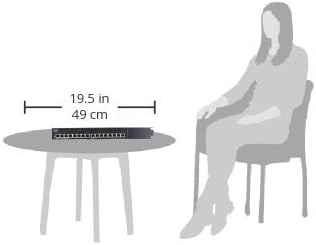
Figure 2: Illustrative diagram demonstrating the compact size of the Cisco SG100-16 switch, measuring approximately 19.5 inches (49 cm) in width, suitable for desktop placement.
2.3 Connecting the Switch
- Connect Power: Plug the power cord into the switch's power input and then into a grounded electrical outlet. The Power LED on the front panel should illuminate.
- Connect Network Devices: Connect your network devices (computers, printers, servers, routers, etc.) to any of the 16 Ethernet ports on the front panel using standard Ethernet cables. The Link/Act LED for each connected port will light up, indicating an active connection. It will blink to show network activity.
- Verify Connections: Ensure all connected devices are powered on and their network adapters are enabled. The switch will automatically detect the speed and duplex mode of each connected device.
3. Operation
The Cisco SG100-16 is an unmanaged switch, meaning it operates without requiring any user configuration. Once connected, it automatically facilitates network communication between connected devices.
3.1 Power On/Off
To power on the switch, connect it to a power source. There is no dedicated power button. To power off, disconnect the power cord.
3.2 LED Indicators
The front panel features LED indicators to provide status information:
- PWR (Power) LED:
- Solid Green: The switch is powered on and operating normally.
- Off: The switch is powered off or not receiving power.
- Link/Act (Link/Activity) LEDs (per port):
- Solid Green: A valid network link is established on the port.
- Blinking Green: Data is being transmitted or received through the port.
- Off: No device is connected, or the connected device is powered off/has no link.
3.3 Quality of Service (QoS)
The SG100-16 switch supports Quality of Service (QoS) to help prioritize network traffic. This feature automatically identifies and prioritizes delay-sensitive traffic, such as voice and video, to ensure smooth performance even during periods of high network utilization. No user configuration is required for this function.
4. Maintenance
The Cisco SG100-16 switch is designed for reliable, low-maintenance operation. Regular maintenance is minimal.
- Cleaning: Periodically clean the exterior of the switch with a soft, dry cloth. Do not use liquid or aerosol cleaners. Ensure ventilation openings are free from dust accumulation.
- Firmware Updates: As an unmanaged switch, firmware updates are typically not user-installable or required. If a critical update is released by Cisco, consult the official Cisco support website for instructions.
- Environmental Conditions: Ensure the switch remains within its specified operating temperature and humidity ranges to prolong its lifespan.
5. Troubleshooting
This section provides solutions to common issues you might encounter with your SG100-16 switch.
5.1 No Power
- Symptom: The PWR LED is off.
- Solution:
- Ensure the power cord is securely connected to the switch and a working electrical outlet.
- Verify the power outlet is functional by plugging in another device.
5.2 No Link Light on a Port
- Symptom: The Link/Act LED for a connected device is off.
- Solution:
- Ensure the Ethernet cable is securely plugged into both the switch port and the device.
- Try a different Ethernet cable to rule out a faulty cable.
- Verify the connected device is powered on and its network adapter is enabled.
- Try connecting the device to a different port on the switch.
- Restart the connected device.
5.3 Slow Network Performance
- Symptom: Data transfer speeds are slower than expected.
- Solution:
- Ensure all connected devices and cables support Gigabit Ethernet (Cat5e or Cat6 cables are recommended for Gigabit speeds).
- Check for excessive network traffic or bandwidth-intensive applications running on connected devices.
- Verify that the Link/Act LEDs are solid green (indicating a Gigabit connection) rather than amber (which might indicate a 10/100 Mbps connection on some switches, though this model uses green for both link speeds).
- Isolate the issue by testing performance with fewer devices connected.
5.4 Intermittent Connectivity
- Symptom: Network connection drops sporadically.
- Solution:
- Check all cable connections for looseness or damage.
- Ensure the switch is placed in a well-ventilated area to prevent overheating.
- Test with different cables and devices to pinpoint the source of the intermittency.
- Consider potential sources of electromagnetic interference (EMI) near the switch or cables.
6. Specifications
The following table lists the technical specifications for the Cisco SG100-16 Gigabit Switch:
| Feature | Detail |
|---|---|
| Model Number | SG100-16-NA |
| Number of Ports | 16 Gigabit Ethernet |
| Data Transfer Rate | 1000 Megabits Per Second (Mbps) |
| Interface Type | Ethernet |
| Dimensions (LxWxH) | 11" x 6.7" x 1.75" (279.4 x 170 x 44.5 mm) |
| Item Weight | 3.15 lbs (1.43 kg) |
| Voltage | 240 Volts (AC input, specific range depends on power adapter) |
| Operating System Compatibility | Linux, Mac OS, Windows (OS independent) |
| Color | Silver/Black |
| Manufacturer | Cisco |
7. Warranty and Support
For detailed warranty information, please refer to the warranty card included with your product or visit the official Cisco website. Cisco provides various support resources for its products.
7.1 Technical Support
If you encounter issues that cannot be resolved using the troubleshooting steps in this manual, please contact Cisco Technical Support. Have your product model number (SG100-16-NA) and serial number ready when contacting support.
You can find support resources, including FAQs, documentation, and contact information, on the official Cisco website:
- Cisco Support Website: www.cisco.com/go/support
- Cisco Small Business Community: community.cisco.com
Please note that warranty terms and support availability may vary by region and product. Always refer to the most current information provided by Cisco.


