
1. Introduction
Thank you for choosing the HKC 1818 LED Monitor. This manual provides essential information for the safe and efficient use of your new display. Please read this manual thoroughly before operating the monitor and keep it for future reference.
2. Safety Information
To ensure safe operation and prevent damage, please observe the following safety precautions:
- Do not expose the monitor to rain or moisture to avoid fire or electric shock.
- Do not open the monitor casing. There are no user-serviceable parts inside. Refer all servicing to qualified service personnel.
- Place the monitor on a stable, flat surface to prevent it from falling.
- Ensure proper ventilation. Do not block ventilation openings.
- Use only the power adapter supplied with the monitor.
- Unplug the monitor from the power outlet during lightning storms or when unused for long periods.
3. Package Contents
Please check the contents of your package. If any items are missing or damaged, contact your retailer.
- HKC 1818 LED Monitor
- Monitor Stand (Base and Neck)
- Power Adapter
- VGA Cable
- User Manual (this document)
4. Setup
4.1 Assembling the Stand
- Carefully remove the monitor from its packaging and place it face down on a soft, clean surface to prevent scratches.
- Attach the stand neck to the back of the monitor, aligning the mounting holes. Secure with screws if provided.
- Attach the stand base to the bottom of the stand neck. Tighten the thumb screw or regular screw at the bottom of the base.
- Gently lift the monitor and place it upright on a stable desk.
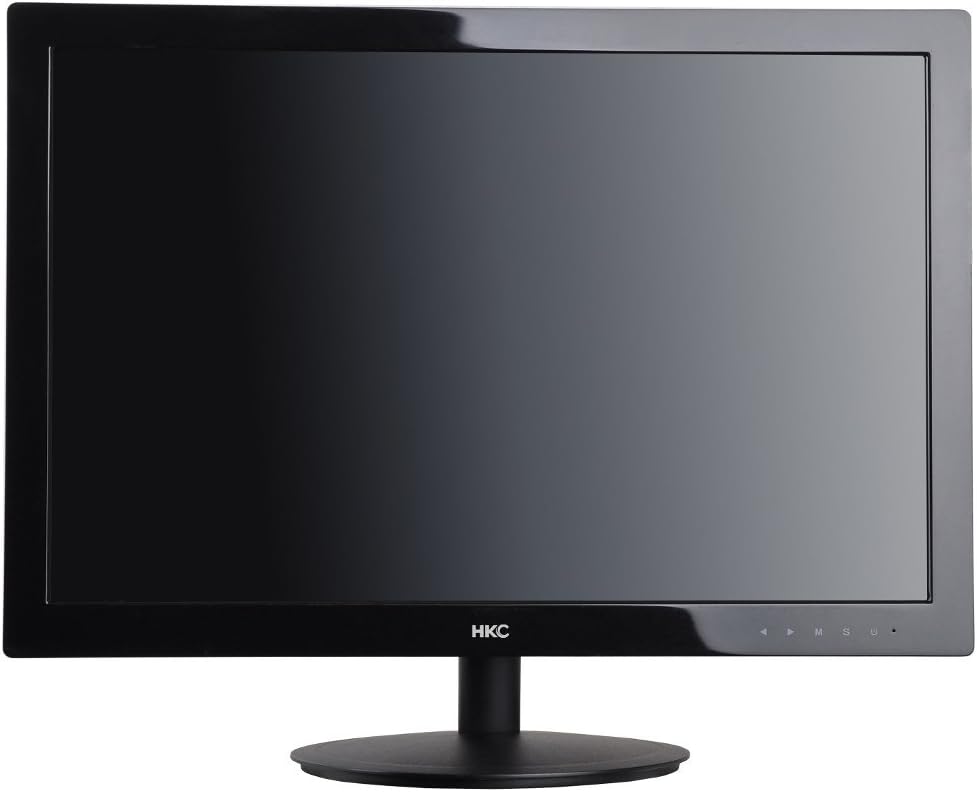
Figure 1: Front view of the HKC 1818 LED Monitor with its stand assembled, ready for connection.
4.2 Connecting the Monitor
- Connect the Video Cable: Locate the VGA port on the back of the monitor. Connect one end of the supplied VGA cable to this port and the other end to the VGA output port on your computer. Secure the connection by tightening the screws on the VGA connector.
- Connect the Power Cable: Plug the power adapter into the monitor's power input jack. Then, plug the other end of the power adapter into a wall outlet.

Figure 2: Angled view of the HKC 1818 LED Monitor, highlighting the rear panel where cables are connected.
4.3 Initial Power On
Press the power button located on the front or bottom right of the monitor. The power indicator light should illuminate, and the monitor will display an image if connected to an active video source.
5. Operating the Monitor
5.1 Control Buttons
The control buttons are typically located on the bottom right bezel of the monitor. They allow you to navigate the On-Screen Display (OSD) menu and adjust settings.
- Power Button: Turns the monitor on or off.
- Menu (M) Button: Opens the OSD menu or enters a sub-menu.
- Up/Down (▲/▼) Buttons: Navigate through menu options or adjust values.
- Select (S) Button: Confirms a selection or exits a sub-menu.
- Auto/Exit (U) Button: Performs auto-adjustment or exits the OSD menu.
5.2 OSD Menu Navigation
- Press the Menu (M) button to open the OSD menu.
- Use the Up/Down (▲/▼) buttons to navigate through the main menu categories (e.g., Picture, Color, OSD, Setup).
- Press the Select (S) button to enter a selected category.
- Use the Up/Down (▲/▼) buttons to adjust values or select sub-options.
- Press the Select (S) button to confirm changes or the Auto/Exit (U) button to go back or exit.
- Press the Auto/Exit (U) button repeatedly to exit the OSD menu.
5.3 Common OSD Settings
- Brightness: Adjusts the overall luminance of the screen.
- Contrast: Adjusts the difference between light and dark areas.
- Color Temperature: Changes the color balance (e.g., Warm, Cool, User).
- Input Select: Manually selects the video input source (e.g., VGA).
- Auto Adjust: Optimizes the image automatically for analog (VGA) input.
6. Maintenance
6.1 Cleaning the Monitor
- Always unplug the monitor from the power outlet before cleaning.
- Use a soft, lint-free cloth slightly dampened with water or a non-abrasive screen cleaner to wipe the screen. Do not spray cleaner directly onto the screen.
- For the casing, use a soft, dry cloth. Avoid using strong detergents or abrasive cleaners.
6.2 Storage
If you plan to store the monitor for an extended period, unplug it, disconnect all cables, and store it in a cool, dry place, preferably in its original packaging to protect it from dust and physical damage.
7. Troubleshooting
If you encounter problems with your monitor, please refer to the following common issues and solutions:
| Problem | Possible Cause | Solution |
|---|---|---|
| No Power | Power cable not connected; Power outlet not working. | Ensure power cable is securely connected to monitor and outlet. Test outlet with another device. |
| No Signal | Video cable not connected; Incorrect input source selected; Computer not on. | Check video cable connection. Select correct input source via OSD. Ensure computer is powered on and not in sleep mode. |
| Image is blurry or distorted | Incorrect resolution; Auto-adjust needed (VGA); Loose video cable. | Set computer resolution to monitor's native resolution (1366x768 for 18.5"). Use OSD Auto Adjust function. Check video cable connection. |
| Screen is too dark/bright | Brightness/Contrast settings are incorrect. | Adjust Brightness and Contrast settings in the OSD menu. |
If the problem persists after trying these solutions, please contact customer support.
8. Specifications
| Feature | Specification |
|---|---|
| Brand | HKC |
| Model Number | 1818 |
| Screen Size | 18.5 Inches |
| Display Type | LED |
| Aspect Ratio | 16:9 |
| Response Time | 2 Milliseconds |
| Refresh Rate | 60 Hz |
| Connectivity Technology | VGA |
| Screen Surface Description | Glossy |
| Product Weight | 2.8 Kilograms |
| Package Dimensions | 50 x 38.5 x 12 cm |
9. Warranty and Support
9.1 Warranty Information
This HKC monitor comes with a standard manufacturer's warranty. Please refer to the warranty card included in your package or contact your retailer for specific warranty terms and conditions. Keep your purchase receipt as proof of purchase for warranty claims.
9.2 Customer Support
For technical assistance, troubleshooting beyond this manual, or warranty inquiries, please contact HKC customer support or your local retailer. Contact information can typically be found on the manufacturer's official website or on the product packaging.


