1. Introduction
This manual provides detailed instructions for the setup, operation, and maintenance of your INLAND 71102 Bluetooth Keyboard. This wireless keyboard is designed for use with Bluetooth-enabled devices, including iPads, PCs, notebooks, and iPhones, offering a wireless range of up to 33 feet (10 meters).
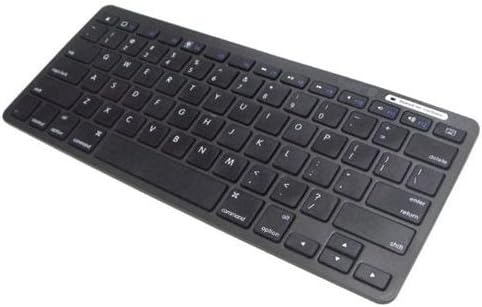
Image: The INLAND 71102 Bluetooth Keyboard. This image displays the full QWERTY keyboard layout, including dedicated function keys and media control buttons, in a sleek black finish.
Key Features:
- Compatible with iPad, PC, Notebook, and iPhone.
- Wireless Bluetooth connectivity.
- Up to 33 feet (10 meters) wireless operating range.
2. Package Contents
Please verify that all items are present in your package:
- INLAND Bluetooth Keyboard (Model 71102)
- User Manual (this document)
3. Setup and Pairing
3.1. Powering On the Keyboard
Locate the power switch on the keyboard. Slide the switch to the "ON" position. An indicator light may illuminate briefly, signifying that the keyboard is powered on and ready for pairing.
3.2. Bluetooth Pairing Instructions
Follow these steps to connect your INLAND 71102 Bluetooth Keyboard to your device:
- Enable Bluetooth on Your Device: On your iPad, PC, Notebook, or iPhone, navigate to the settings menu and ensure Bluetooth is turned on.
- Activate Pairing Mode on Keyboard: Press and hold the dedicated Bluetooth pairing button on the keyboard (refer to the keyboard layout for exact location, often indicated by a Bluetooth symbol or "Connect" button). The Bluetooth indicator light on the keyboard will typically start blinking, indicating it is in pairing mode.
- Search for Devices: On your device, initiate a search for new Bluetooth devices. The INLAND 71102 Keyboard should appear in the list of available devices, often named "INLAND Keyboard" or similar.
- Select and Connect: Tap or click on the keyboard's name in the list. Your device may prompt you to enter a pairing code displayed on your screen using the INLAND keyboard. Type the code and press Enter.
- Confirmation: Once successfully paired, the indicator light on the keyboard may stop blinking or turn solid, and your device will confirm the connection.
If pairing fails, ensure the keyboard is charged, within range, and not connected to another device. Repeat the steps if necessary.
4. Operating Instructions
4.1. General Usage
The INLAND 71102 Bluetooth Keyboard functions like a standard QWERTY keyboard. Simply type as you would on any other keyboard. Ensure your device's input language settings are configured correctly for optimal performance.
4.2. Special Function Keys
The keyboard includes several function keys (often accessed by pressing the Fn key in combination with other keys) and dedicated media control keys. These may include:
- Volume Controls: Keys for increasing, decreasing, or muting audio.
- Media Playback: Keys for play/pause, previous track, and next track.
- Screen Lock/Home: A key to return to the home screen or lock the device.
- Brightness Controls: Keys to adjust screen brightness (functionality may vary by device).
Refer to the icons printed on the keys for their specific functions. The exact behavior of these keys can depend on the operating system of your connected device (e.g., iOS, Android, Windows).
4.3. Delete Key Functionality
Please note that the key labeled "delete" on this keyboard functions as a Delete key, removing characters to the right of the cursor. It does not perform the Backspace function (removing characters to the left of the cursor) by default. Users requiring a Backspace function may need to adjust their device's settings or use third-party software to remap keys, depending on their operating system.
5. Maintenance
To ensure the longevity and optimal performance of your INLAND 71102 Bluetooth Keyboard, follow these maintenance guidelines:
- Cleaning: Use a soft, dry, lint-free cloth to clean the keyboard surface. For stubborn dirt, slightly dampen the cloth with water or a mild, non-abrasive cleaner. Avoid excessive moisture.
- Storage: When not in use for extended periods, store the keyboard in a cool, dry place away from direct sunlight and extreme temperatures.
- Battery Care: If the keyboard uses rechargeable batteries, ensure it is charged regularly. Avoid fully discharging the battery frequently to prolong its lifespan.
- Avoid Liquids: Do not expose the keyboard to liquids. In case of accidental spills, immediately power off the keyboard and allow it to dry completely before attempting to use it again.
6. Troubleshooting
If you encounter issues with your INLAND 71102 Bluetooth Keyboard, please refer to the following common solutions:
- Keyboard Not Connecting/Pairing:
- Ensure the keyboard is powered on and fully charged.
- Verify that Bluetooth is enabled on your device (iPad, PC, etc.).
- Make sure the keyboard is in pairing mode (indicator light blinking).
- Check if the keyboard is already paired with another device. Disconnect it from other devices if necessary.
- Move the keyboard closer to your device to ensure it is within the 33ft wireless range.
- Restart both the keyboard and your device, then attempt the pairing process again.
- Keys Not Responding:
- Check the keyboard's battery level.
- Ensure the keyboard is properly connected via Bluetooth.
- Clean any debris that might be lodged under the keys.
- Test the keyboard with a different Bluetooth-enabled device to rule out device-specific issues.
- Intermittent Connection:
- Reduce interference by moving away from other wireless devices (Wi-Fi routers, cordless phones).
- Ensure the keyboard is within optimal range of your device.
- Check for any physical obstructions between the keyboard and your device.
If these steps do not resolve the issue, please contact INLAND customer support for further assistance.
7. Specifications
| Feature | Specification |
|---|---|
| Brand | INLAND |
| Model Name | 71102 |
| Series | Inland 71102 iPad Mac Bluetooth Keyboard Black |
| Connectivity Technology | Bluetooth |
| Wireless Type | 2.4 GHz Radio Frequency |
| Compatible Devices | iPad, PC, Notebook, iPhone |
| Hardware Platform | Tablet |
| Operating System | Android (also compatible with iOS, Windows) |
| Color | Black |
| Item Weight | 4.8 ounces (approx. 136 grams) |
| Product Dimensions (LxWxH) | 9.09 x 0.79 x 5.11 inches (approx. 23.1 x 2.0 x 13.0 cm) |
| Included Components | Inland Bluetooth Keyboard |
8. Warranty and Support
INLAND products are designed for reliability and performance. For specific warranty information regarding your INLAND 71102 Bluetooth Keyboard, please refer to the warranty card included with your purchase or visit the official INLAND website. If you require technical support or have questions not covered in this manual, please contact INLAND customer service through their official channels.
For more information, you may visit the INLAND Store on Amazon.


