
Logitech 910-002864
Logitech G600 MMO Gaming Mouse User Manual
Model: 910-002864
1. Introduction
Welcome to the user manual for your Logitech G600 MMO Gaming Mouse. This guide will assist you in setting up, understanding the features, and maintaining your new gaming mouse. Designed specifically for Massively Multiplayer Online (MMO) games, the G600 offers extensive customization and comfort for prolonged gaming sessions.
2. Product Overview and Features
The Logitech G600 MMO Gaming Mouse is engineered for precision and control, featuring a robust set of programmable buttons and customizable lighting.
Key Features:
- 20 MMO Tuned Buttons: Includes a unique 12-button thumb panel designed for quick, no-look navigation and command execution.
- G-Shift Ring Finger Button: A dedicated button that instantly doubles the number of actions you can perform with every other button, providing unparalleled control.
- Built for Comfort: Its sculpted shape and tuned buttons are designed to reduce click fatigue during marathon multiplayer sessions.
- Total Personalization: Customize thumb panel lighting colors, DPI levels, and button assignments through the Logitech G HUB software.
- Low Friction PTFE Feet: Ensures smoother motions, precise cursor movements, and improved accuracy on nearly any surface.

Figure 2.1: Logitech G600 MMO Gaming Mouse, top view, showcasing its ergonomic design and central scroll wheel with G7 and G8 buttons.

Figure 2.2: Angled view of the Logitech G600 MMO Gaming Mouse, highlighting the 12 programmable thumb buttons on the side, designed for easy access during gameplay.
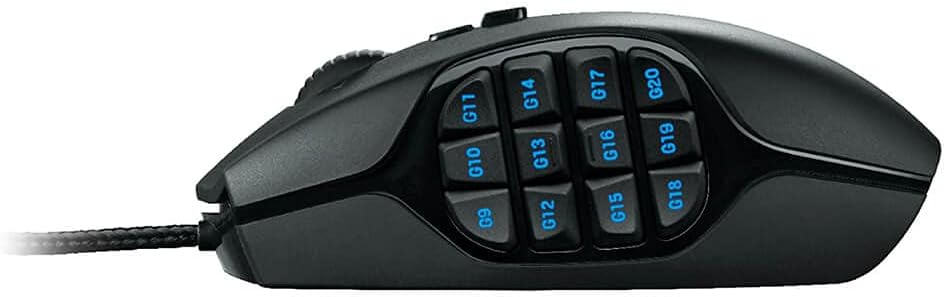
Figure 2.3: Side profile of the Logitech G600 MMO Gaming Mouse, clearly displaying the arrangement of the 12 G-keys on the thumb panel.
3. Setup
3.1 What's in the Box
- Logitech G600 MMO Gaming Mouse
- User documentation
3.2 Connecting Your Mouse
- Unpack the Logitech G600 mouse and its documentation.
- Locate an available USB port on your PC.
- Plug the USB connector of the G600 mouse into the USB port.
- Your operating system (Windows Vista, Windows 7, Windows 8, or later) will automatically detect and install basic drivers for the mouse.
3.3 Software Installation (Logitech G HUB)
To unlock the full customization potential of your G600 mouse, including programmable buttons, DPI settings, and RGB lighting, it is highly recommended to install the Logitech G HUB software.
- Open your web browser and navigate to the official Logitech G HUB download page.
- Download the latest version of the Logitech G HUB software compatible with your operating system.
- Run the downloaded installer and follow the on-screen instructions to complete the installation.
- Once installed, launch Logitech G HUB to begin customizing your G600 mouse.
4. Operating the Mouse
4.1 Basic Functions
- Left Click: Primary action.
- Right Click: Secondary action, typically context menus.
- Scroll Wheel: Scroll up/down, and can be clicked for middle-click functionality.
- G7/G8 Buttons: Located behind the scroll wheel, these are typically used for on-the-fly DPI switching.
- Thumb Panel G-Keys (G9-G20): These 12 buttons are fully programmable for macros, keybinds, and other commands.
- G-Shift Button: The third click button, located under the ring finger, activates a secondary set of functions for all other buttons when held down.
4.2 Customizing with Logitech G HUB
Logitech G HUB allows you to create custom profiles for different games and applications, assign commands to buttons, adjust DPI sensitivity, and personalize RGB lighting.
- Button Assignments: Drag and drop commands from the G HUB interface onto any of the 20 programmable buttons.
- DPI Sensitivity: Set up to five DPI levels, which can be cycled through using the G7/G8 buttons. This allows for quick adjustments between precise aiming and fast movement.
- Lighting: Customize the RGB backlighting of the thumb panel buttons to match your setup or game profile.
- Profiles: Create and manage multiple profiles for different games or applications. G HUB can automatically switch profiles when you launch a specific game.
5. Maintenance
Proper care will ensure the longevity and optimal performance of your Logitech G600 mouse.
- Cleaning: Use a soft, lint-free cloth slightly dampened with water or a mild cleaning solution to wipe down the mouse surface. Avoid harsh chemicals or abrasive materials.
- Sensor Care: Keep the optical sensor on the underside of the mouse clean and free of dust or debris. Use a can of compressed air to gently blow away any particles.
- Cable Management: Avoid sharp bends or excessive pulling on the braided USB cable to prevent internal damage.
- Storage: When not in use, store the mouse in a clean, dry environment away from extreme temperatures.
6. Troubleshooting
If you encounter issues with your Logitech G600 mouse, try the following troubleshooting steps:
| Problem | Possible Solution |
|---|---|
| Mouse is not responding. |
|
| Buttons are not working or are unresponsive. |
|
| Cursor movement is erratic or jumpy. |
|
| RGB lighting is not working or incorrect. |
|
If these steps do not resolve your issue, please refer to the Logitech support website or contact customer service.
7. Specifications
| Feature | Detail |
|---|---|
| Brand | Logitech |
| Model Number | 910-002864 |
| Connectivity Technology | USB (Wired) |
| Movement Detection | Optical |
| Programmable Buttons | 20 |
| Color | Black |
| Item Weight | 4.7 ounces (approx. 133 grams) |
| Product Dimensions (LxWxH) | 4.6 x 2.9 x 1.6 inches (11.7 x 7.4 x 4.1 cm) |
| Hardware Platform | PC |
| Operating System Compatibility | Windows Vista, Windows 7, Windows 8, and later |

Figure 7.1: Logitech G600 MMO Gaming Mouse Dimensions.
8. Warranty and Support
Logitech products are manufactured to the highest quality standards. For detailed warranty information, please refer to the warranty card included with your product or visit the official Logitech website.
For additional support, FAQs, and driver downloads, please visit the Logitech Support Website. You can also refer to the official User Guide (PDF) for further details.
Related documents910-002864


Ask a question about this manual
Ask about setup, troubleshooting, compatibility, parts, safety, or missing instructions. Manuals+ will review the question and use this page’s manual context to help answer it.