Introduction
This manual provides instructions for the setup, operation, maintenance, and troubleshooting of your ASUS VG23AH 23-inch 3D IPS LED Monitor. The VG23AH monitor features a 23-inch Full HD 1080p IPS panel with 3D capabilities, designed to deliver high-quality visuals and an immersive viewing experience. It includes ASUS All-in 3D Technology for converting 2D content to 3D via a dedicated button.
Setup
1. Unpacking the Monitor
Carefully remove the monitor and all components from the packaging. Ensure all items listed in the packing contents are present. Retain the packaging for future transport or service needs.
2. Assembling the Stand
- Place the monitor panel face down on a soft, clean surface to prevent scratches.
- Attach the stand base to the stand neck. Secure it with the provided screw.
- Align the assembled stand with the mounting holes on the back of the monitor panel. Insert and tighten the screws to secure the stand to the monitor.

Image: Front view of the ASUS VG23AH monitor with its stand assembled.
3. Connecting Cables
Connect the necessary cables to the monitor and your computer or other devices. The monitor supports dual HDMI 1.4, single-link DVI, and D-sub inputs.
- Power Cable: Connect the power cable to the monitor's power input and then to a power outlet.
- Video Cable: Choose one of the following connections:
- HDMI: Connect an HDMI cable from your device to one of the HDMI ports on the monitor.
- DVI: Connect a DVI cable from your device to the DVI port on the monitor.
- D-sub (VGA): Connect a D-sub cable from your device to the D-sub port on the monitor.
- Audio Cable (Optional): If using D-sub or DVI for video and wish to use the monitor's speakers, connect an audio cable from your device's audio output to the monitor's audio input. HDMI connections transmit audio digitally.

Image: Rear view of the ASUS VG23AH monitor, highlighting the power, HDMI, DVI, D-sub, and audio input ports.
4. Initial Power On
After connecting all cables, press the power button on the monitor. Ensure your connected device is also powered on. The monitor should automatically detect the input signal. If not, use the OSD (On-Screen Display) menu to manually select the input source.
Operating the Monitor
1. On-Screen Display (OSD) Menu
The OSD menu allows you to adjust various monitor settings. Use the buttons located on the front or bottom bezel of the monitor to navigate the menu.
- Menu Button: Opens the OSD menu.
- Navigation Buttons: Used to move through menu options and adjust values.
- Select/Enter Button: Confirms a selection or enters a sub-menu.
- Exit Button: Exits the current menu or OSD.
2. Display Modes and 3D Functionality
The VG23AH supports both 2D and 3D display modes. The monitor utilizes passive 3D technology.
- 2D Mode: Standard display for everyday computing, gaming, and video viewing.
- 3D Mode: For viewing stereoscopic 3D content.
- 2D to 3D Conversion: The monitor features a dedicated 3D button on the front bezel. Pressing this button instantly converts 2D content to simulated 3D. The effectiveness of this conversion may vary depending on the source content.
- 3D Glasses: Passive 3D glasses are required to experience the 3D effect.
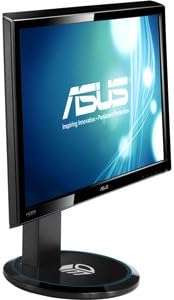
Image: Side view of the ASUS VG23AH monitor, illustrating its design and the location of control buttons on the bezel.
3. Audio Features
The monitor includes built-in 3W stereo speakers. Audio can be received via HDMI (digital) or through the 3.5mm audio input jack (analog).
Maintenance
1. Cleaning the Monitor
- Always power off the monitor and unplug the power cord before cleaning.
- Use a soft, lint-free cloth slightly dampened with water or a mild, non-abrasive screen cleaner.
- Do not spray cleaner directly onto the screen. Apply it to the cloth first.
- Avoid using harsh chemicals, solvents, or abrasive materials, as these can damage the screen or casing.
2. General Care
- Keep the monitor away from direct sunlight, excessive heat, and humidity.
- Ensure adequate ventilation around the monitor to prevent overheating.
- Avoid placing heavy objects on the monitor or its cables.
- If moving the monitor, disassemble the stand and pack it in its original packaging for protection.
Troubleshooting
If you encounter issues with your monitor, refer to the following common problems and solutions:
| Problem | Possible Solution |
|---|---|
| No image on screen |
|
| Image is blurry or distorted |
|
| 3D effect is not working or appears incorrect |
|
| No audio from speakers |
|
Specifications
Key technical specifications for the ASUS VG23AH monitor:
| Feature | Specification |
|---|---|
| Screen Size | 23 Inches |
| Panel Type | IPS LED |
| Native Resolution | 1920 x 1080 (Full HD 1080p) |
| Aspect Ratio | 1.33:1 |
| Viewing Angle | 178° Ultra-wide |
| 3D Technology | Passive 3D, ASUS All-in 3D Technology |
| Connectivity | Dual HDMI 1.4, Single-link DVI, D-sub |
| Built-in Speakers | 3W Stereo Speakers |
| Product Dimensions (LxWxH) | 24.61 x 9.14 x 19.02 inches |
| Item Weight | 13 pounds |
| Manufacturer | ASUS Computer International Direct |
Warranty Information
ASUS products are manufactured to the highest quality standards. For detailed warranty terms and conditions, please refer to the warranty card included with your product or visit the official ASUS support website. Keep your proof of purchase for warranty service.
Support
For further assistance, technical support, or service inquiries, please visit the official ASUS support website or contact ASUS customer service. You can find contact information and frequently asked questions on the ASUS support portal.
ASUS Support Website: www.asus.com/support/