
1. Introduction
The Logitech ConferenceCam BCC950 is an all-in-one video and audio conferencing system designed for small groups. It integrates a high-definition webcam with an enterprise-quality speakerphone, providing a comprehensive solution for video meetings in various office and meeting environments. This manual provides detailed instructions for setting up, operating, and maintaining your ConferenceCam.
Key Features:
- All-in-one design: Combines HD video with high-quality audio clarity for business-grade video conferencing.
- Business-quality video: Features a Carl Zeiss lens, 1080p HD resolution at 30 frames per second, precision autofocus, and advanced auto light correction for clear visuals even in low light.
- Professional speakerphone: Built-in full duplex speakerphone and omni-directional microphone with noise and echo cancellation, allowing clear audio capture up to 8 feet away.
- Wide field of view: A 78-degree field of view and 180-degree video pan ensures all participants are visible.
- Versatile control: Includes a remote control and console buttons for camera pan, tilt, zoom, volume adjustment, mute, and call answer/hang-up functions.
- Plug-and-play simplicity: USB connectivity for easy setup with PC or Mac, requiring no software installation.
- Broad compatibility: Works with virtually any desktop video conferencing and Unified Communications application, including Microsoft Lync 2013, Skype for Business, Cisco Jabber, and WebEx.
2. What's in the Box
Upon unboxing your Logitech BCC950 ConferenceCam, please verify that all the following components are included:
- Logitech ConferenceCam BCC950 unit
- Remote Control
- Camera Stem (for elevated camera positioning)
- User Documentation (this manual and other guides)
- A/C Adapter
- USB Power Cable
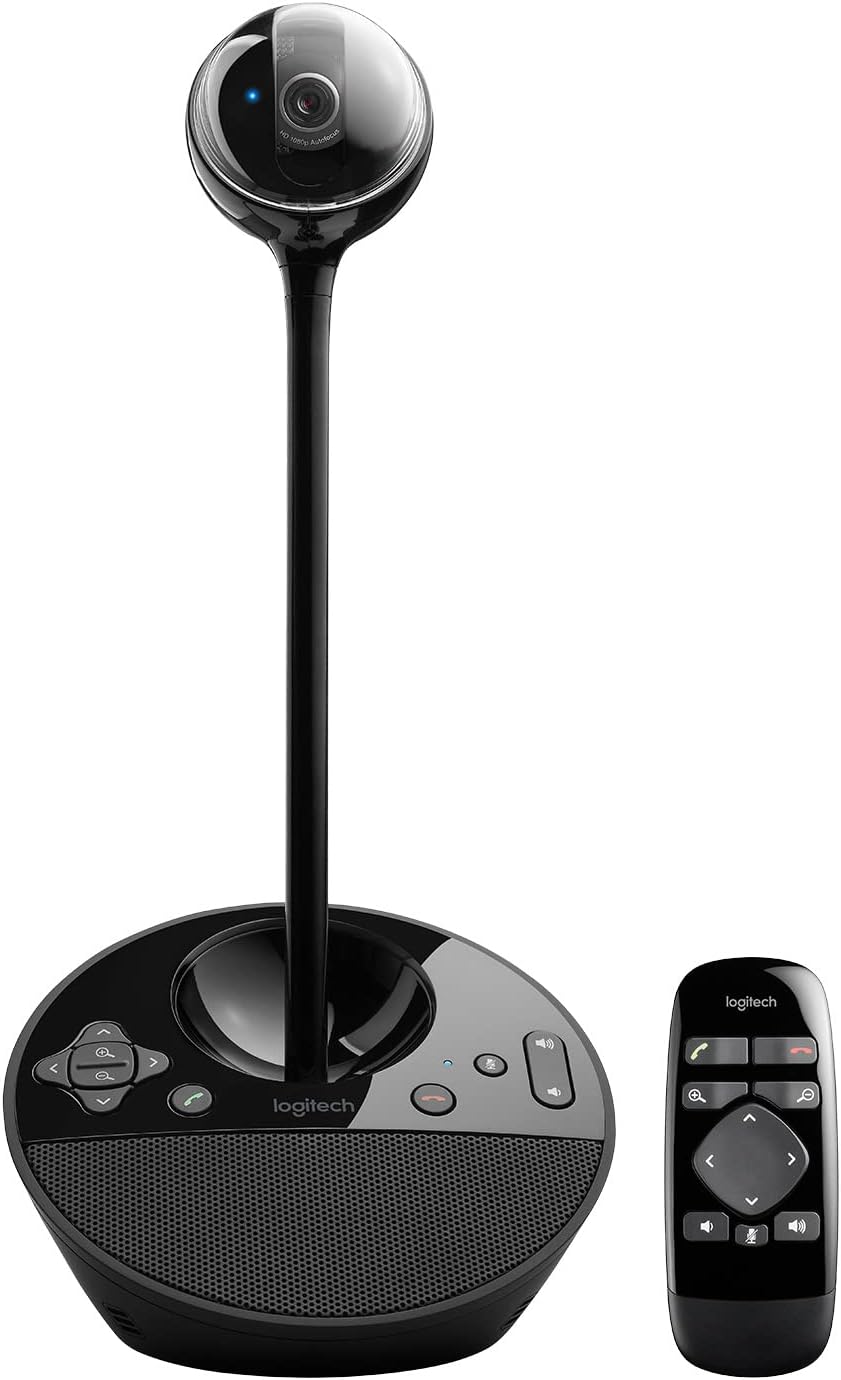
Figure 2.1: Logitech BCC950 ConferenceCam unit with included remote control.

Figure 2.2: The product packaging for the Logitech BCC950 ConferenceCam.
3. Setup
The Logitech BCC950 ConferenceCam is designed for simple plug-and-play setup. Follow these steps to get your device ready for use:
- Positioning the Camera:
- For an elevated camera view, attach the camera head to the top of the provided stem, and then insert the stem into the base unit.
- For a lower camera view, you can directly place the camera head into the designated slot on the base unit without using the stem.

Figure 3.1: Top-down view of the ConferenceCam base, showing the camera attached.
- Connecting Power:
- Connect the A/C adapter to the power input on the ConferenceCam base.
- Plug the A/C adapter into a wall outlet.
- Connecting to Computer:
- Connect the USB cable from the ConferenceCam base to an available USB port on your PC or Mac.
- The device is plug-and-play; no additional drivers or software installation is typically required. Your operating system should automatically recognize the device.

Figure 3.2: The ConferenceCam set up on a desk, connected to a computer.
- System Requirements:
Ensure your computer meets the following minimum requirements for optimal performance:
- Windows 7, 8.1, or 10
- macOS X 10.7 or higher
4. Operating the ConferenceCam
Once connected, the Logitech BCC950 ConferenceCam can be controlled using either the buttons on the base unit or the included remote control.
4.1. Camera Controls
The camera offers pan, tilt, and zoom functionalities to adjust the view during your conference.
- Pan/Tilt: Use the directional arrows on the base or remote to move the camera left, right, up, or down.
- Zoom: Use the '+' and '-' buttons (magnifying glass icons) on the base or remote to zoom in or out.

Figure 4.1: Close-up of the control buttons on the ConferenceCam base.

Figure 4.2: A user operating the ConferenceCam with the remote control during a meeting.
4.2. Audio Controls
Manage your audio input and output directly from the ConferenceCam.
- Volume Up/Down: Use the volume buttons on the base or remote to adjust the speaker volume.
- Mute Microphone: Press the microphone icon button on the base or remote to mute or unmute your microphone.
4.3. Call Management
For supported applications, you can manage calls directly from the ConferenceCam.
- Answer Call: Press the green phone icon button.
- End Call: Press the red phone icon button.

Figure 4.3: The ConferenceCam facilitating a hybrid meeting with remote participants.
5. Maintenance
To ensure the longevity and optimal performance of your Logitech BCC950 ConferenceCam, follow these maintenance guidelines:
- Cleaning: Use a soft, dry cloth to clean the exterior of the device. For the camera lens, use a lens cleaning cloth and solution specifically designed for optical surfaces. Avoid abrasive cleaners or solvents.
- Storage: When not in use for extended periods, store the ConferenceCam in a cool, dry place, away from direct sunlight and extreme temperatures.
- Handling: Handle the device with care. Avoid dropping it or subjecting it to strong impacts.
- Cable Management: Ensure cables are not kinked or placed under heavy objects to prevent damage.
6. Troubleshooting
If you encounter issues with your ConferenceCam, refer to the following common troubleshooting steps:
| Problem | Possible Cause | Solution |
|---|---|---|
| No video or audio output. | Incorrect connections, power issue, or software selection. |
|
| Poor video quality (blurry, dark). | Lighting conditions, dirty lens, or incorrect camera settings. |
|
| Audio echo or feedback. | Speaker volume too high, microphone too close to speakers, or room acoustics. |
|
| Remote control not working. | Battery issue or line of sight obstruction. |
|
7. Specifications
| Feature | Detail |
|---|---|
| Brand | Logitech |
| Model Number | 960-000866 |
| Max Screen Resolution | FHD (Full High Definition) |
| Hardware Platform | PC, Mac |
| Operating System Compatibility | Windows, macOS |
| Item Weight | 2.28 pounds |
| Product Dimensions (LxWxH) | 6.81 x 6.97 x 4.88 inches |
| Color | BLACK |
| Rear Webcam Resolution | 5 MP |
| Batteries Required | 1 Lithium Polymer battery (for remote) |
| Video Capture Resolution | 1080p, 720p |
| Connectivity Technology | USB |
| Microphone Type | Omni-directional with noise and echo cancellation |
| Speaker Type | Full duplex |
| Field of View | 78 degrees |
| Pan/Tilt | 180-degree pan |
| Lens | Carl Zeiss lens with precision autofocus |
8. Warranty and Support
For detailed warranty information and technical support, please refer to the official Logitech website or the user documentation included with your product.
- Official User Guide (PDF): Download User Guide
- Official User Manual (PDF): Download User Manual
- Logitech Support: Visit www.logitech.com/support for FAQs, troubleshooting, and contact information.
Logitech offers various protection plans for extended coverage. Please check with your retailer for available options.