1. Introduction
Thank you for choosing the Esperanza EM120W Wireless Optical Mouse. This manual provides detailed instructions for setting up, operating, and maintaining your new mouse. The EM120W is a reliable and efficient wireless mouse designed for comfortable use with PCs and notebooks, featuring adjustable DPI settings for precise control.
2. Package Contents
Please check the package for the following items:
- Esperanza EM120W Wireless Optical Mouse
- USB Receiver
- User Manual (this document)

Image 2.1: The Esperanza EM120W Wireless Optical Mouse shown alongside its compact USB receiver.
3. Setup
Follow these steps to set up your Esperanza EM120W Wireless Optical Mouse:
- Install Batteries: Open the battery compartment on the underside of the mouse. Insert the required AA or AAA batteries (not included), ensuring correct polarity (+/-). Close the battery compartment securely.
- Connect USB Receiver: Plug the USB receiver into an available USB 2.0 port on your computer or laptop.
- Power On: Locate the power switch on the underside of the mouse and slide it to the "ON" position.
- Automatic Connection: The mouse should automatically connect to your computer. No additional drivers are typically required for most operating systems.

Image 3.1: The mouse and its USB receiver, ready for connection.
4. Operating the Mouse
The Esperanza EM120W mouse features a standard layout for intuitive use.
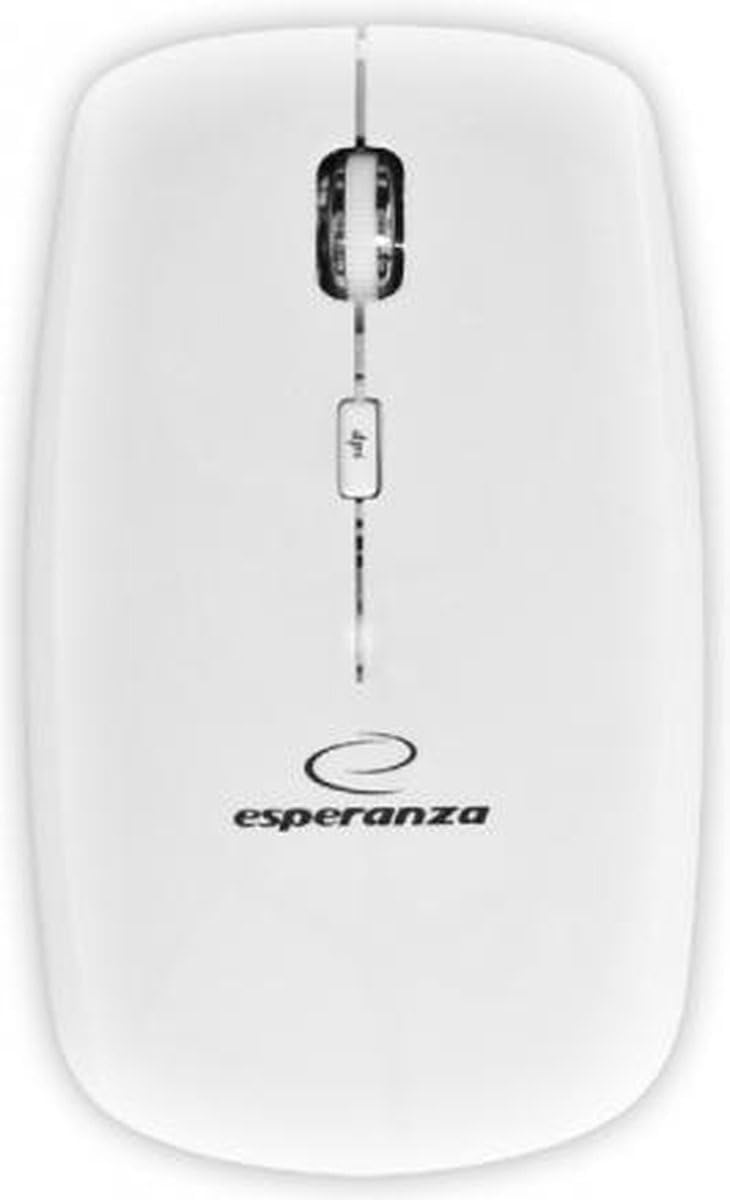
Image 4.1: Top view of the Esperanza EM120W mouse, showing the scroll wheel and DPI button.
- Left Button: Standard click function.
- Right Button: Context menu function.
- Scroll Wheel: Scroll up/down documents and web pages. Can also be pressed for middle-click functionality.
- DPI Adjustment Button: Located near the scroll wheel. Press this button to cycle through different DPI (Dots Per Inch) sensitivity settings. The mouse supports up to 2400 DPI, allowing you to adjust cursor speed and precision to your preference.
The mouse is designed for ambidextrous use, suitable for both left and right-handed users.
5. Maintenance
- Cleaning: Use a soft, dry cloth to clean the surface of the mouse. For stubborn dirt, a slightly damp cloth can be used, but ensure no moisture enters the mouse. Do not use harsh chemicals or abrasive cleaners.
- Battery Replacement: When the mouse performance degrades or it stops responding, it's likely time to replace the batteries. Follow the steps in the "Setup" section to open the battery compartment and insert fresh batteries.
- Storage: If the mouse will not be used for an extended period, switch it off to conserve battery life. Store it in a dry, cool place.
6. Troubleshooting
| Problem | Solution |
|---|---|
| Mouse not responding. |
|
| Cursor movement is erratic or slow. |
|
| Wireless connection issues. |
|
7. Specifications
- Model: EM120W
- Brand: Esperanza
- Connectivity: RF Wireless (Radio Frequency)
- Interface: USB 2.0 (for receiver)
- Movement Detection: Optical
- DPI Resolution: Up to 2400 DPI (adjustable)
- Number of Buttons: 4
- Hand Orientation: Ambidextrous
- Power Source: Battery-powered (AA or AAA batteries, not included)
- Material: Plastic
- Compatible Devices: PC, Notebook
- Weight: Approximately 120 g
8. Warranty and Support
For warranty information and technical support, please refer to the documentation provided with your purchase or visit the official Esperanza website. Keep your proof of purchase for any warranty claims.


