Introduction
This manual provides comprehensive instructions for the setup, operation, maintenance, and troubleshooting of your Fujitsu KB410 USB Black BE Keyboard. Please read this manual carefully to ensure proper use and to maximize the lifespan of your device. This keyboard is designed for standard computer input, offering reliable performance for daily tasks.
Setup
Follow these steps to set up your Fujitsu KB410 USB keyboard:
- Unpacking: Carefully remove the keyboard from its packaging. Ensure all components are present and undamaged.
- Connecting the Keyboard: Locate an available USB port on your computer. Insert the USB connector of the keyboard firmly into the USB port.
- Driver Installation: The Fujitsu KB410 USB keyboard is a plug-and-play device. Your operating system (Windows, macOS, Linux) should automatically detect and install the necessary drivers. No manual driver installation is typically required.
- Placement: Position the keyboard on a stable, flat surface at a comfortable distance from your monitor. Ensure adequate space for wrist rest if desired.
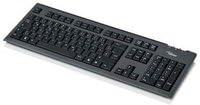
Figure 1: The Fujitsu KB410 USB Black BE Keyboard. This image shows the full layout of the keyboard, including the main alphanumeric keys, function keys, navigation cluster, and numeric keypad, all in a black finish.
Operating the Keyboard
The Fujitsu KB410 USB keyboard functions as a standard input device. Here are some key operational aspects:
- Basic Typing: Use the alphanumeric keys for text input. The layout follows a standard QWERTY configuration.
- Function Keys (F1-F12): These keys, located at the top of the keyboard, perform various functions depending on the application or operating system. Some may have secondary functions accessible via the 'Fn' key (if present on your specific model, though typically not on standard wired keyboards like this).
- Numeric Keypad: The dedicated numeric keypad on the right side allows for quick entry of numbers and mathematical operations. Ensure 'Num Lock' is active for its use.
- Navigation Keys: Arrow keys, Home, End, Page Up, Page Down, Insert, and Delete keys are provided for cursor control and document navigation.
- Special Keys:
- Windows Key: Opens the Start Menu in Windows operating systems.
- Context Menu Key: (Often located near the right Ctrl key) Functions like a right-click for the selected item.
Maintenance
Proper maintenance will extend the life of your keyboard:
- Cleaning:
- Dust: Regularly use compressed air to remove dust and debris from between the keys.
- Surface: Wipe the surface of the keyboard with a soft, slightly damp, lint-free cloth. Avoid harsh chemicals, abrasive cleaners, or excessive moisture.
- Spills: In case of a liquid spill, immediately disconnect the keyboard from the computer. Invert the keyboard to drain liquid and allow it to dry completely before reconnecting. Do not attempt to use the keyboard while wet.
- Storage: When not in use for extended periods, store the keyboard in a clean, dry environment away from direct sunlight and extreme temperatures.
Troubleshooting
If you encounter issues with your keyboard, try the following solutions:
| Problem | Possible Cause | Solution |
|---|---|---|
| Keyboard not responding | Loose USB connection, faulty USB port, driver issue. |
|
| Specific keys not working | Debris under the key, physical damage. |
|
| Typing incorrect characters | Incorrect keyboard layout setting in OS, 'Num Lock' or 'Caps Lock' status. |
|
Specifications
Technical specifications for the Fujitsu KB410 USB Black BE Keyboard:
- Product Dimensions: 20.43 x 7.64 x 2.05 inches
- Item Weight: 2.2 pounds
- Manufacturer: Fujitsu
- ASIN: B007RHTMAS
- Item Model Number: S26381-K510-L430
- Date First Available: May 1, 2014
- Brand: Fujitsu
- Number of Keys: 105
- Number of Buttons: 105
- Connectivity: Wired USB
- Color: Black
Warranty Information
Fujitsu products typically come with a manufacturer's limited warranty. For specific details regarding the warranty period and terms for your KB410 USB keyboard, please refer to the warranty card included with your product or visit the official Fujitsu support website. Keep your proof of purchase for warranty claims.
Support
For further assistance, technical support, or to inquire about replacement parts, please contact Fujitsu customer service or visit their official support portal:
- Fujitsu Official Website: www.fujitsu.com
- Refer to the contact information provided on the Fujitsu website for your region.