
1. Introduction
This manual provides essential instructions for the installation, operation, and maintenance of your SCS Sentinel Access Transponder system. Designed for ease of use, this transponder allows for convenient activation of motorized systems, such as gates, by simply presenting a badge to its sensor. Please read this manual thoroughly before installation and use to ensure proper functionality and safety.
2. Product Overview
The SCS Sentinel Access Transponder is a wireless badge reader system designed to provide secure and convenient access control. It operates via a wireless radio link, making installation flexible. The system includes a main transponder unit and five individual badges, allowing multiple users to access the controlled system.
- Badge Reader: The central unit reads the unique identification from the badges.
- Surface Mounting: Designed for easy surface installation.
- Wireless Radio Link: Ensures flexible placement and communication.
- 5 Badges Included: Provides multiple access credentials for family or staff.
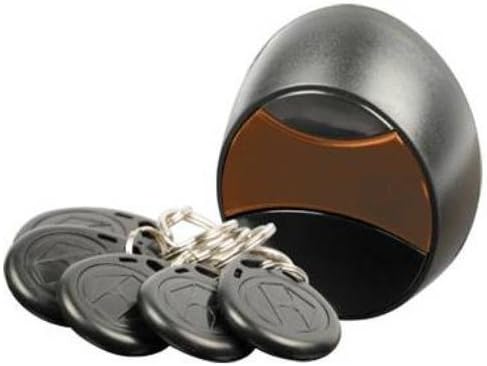
Image 2.1: The SCS Sentinel Access Transponder unit (right) and five accompanying circular access badges (left).
3. Package Contents
Upon unpacking, please verify that all the following components are present and in good condition:
- 1 x SCS Sentinel Access Transponder Unit
- 5 x Access Badges
If any items are missing or damaged, please contact your retailer or SCS Sentinel customer support immediately.
4. Setup and Installation
The SCS Sentinel Access Transponder is designed for surface mounting and utilizes a wireless radio link for communication. Specific installation steps may vary depending on the motorized system it is connected to. Always consult the manual of your motorized system for compatibility and wiring instructions.
4.1. Mounting the Transponder Unit
- Choose a Location: Select a suitable location for the transponder unit, ensuring it is within range of the motorized system's receiver and easily accessible for badge presentation. Consider weather protection if installing outdoors.
- Secure the Unit: Use appropriate screws and wall plugs (not included) to securely mount the transponder unit to the chosen surface. Ensure the unit is stable and cannot be easily dislodged.
4.2. Connecting to a Motorized System
The transponder communicates wirelessly. Refer to the documentation of your specific motorized gate or access system for instructions on how to pair or integrate a wireless access control device. Typically, this involves a learning mode on the motorized system's receiver.
4.3. Power Supply
The transponder does not require batteries. It is typically powered by the motorized system or an external power source (not included). Ensure the power supply meets the transponder's requirements as specified in the technical documentation of the motorized system.
5. Operating Instructions
Operating the SCS Sentinel Access Transponder is straightforward:
- Present a Badge: Hold one of the provided access badges directly in front of the transponder unit's sensor area.
- Activation: The transponder will read the badge and send a signal via its wireless radio link to the connected motorized system.
- System Response: The motorized system (e.g., gate, door) will then activate, performing its programmed action (e.g., opening, closing).
Ensure the badge is held steadily for a moment to allow for proper reading by the transponder.
6. Maintenance
The SCS Sentinel Access Transponder system requires minimal maintenance to ensure long-term performance.
- Cleaning: Periodically wipe the transponder unit and badges with a soft, dry cloth. Avoid using abrasive cleaners, solvents, or harsh chemicals, as these can damage the surfaces.
- Environmental Protection: While designed for outdoor use, ensure the transponder is protected from extreme weather conditions where possible, such as direct heavy rain or prolonged exposure to intense sunlight, to prolong its lifespan.
- Badge Care: Avoid bending, scratching, or exposing the badges to strong magnetic fields, as this may impair their functionality.
7. Troubleshooting
If you encounter issues with your SCS Sentinel Access Transponder, consider the following common troubleshooting steps:
- System Not Responding:
- Ensure the transponder unit is correctly powered.
- Verify that the transponder is properly paired or integrated with your motorized system's receiver. Refer to your motorized system's manual for pairing instructions.
- Check the distance between the badge and the transponder, and between the transponder and the motorized system's receiver. Reduce interference if possible.
- Badge Not Recognized:
- Ensure the badge is presented directly and steadily to the transponder's sensor area.
- Try a different badge to determine if the issue is with a specific badge or the transponder unit.
- Inspect the badge for any visible damage.
- Intermittent Operation:
- Check for potential sources of radio interference near the transponder or the motorized system's receiver.
- Ensure stable power supply to the transponder and the motorized system.
If these steps do not resolve the issue, please contact SCS Sentinel customer support for further assistance.
8. Specifications
| Feature | Specification |
|---|---|
| Brand | SCS Sentinel |
| Model Number | ACCESS |
| Manufacturer | SCS Sentinel |
| Color | Gray |
| Package Dimensions | 10.6 x 7.2 x 2.8 cm |
| Item Weight | 100 grams |
| Quantity of Items (Transponder) | 1 |
| Number of Badges Included | 5 |
| Batteries Included | No |
| Batteries Required | No |
| Recommended Uses | Identity Card (Access Control) |
| International Article Code (UPC) | 03760074132379 |
| ASIN | B007R37NQM |
| Date First Available | August 12, 2022 |
9. Warranty and Support
Return Policy: This product is eligible for a 30-day refund/replacement return policy through Amazon.
Spare Parts Availability: Information regarding the availability of spare parts for this product is currently unavailable.
For technical support, warranty claims, or further inquiries, please contact SCS Sentinel customer service or your product retailer. Please have your product model number (ACCESS) and purchase details ready when contacting support.