
1. Introduction
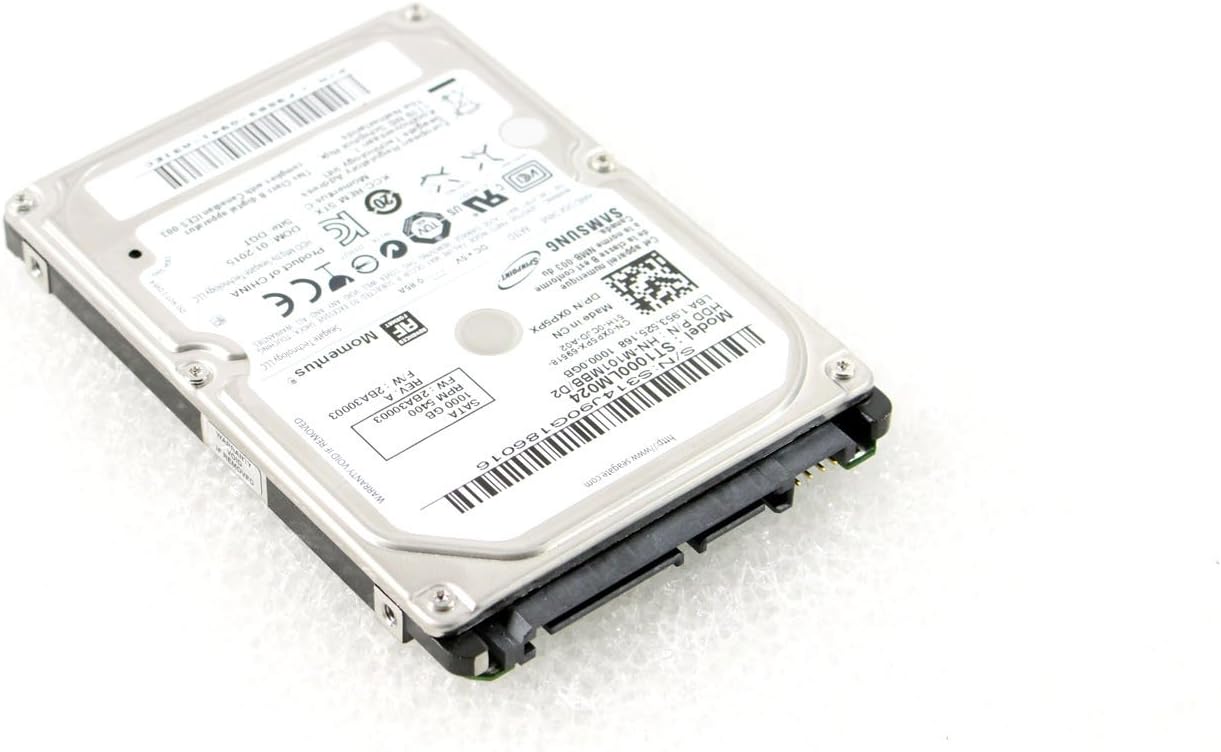
This manual provides essential information for the proper installation, operation, and maintenance of your Samsung Seagate Momentus 1 TB 2.5-Inch SATA III Hard Drive (Model: ST1000LM024). Please read these instructions carefully before proceeding with any installation or usage to ensure optimal performance and data integrity.
The ST1000LM024 is a high-capacity internal hard disk drive designed for laptops, small form factor PCs, and other compatible devices requiring a 2.5-inch form factor storage solution. It features a SATA III interface for fast data transfer and a 5400 RPM spin speed.
2. Safety Information
Observe the following safety precautions to prevent damage to the drive and ensure personal safety:
- Electrostatic Discharge (ESD) Protection: Always handle the hard drive by its edges. Wear an anti-static wrist strap or frequently touch a grounded metal object before handling the drive to discharge static electricity.
- Physical Handling: Avoid dropping or subjecting the drive to strong impacts. Hard drives are delicate precision instruments.
- Power Connection: Ensure your system is powered off and unplugged before connecting or disconnecting the hard drive.
- Environmental Conditions: Operate the drive within specified temperature and humidity ranges. Avoid exposure to extreme temperatures, moisture, or dust.
- Ventilation: Ensure adequate airflow around the drive to prevent overheating, especially in enclosed spaces.
3. Package Contents
Your package should contain the following item:
- Samsung Seagate Momentus 1 TB 2.5-Inch SATA III Hard Drive (ST1000LM024)
Note: Mounting screws, SATA data cables, and power cables are typically not included with bare drives and must be purchased separately or sourced from your system.
4. Setup
4.1. Physical Installation
- Prepare Your System: Power off your computer and disconnect the power cord. If installing in a laptop, remove the battery.
- Access Drive Bay: Open your computer case or laptop drive bay according to your system's manufacturer instructions.
- Mount the Drive: Carefully slide the ST1000LM024 into an available 2.5-inch drive bay. Secure it with appropriate screws.
- Connect Cables: Attach a SATA data cable to the smaller port on the drive and to an available SATA port on your motherboard. Connect a SATA power cable to the larger port on the drive from your power supply.

4.2. Initial System Setup (Operating System)
After physical installation, you will need to prepare the drive for use within your operating system.
- Power On: Reconnect the power cord and power on your computer.
- Access Disk Management:
- Windows: Right-click 'This PC' or 'My Computer', select 'Manage', then 'Disk Management'.
- macOS: Go to 'Applications' > 'Utilities' > 'Disk Utility'.
- Linux: Use a disk utility like GParted or the 'fdisk' command.
- Initialize Disk: The new drive may appear as 'Unallocated Space'. You will need to initialize it. For Windows, right-click the disk and select 'Initialize Disk'. Choose MBR (Master Boot Record) for older systems or GPT (GUID Partition Table) for newer systems (recommended for drives larger than 2TB, though MBR is sufficient for 1TB).
- Create Partition: After initialization, right-click the unallocated space and select 'New Simple Volume' (Windows) or 'Partition' (macOS/Linux). Follow the on-screen prompts to create one or more partitions.
- Format Partition: Format the new partition(s) with a suitable file system (e.g., NTFS for Windows, HFS+ or APFS for macOS, Ext4 for Linux). This process prepares the drive for storing data.
5. Operating the Hard Drive
5.1. Basic Usage
Once installed, initialized, and formatted, your ST1000LM024 hard drive will function like any other storage device in your system. You can use it to:
- Store operating system files and applications.
- Save documents, photos, videos, and other personal data.
- Create backup copies of important files.
5.2. Data Transfer
The drive utilizes a SATA III (6Gb/s) interface, providing high-speed data transfer capabilities. Actual transfer speeds may vary depending on your system's motherboard, CPU, RAM, and the type of data being transferred.
6. Maintenance
Regular maintenance helps ensure the longevity and reliability of your hard drive.
- Data Backup: Regularly back up critical data to another storage device or cloud service. Hard drives can fail, and backups are your primary defense against data loss.
- Disk Health Monitoring: Use S.M.A.R.T. (Self-Monitoring, Analysis and Reporting Technology) tools to monitor the health status of your drive. Many operating systems include built-in tools, or third-party utilities can be used.
- Defragmentation (for HDDs): For traditional hard drives like the ST1000LM024, periodic defragmentation can improve performance by reorganizing fragmented files. Solid State Drives (SSDs) do not require defragmentation.
- Keep System Clean: Ensure your computer's internal components, including the hard drive, are free from dust buildup, which can impede cooling and lead to overheating.
7. Troubleshooting
If you encounter issues with your hard drive, consider the following common troubleshooting steps:
- Drive Not Detected:
- Check all SATA data and power cable connections. Ensure they are securely seated.
- Verify that the SATA port on the motherboard is enabled in the BIOS/UEFI settings.
- Try connecting the drive to a different SATA port or with different cables.
- Ensure the drive is initialized and partitioned in Disk Management (Windows) or Disk Utility (macOS).
- Slow Performance:
- Check for excessive background processes or malware.
- Ensure the drive is not nearly full. Performance can degrade significantly when a drive is almost at capacity.
- Run a disk defragmenter (Windows) or check disk health with S.M.A.R.T. tools.
- Verify that the drive is connected to a SATA III (6Gb/s) port if your system supports it.
- Unusual Noises:
Clicking, grinding, or loud whirring noises can indicate a failing drive. Immediately back up any critical data and consider replacing the drive.
- Data Corruption/Errors:
- Run a disk check utility (e.g.,
chkdskon Windows, Disk Utility's 'First Aid' on macOS). - Ensure your operating system and drivers are up to date.
- Run a disk check utility (e.g.,
8. Specifications
The following table details the technical specifications for the Samsung Seagate Momentus ST1000LM024 hard drive:
| Feature | Specification |
|---|---|
| Model Number | ST1000LM024 |
| Digital Storage Capacity | 1 TB |
| Hard Disk Form Factor | 2.5 Inches |
| Interface | SATA III (Serial ATA-300) |
| Data Transfer Rate | 6 Gigabits Per Second (Gb/s) |
| Rotational Speed | 5400 RPM |
| Cache Memory Installed Size | 8 MB |
| Read Speed | Up to 145 Megabytes Per Second (MB/s) |
| Item Weight | 3.84 ounces |
| Compatible Devices | Desktop, Laptop (2.5-inch bay) |
| Manufacturer | Samsung |

9. Warranty and Support
For warranty information and technical support, please refer to the documentation provided with your purchase or visit the official Samsung or Seagate support websites. Warranty terms and conditions may vary based on region and retailer.
When contacting support, please have your model number (ST1000LM024) and serial number (found on the drive's label) readily available.


