
Introduction
This manual provides comprehensive instructions for the Sena Keyboard Folio, model 817701, designed for the Apple iPad (4th generation). It covers product features, setup, operation, maintenance, and troubleshooting to ensure optimal use of your device. The folio combines a protective leather case with an integrated Bluetooth keyboard and a recessed collapsible back stand for enhanced functionality.
Product Overview
The Sena Keyboard Folio is crafted from high-quality leather, offering a book-style side-folding design that protects your iPad while providing a comfortable typing experience. It features an integrated Bluetooth keyboard for efficient text input and a collapsible stand to position your iPad at an optimal viewing angle.
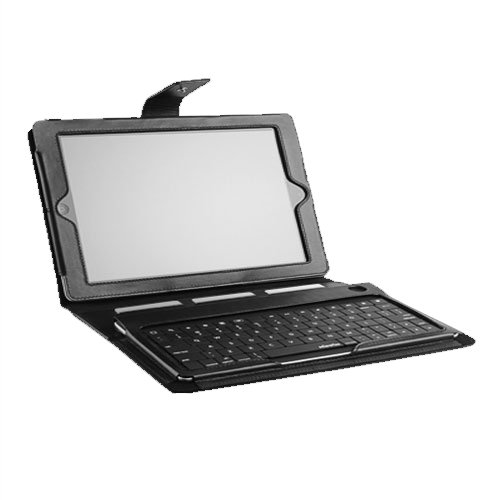
The image displays the Sena Keyboard Folio in an open position, showcasing an iPad securely fitted into the case on the upper section. The lower section features the integrated Bluetooth keyboard, ready for use. The folio's leather construction and overall design are visible.
Setup
- Inserting the iPad: Gently slide your Apple iPad (4th generation) into the designated frame within the folio. Ensure that all ports, buttons, and the camera are accessible and unobstructed.
- Charging the Keyboard: Connect a mini-USB charging cable (not always included) to the keyboard's charging port, typically located near the power switch. Connect the other end to a USB power source. The charging indicator light will illuminate during charging.
- Pairing the Bluetooth Keyboard:
- Ensure the keyboard is fully charged and powered on using the switch located near the charging port.
- On your iPad, navigate to Settings > Bluetooth.
- Turn on Bluetooth. Your iPad will begin searching for nearby devices.
- Select 'Sena Keyboard' (or a similar name) from the list of available devices.
- If prompted, enter the pairing code displayed on your iPad using the Sena keyboard and press the Enter key.
- Once successfully paired, your iPad will display 'Connected' next to the keyboard's name.
Operating Instructions
- Using the Keyboard: Once the keyboard is paired with your iPad, it functions as a standard external keyboard. Simply open any application that requires text input, such as a word processor or web browser, and begin typing.
- Using the Collapsible Stand: The folio incorporates a recessed collapsible back stand. To use it, gently fold the iPad section back and position it into the grooves above the keyboard. This allows you to adjust the iPad's angle for comfortable viewing and typing.
Maintenance
- Cleaning the Leather Folio: To maintain the quality of the leather, wipe the exterior with a soft, slightly damp cloth. Avoid using harsh chemicals, abrasive cleaners, or excessive moisture. For deeper cleaning or conditioning, use products specifically designed for genuine leather, following their instructions.
- Keyboard Care: Keep the keyboard free from dust, crumbs, and debris. Use a soft brush or compressed air to clean between the keys. Avoid spilling liquids on the keyboard, as this can cause permanent damage.
- Battery Longevity: To prolong the integrated keyboard's battery life, turn off the keyboard using its power switch when it is not in use for extended periods.
Troubleshooting
- Keyboard Not Pairing:
- Ensure the keyboard is fully charged and powered on.
- Toggle the keyboard's Bluetooth power switch off and then on again.
- On your iPad, go to Settings > Bluetooth, tap the 'i' icon next to 'Sena Keyboard' (if visible), and select 'Forget This Device'. Then, attempt the pairing process again.
- Restart your iPad.
- Keys Not Responding:
- Verify that the keyboard is paired and shows 'Connected' in your iPad's Bluetooth settings.
- Check the keyboard's battery level; recharge if necessary.
- Restart both the keyboard and your iPad.
- Charging Issues:
- Ensure the mini-USB charging cable is securely connected to both the keyboard and the power source.
- Try using a different mini-USB cable or a different USB power adapter to rule out faulty accessories.
Specifications
- Brand:
- Sena
- Model Number:
- 817701
- Compatible Devices:
- Apple iPad (4th generation)
- Connectivity Technology:
- Bluetooth
- Material:
- Leather
- Product Dimensions (LxWxH):
- 10 x 8 x 1 inches
- Item Weight:
- 1 pound
- Date First Available:
- March 20, 2012
- UPC:
- 842616025127
Warranty and Support
For detailed warranty information, product registration, and customer support, please refer to the official Sena website or contact Sena customer service directly. Keep your proof of purchase for any warranty claims.
You can find more information about Sena products at the Sena Store.