1. Introduction
This manual provides comprehensive instructions for the installation, operation, and maintenance of your HP 146 GB 2.5-Inch Internal SAS Hard Drive, model 652605-B21. Serial Attached SCSI (SAS) technology represents an advanced evolution of SCSI, integrating its established software advantages with the electrical and physical connection interface of Serial ATA (SATA). This design addresses the increasing demands of enterprise storage for greater capacity, density, security, scalability, and accessibility.
Enterprise data centers require continuous operation, simultaneous user request fulfillment, constant growth and expansion capabilities, and maintenance during operation. The HP 652605-B21 SAS hard drive is engineered to meet these rigorous requirements while delivering high performance.
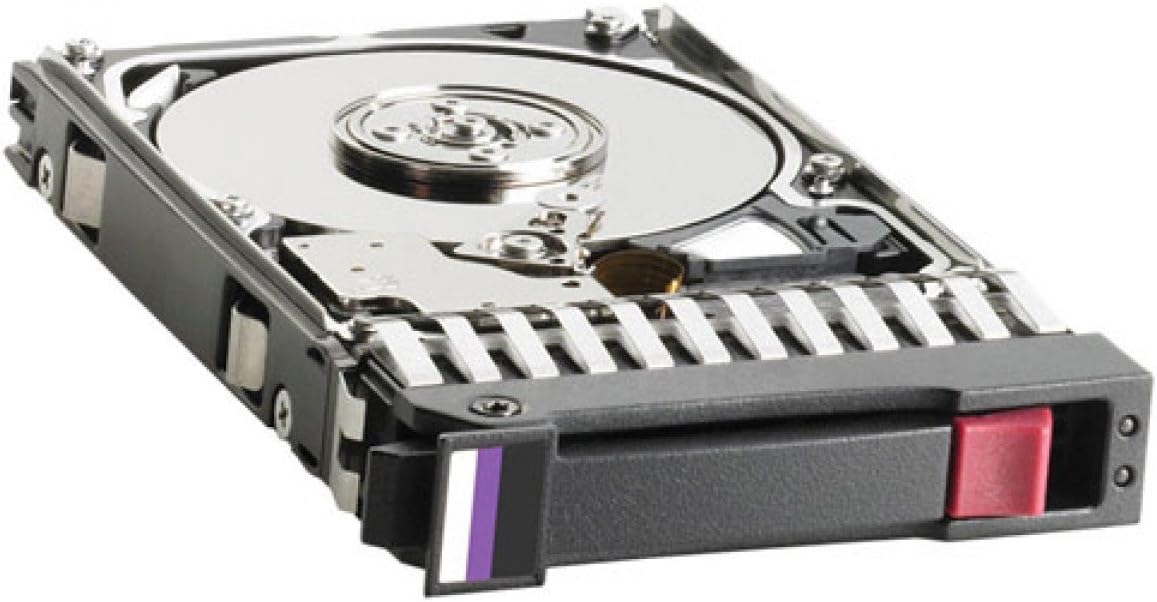
Figure 1: HP 146 GB 2.5-Inch Internal SAS Hard Drive, model 652605-B21. The image displays the drive mounted in its hot-swap tray, revealing the metallic platter through the open casing. The tray includes a purple and white indicator tab and a red release button for easy handling.
2. What's in the Box
Verify that all components are present upon unpacking:
- HP 146 GB 2.5-Inch Internal SAS Hard Drive (Model: 652605-B21)
Note: Additional accessories such as mounting screws or cables may be required for installation and are typically sold separately or provided with the server/system chassis.
3. Technical Specifications
| Feature | Description |
|---|---|
| Model Number | 652605-B21 |
| Series | 6G SAS SFF |
| Storage Capacity | 146 GB |
| Hard Drive Type | Mechanical Hard Disk |
| Form Factor | 2.5-Inch Small Form Factor (SFF) |
| Interface | Serial Attached SCSI (SAS) |
| Rotational Speed | 15000 RPM |
| Item Weight | 1.6 pounds (approximately 0.73 kg) |
| Product Dimensions (LxWxH) | 6 x 2 x 8 inches (approximately 15.24 x 5.08 x 20.32 cm) |
| Compatible Devices | Desktop/Server systems with compatible 2.5-inch SAS bays |
| Installation Type | Internal Hard Drive |
4. Setup and Installation
This section outlines the general procedure for installing the HP 146 GB SAS Hard Drive into a compatible server or desktop system. Always refer to your system's specific documentation for detailed installation instructions, as procedures may vary.
4.1 Safety Precautions
- Power Off: Ensure the system is completely powered off and disconnected from the power source before beginning installation.
- Static Discharge: Wear an anti-static wrist strap or frequently touch a grounded metal object to prevent electrostatic discharge (ESD), which can damage electronic components.
- Handle with Care: Hard drives are delicate. Avoid dropping or subjecting the drive to impact. Handle by the edges of the tray, not the drive itself.
4.2 Installation Steps
- Prepare the System: Open the computer case or server chassis according to the manufacturer's instructions. Identify an available 2.5-inch SAS drive bay.
- Mount the Drive (if necessary): If your system uses hot-swap bays, the drive may already be mounted in a compatible tray. If not, secure the hard drive into a 2.5-inch drive tray or adapter using appropriate screws.
- Insert the Drive: Carefully slide the drive (in its tray) into the empty SAS drive bay until it clicks into place or is securely seated. Ensure the SAS connector on the drive aligns correctly with the backplane connector in the bay.
- Secure the Drive: If applicable, use any locking mechanisms or screws provided by your system chassis to secure the drive in its bay.
- Close the System: Replace the computer case or server chassis cover.
- Power On: Reconnect the power cable and power on the system.
- System Configuration: Access the system's BIOS/UEFI or RAID controller configuration utility to verify that the new drive is detected. You may need to initialize, partition, and format the drive before it can be used by the operating system. Consult your operating system or RAID controller documentation for these steps.
5. Operation
Once installed and configured, the HP 146 GB SAS Hard Drive operates as a high-performance storage device within your system. SAS drives are designed for enterprise environments, offering features such as:
- High Reliability: Built for continuous operation in demanding server environments.
- Performance: 15000 RPM spindle speed provides fast data access and transfer rates.
- Dual-Porting: SAS allows for redundant paths to data, enhancing availability and fault tolerance.
- Scalability: SAS expanders enable connection of numerous drives to a single controller, facilitating storage expansion.
The operating system will manage data storage and retrieval on the drive. Ensure your operating system and any RAID controllers have the latest drivers for optimal performance and stability.
6. Maintenance
Proper maintenance can extend the lifespan and ensure the reliability of your hard drive. While SAS drives are robust, adhering to these guidelines is recommended:
- Data Backup: Regularly back up critical data to prevent loss in case of drive failure or other unforeseen events.
- System Cooling: Ensure adequate airflow within your server or computer chassis to maintain optimal operating temperatures for the hard drive. Overheating can reduce drive lifespan.
- Firmware Updates: Periodically check the HP support website for firmware updates for your drive model. Firmware updates can improve performance, stability, and compatibility.
- Physical Environment: Keep the system in a clean, dust-free environment. Avoid exposing the system to excessive vibration or shock.
- Monitoring: Utilize system monitoring tools (e.g., SMART data monitoring) to track the health and performance of your hard drives.
7. Troubleshooting
If you encounter issues with your HP 146 GB SAS Hard Drive, consider the following troubleshooting steps:
7.1 Drive Not Detected
- Check Connections: Ensure the drive is properly seated in its bay and that all SAS cables (if external) are securely connected.
- Power Supply: Verify that the system's power supply is adequate and functioning correctly.
- BIOS/UEFI Settings: Check the system's BIOS/UEFI or RAID controller settings to confirm the drive is recognized. Ensure the SAS controller is enabled.
- Drivers: Ensure the latest drivers for your SAS controller are installed.
- Test in Another Bay/System: If possible, test the drive in a different compatible SAS bay or system to rule out a faulty bay or controller.
7.2 Performance Issues
- System Resources: Check for other system bottlenecks (CPU, RAM, network) that might be affecting overall performance.
- Drive Health: Use diagnostic tools to check the drive's health (SMART status).
- Firmware: Ensure the drive has the latest firmware installed.
- RAID Configuration: If part of a RAID array, verify the RAID status and ensure no drives are degraded.
7.3 Unusual Noises
- Identify Source: Determine if the noise is coming directly from the hard drive or another component (e.g., fan).
- Backup Data: If the drive is making clicking, grinding, or loud whirring noises, it may be failing. Immediately back up any critical data.
- Contact Support: If unusual noises persist and indicate a drive issue, contact HP support.
8. Warranty and Support
For information regarding the warranty coverage for your HP 146 GB 2.5-Inch Internal SAS Hard Drive, please refer to the warranty documentation included with your purchase or visit the official HP support website. HP provides various support resources, including drivers, firmware updates, and technical assistance.
To access support, visit: www.hp.com/support
Note: Warranty terms and conditions may vary by region and purchase date. Keep your proof of purchase for warranty claims.