
Introduction
This manual provides essential information for the safe and efficient operation of your Samsung HT-E6500W 5.1 Channel 3D Blu-Ray Home Theater System. Please read this manual thoroughly before using the product and retain it for future reference. This system integrates a 3D Blu-ray player with a 5.1 channel audio system, offering a comprehensive home entertainment solution.
Important Safety Information
Always follow basic safety precautions when using this product to reduce the risk of fire, electric shock, and injury to persons. Keep this manual in a safe place for future reference.
- Do not expose this apparatus to rain or moisture.
- Do not block any ventilation openings. Install in accordance with the manufacturer's instructions.
- Do not install near any heat sources such as radiators, heat registers, stoves, or other apparatus (including amplifiers) that produce heat.
- Protect the power cord from being walked on or pinched, particularly at plugs, convenience receptacles, and the point where they exit from the apparatus.
- Only use attachments/accessories specified by the manufacturer.
- Refer all servicing to qualified service personnel. Servicing is required when the apparatus has been damaged in any way.
Package Contents
Verify that all components are present in the package:
- Main Unit (Blu-Ray Player/Receiver)
- Subwoofer
- Center Speaker
- Front Speakers (2)
- Surround Speakers (2)
- Remote Control with Batteries
- iPod Cradle
- Speaker Cables
- FM Antenna
- User Manual (this document)
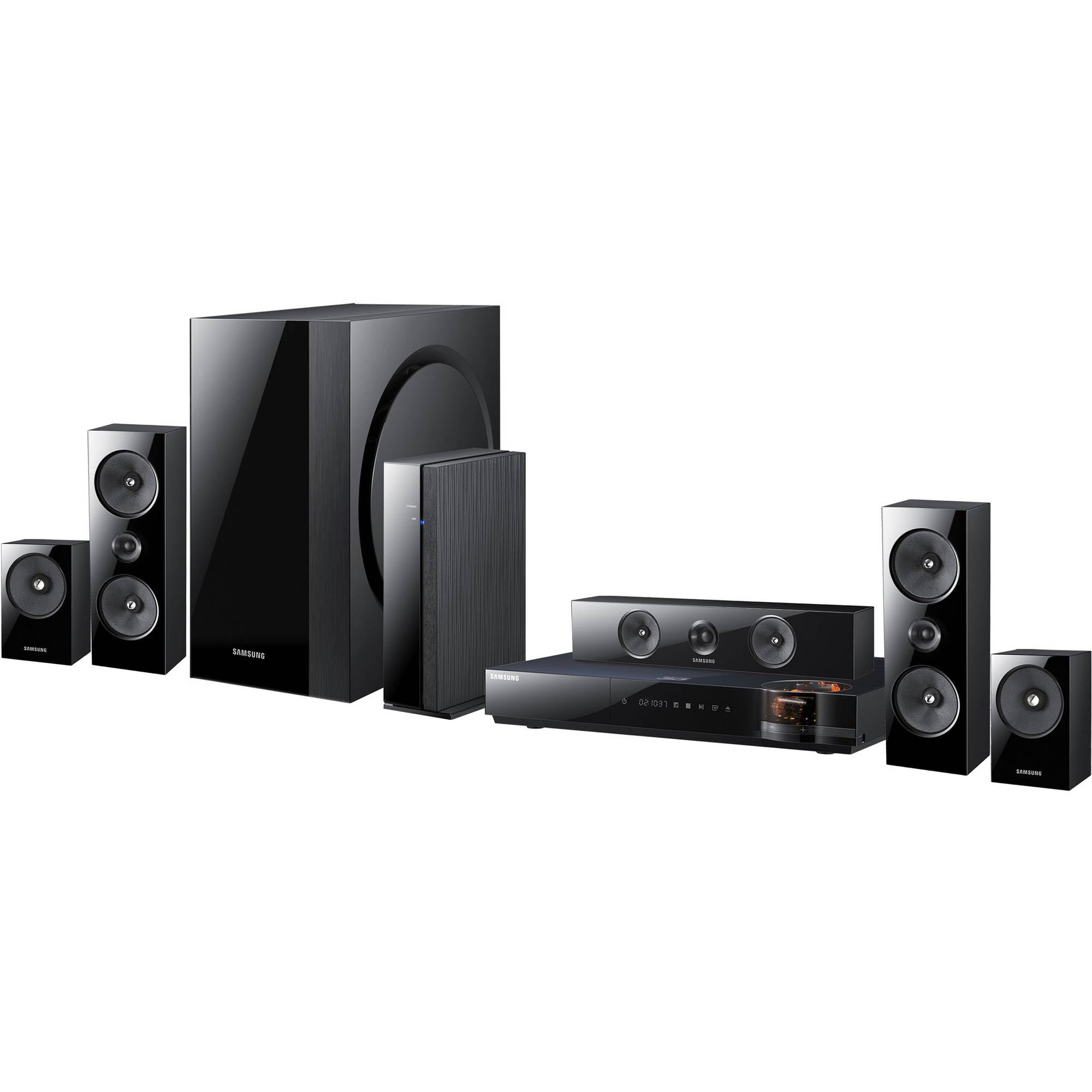
Image: Overview of the Samsung HT-E6500W 5.1 Channel Home Theater System components.
Setup
1. Speaker Placement
Proper speaker placement is crucial for optimal surround sound experience. Position speakers as follows:
- Front Speakers: Place to the left and right of your television, equidistant from the viewing position.
- Center Speaker: Position directly above or below the center of your television.
- Surround Speakers: Place to the sides or slightly behind the main listening area, at ear level when seated. The HT-E6500W features wireless rear speakers for easier setup.
- Subwoofer: Can be placed anywhere in the room, preferably near a wall or corner for enhanced bass response.
2. Connecting Speakers
Connect the speaker cables from each speaker to the corresponding terminals on the main unit. Ensure correct polarity (positive to positive, negative to negative) for each connection. The wireless rear speakers connect to a separate wireless receiver module, which then communicates with the main unit.
3. Connecting to TV and Other Devices
Use an HDMI cable to connect the HDMI OUT port on the home theater system to an HDMI IN port on your television. For other devices like gaming consoles or set-top boxes, connect them to the HDMI IN ports on the home theater system.
4. Power Connection
Plug the power cord into the main unit and then into a wall outlet. Ensure all connections are secure before powering on the system.
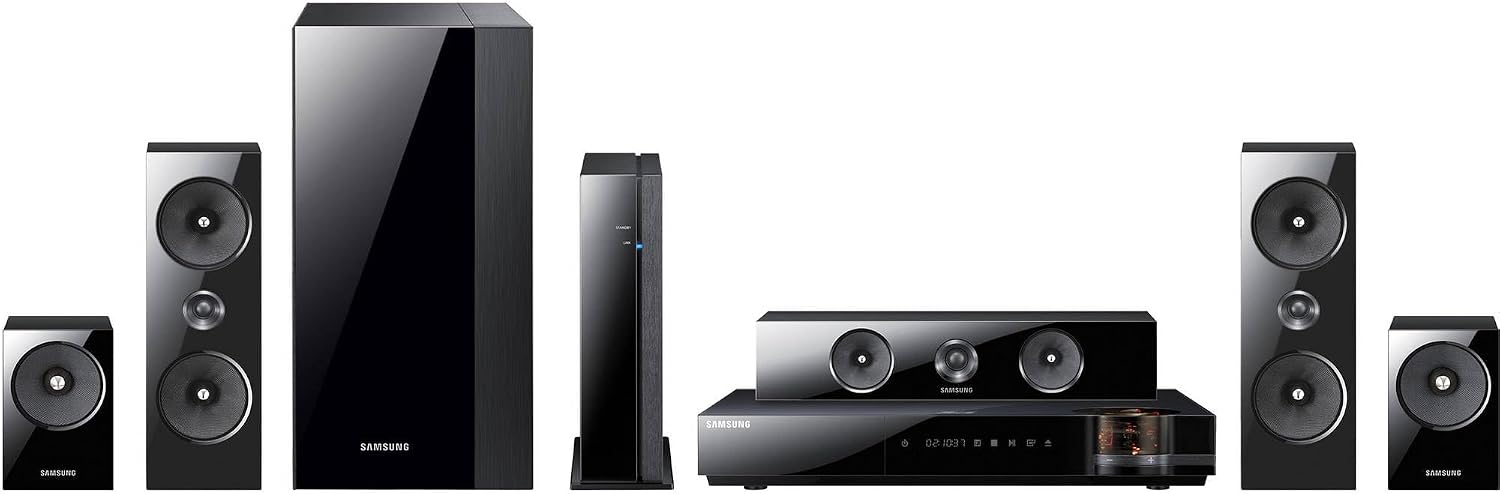
Image: Detailed view of the main unit and center speaker, illustrating connectivity points.
Operating Instructions
1. Basic Functions
- Power On/Off: Press the Power button on the remote control or the main unit.
- Volume Control: Use the Volume Up/Down buttons on the remote.
- Input Selection: Press the Function button on the remote to cycle through available inputs (e.g., Blu-ray, HDMI 1, HDMI 2, AUX, Digital In).
2. 3D Blu-ray Playback
Insert a 3D Blu-ray disc into the disc tray. The system will automatically detect the disc and begin playback. Ensure your television is 3D compatible and 3D glasses are worn for the 3D effect.
3. Smart Hub and Network Features
The system features built-in Wi-Fi for network connectivity. Connect to your home network to access Smart Hub, which provides various online services and applications. Navigate Smart Hub using the remote control.
4. iPod Cradle Usage
Connect your iPod to the provided iPod cradle. The system will detect the device, allowing you to play audio through the home theater speakers. Control playback using the system's remote or the iPod itself.
5. Sound Modes
Select various sound modes (e.g., Stereo, Surround Sound, Dolby Digital) to optimize audio for different content types. Refer to the remote control for specific sound mode buttons or menu options.
Maintenance
- Cleaning: Use a soft, dry cloth to clean the exterior surfaces of the main unit and speakers. Do not use liquid cleaners or abrasive materials.
- Ventilation: Ensure that the ventilation openings on the main unit are not blocked to prevent overheating.
- Disc Care: Handle Blu-ray discs by their edges. Store discs in their cases to prevent scratches and dust accumulation.
Troubleshooting
| Problem | Possible Solution |
|---|---|
| No power | Check if the power cord is securely connected to the unit and the wall outlet. Ensure the outlet is functional. |
| No sound | Verify speaker connections. Check the volume level and mute status. Ensure the correct input source is selected. |
| No picture from Blu-ray | Check the HDMI cable connection between the system and the TV. Ensure the TV is set to the correct HDMI input. Try a different disc. |
| Remote control not working | Replace the batteries in the remote control. Ensure there are no obstructions between the remote and the main unit's sensor. |
| Wireless rear speakers not connecting | Ensure the wireless receiver module is powered on and within range of the main unit. Refer to the wireless module's specific pairing instructions. |
Specifications
- Model Name: HT-E6500W
- Audio Channels: 5.1 Channel
- Total Power Output: 1000 Watts
- Disc Compatibility: 3D Blu-ray, Blu-ray, DVD, CD
- Connectivity: HDMI (Input/Output), Built-in Wi-Fi, USB, Optical Digital Audio In
- Special Features: Smart Hub, iPod Cradle, Wireless Rear Speakers
- Color: Black
- Item Weight: Approximately 8.5 pounds (main unit)
Warranty Information
This product is covered by a limited warranty. For specific terms and conditions, please refer to the warranty card included with your product or visit the official Samsung website. Keep your purchase receipt as proof of purchase for warranty claims.
Customer Support
For technical assistance, service, or product inquiries, please contact Samsung Customer Service. Contact information can be found on the official Samsung website or in the documentation provided with your product.
Online Support: www.samsung.com/us/support/