
Introduction
This manual provides essential instructions for the safe and efficient operation of your Sony DVPSR210P DVD Player. Please read this manual thoroughly before using the device and retain it for future reference.

Figure 1: Front view of the Sony DVPSR210P DVD Player.
What's in the Box
Verify that all items are present in the packaging:
- Sony DVPSR210P Progressive Scan DVD Player
- A/V Cable
- 2 x AA Batteries
- Remote Control (RMT-D197A)
- 1-Year Parts & 90-Day Labor Warranty Information
Setup
Follow these steps to connect your DVD player to your television:
- Positioning: Place the DVD player on a stable, flat surface near your television. Ensure adequate ventilation and avoid placing it near heat sources such as radiators, heat registers, stoves, or other heat-producing apparatus (including amplifiers).
- Connect Video: This DVD player uses AV cables for video output. Connect the yellow RCA plug of the A/V cable to the "VIDEO OUT" port on the rear of the DVD player and the corresponding yellow "VIDEO IN" port on your television. For higher quality video, use component video (Y, Pb, Pr) if your TV supports it. Connect the green (Y), blue (Pb), and red (Pr) plugs from the component video output on the DVD player to the matching inputs on your TV.
- Connect Audio: Connect the white (left audio) and red (right audio) RCA plugs of the A/V cable to the "AUDIO OUT" ports on the rear of the DVD player and the corresponding "AUDIO IN" ports on your television or audio receiver. For digital audio, connect a coaxial digital audio cable from the "DIGITAL OUT (COAXIAL)" port on the DVD player to a compatible input on your audio receiver.
- Power Connection: Plug the power cord into an AC outlet.
- Insert Batteries: Open the battery compartment on the remote control and insert the two AA batteries provided, ensuring correct polarity.

Figure 2: Rear panel connections for video and audio output. Note: This model does not feature an HDMI port.
Operation
Operating your Sony DVPSR210P DVD Player is straightforward:
Basic Controls (Front Panel)
- Power Button (I/O): Press to turn the player on or off.
- Open/Close Button (Triangle with line): Press to open or close the disc tray.
- Play Button (Triangle): Press to start playback of a disc.
- Stop Button (Square): Press to stop playback.

Figure 3: Front panel controls for basic operation.
Inserting and Playing a Disc
- Press the Open/Close button to open the disc tray.
- Place a DVD or CD onto the disc tray with the label side facing up.
- Press the Open/Close button again to close the disc tray. The player will begin reading the disc.
- If the disc does not start automatically, press the Play button.
Using the Remote Control
The included remote control (RMT-D197A) provides full functionality for your DVD player and can also control basic functions of a multi-brand TV.
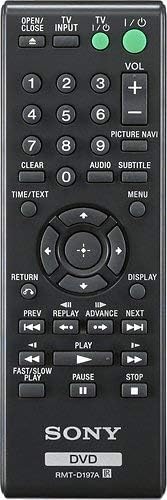
Figure 4: The RMT-D197A remote control for the Sony DVPSR210P DVD Player.
- TV Input: Selects the TV input source.
- TV I/O: Turns the TV on or off.
- VOL +/-: Adjusts the TV volume.
- Number Buttons (0-9): For direct track/chapter selection.
- Picture Navi: Accesses picture navigation features.
- Audio: Selects audio tracks.
- Subtitle: Selects subtitle languages.
- Menu: Accesses disc menus.
- Directional Buttons & Enter: Navigates menus and confirms selections.
- Return: Returns to the previous screen or menu.
- Display: Shows disc information on screen.
- Prev/Next: Skips to previous/next track or chapter.
- Replay/Advance: Skips backward/forward by a short interval.
- Fast/Slow Play: Controls playback speed.
- Pause: Pauses playback.
Features
- Multi-format Playback: Supports playback of various DVD and CD media formats.
- Progressive Scan: Enhances picture quality for compatible televisions.
- JPEG Slideshow with MP3 Background Music: View photo slideshows with accompanying music.
- Multi-Disc Resume: Remembers the stopping point of multiple discs, allowing you to resume playback from where you left off.
- Multi-Brand TV Remote: The included remote control can operate basic functions of various TV brands.
- Compact Design: Ultra-compact 10.63 inch design for easy placement.
- Fast and Slow Playback with Sound: Adjust playback speed while retaining audio.
- Region Code: DVD Disc (1).
Maintenance
To ensure the longevity and optimal performance of your DVD player:
- Cleaning: Wipe the exterior of the player with a soft, dry cloth. Do not use abrasive cleaners or solvents.
- Disc Care: Handle discs by their edges. Keep them clean and free of scratches. Use a soft, lint-free cloth to wipe discs from the center outwards.
- Ventilation: Ensure the player has adequate ventilation. Do not block ventilation openings.
- Environmental Conditions: Avoid exposing the player to extreme temperatures, humidity, or direct sunlight.
Troubleshooting
If you encounter issues with your DVD player, refer to the following common solutions:
| Problem | Solution |
|---|---|
| No power | Check if the power cord is securely plugged into the player and the AC outlet. Ensure the outlet is functional. |
| No picture | Verify that the A/V cables (yellow for video) are correctly connected to both the DVD player and the TV. Ensure the TV input is set to the correct source (e.g., AV1, Video 1). |
| No sound | Check the audio cables (white and red RCA) are properly connected. Ensure the TV or audio receiver volume is not muted or too low. Confirm the correct audio input is selected on your TV/receiver. |
| Disc does not play | Ensure the disc is inserted correctly (label side up). Check if the disc is clean and free of scratches. Verify the disc format is supported by the player (DVD, CD). |
| Remote control not working | Check if the batteries are inserted correctly and are not depleted. Ensure there are no obstructions between the remote and the player's sensor. |
Specifications
| Feature | Detail |
|---|---|
| Product Dimensions | 10.63 x 8.23 x 1.52 inches |
| Item Weight | 2.6 pounds |
| Model Number | DVPSR210P |
| Media Type | DVD, CD |
| Resolution | 480p |
| Connector Type | AV cable (Composite, Component), Coaxial Digital Audio |
| Audio Output Mode | Stereo |
| Power Consumption (Standby) | Less than 0.5 Watts |
| Batteries Required | 2 AAA batteries (for remote) |
Warranty and Support
This Sony DVPSR210P DVD Player comes with a 1-Year Parts & 90-Day Labor Warranty. For warranty claims or technical support, please refer to the contact information provided in your product packaging or visit the official Sony support website.
Note: Keep your proof of purchase for warranty purposes.