
1. Introduction
This manual provides comprehensive instructions for the proper setup, operation, and maintenance of your 3nStar SC505 Omni-Directional 2D Barcode Scanner. The SC505 is designed to provide efficient and reliable barcode scanning for various applications, featuring omnidirectional scanning capabilities and an adjustable scan head.
2. Safety Information
Please read and understand all safety instructions before operating the device. Retain this manual for future reference.
- Do not expose the scanner to water or excessive moisture.
- Avoid dropping the scanner or subjecting it to severe impacts.
- Do not attempt to disassemble or modify the scanner. This will void the warranty.
- Use only the provided USB cable for connection.
- Keep the scanning window clean to ensure optimal performance.
3. Package Contents
Verify that all items are present in the package:
- 3nStar SC505 Omni-Directional 2D Barcode Scanner
- USB Connection Cable
- User Manual (this document)
4. Product Overview
The 3nStar SC505 is an omnidirectional 2D barcode scanner designed for efficient data capture. Its key features include:
- Omnidirectional Scanning: Allows for quick and easy scanning from various angles without precise alignment.
- Adjustable Scan Head: The scanning head can be tilted within a 40-degree range to accommodate different item sizes and scanning preferences.
- Automatic Scanning Operation: The unit automatically scans a barcode when presented, simplifying the scanning process.

Figure 4.1: Front view of the 3nStar SC505 scanner, showing the scanning window and base.
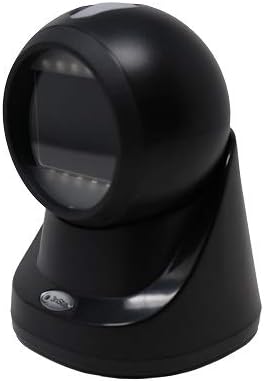
Figure 4.2: Angled front-right view of the scanner, highlighting its compact design.

Figure 4.3: Angled front-left view of the scanner, demonstrating its ergonomic shape.

Figure 4.4: Side profile view of the scanner, illustrating the adjustable head mechanism.
5. Setup
Follow these steps to set up your 3nStar SC505 barcode scanner:
- Unpack the Scanner: Carefully remove the scanner and USB cable from the packaging.
- Connect the USB Cable: Insert the smaller end of the USB cable into the USB port located at the back of the scanner's base.
- Connect to Host Device: Plug the larger end of the USB cable into an available USB Type-A port on your computer, laptop, or compatible POS system.
- Driver Installation (if necessary): In most cases, the scanner is plug-and-play and will be recognized automatically by your operating system. If prompted, allow the system to install necessary drivers.
- Position the Scanner: Place the scanner on a stable, flat surface. Adjust the scanning head to your preferred angle for comfortable operation.
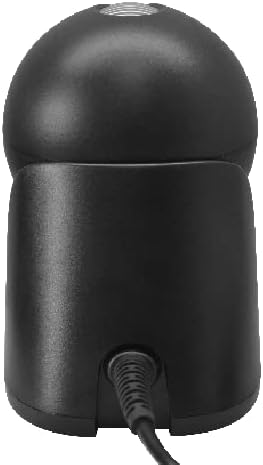
Figure 5.1: Rear view of the scanner, showing the USB cable connected to the port.
6. Operating Instructions
The 3nStar SC505 scanner is designed for ease of use with automatic scanning.
- Scanning a Barcode: Simply present the barcode to the scanning window. The scanner will automatically detect and read the barcode.
- Omnidirectional Capability: Due to its omnidirectional design, precise alignment of the barcode is not required. You can present the barcode from various angles.
- Adjusting the Scan Head: If you are scanning items of different sizes or need a specific angle, gently tilt the scanning head up or down within its 40-degree range to optimize scanning position.
- Successful Scan Indication: A successful scan is typically indicated by an audible beep and/or a visual indicator (e.g., LED light flash).
7. Maintenance
Proper maintenance ensures the longevity and optimal performance of your scanner.
- Cleaning the Scanning Window: Regularly clean the scanning window with a soft, lint-free cloth. For stubborn dirt, dampen the cloth slightly with water or a mild, non-abrasive cleaner. Do not spray cleaning solutions directly onto the scanner.
- General Cleaning: Wipe the exterior of the scanner with a soft, dry cloth.
- Storage: When not in use, store the scanner in a clean, dry environment away from direct sunlight and extreme temperatures.
8. Troubleshooting
If you encounter issues with your scanner, refer to the following common problems and solutions:
- Scanner is not powering on:
- Ensure the USB cable is securely connected to both the scanner and the host device.
- Try connecting the scanner to a different USB port on your host device.
- Verify that the host device is powered on and functioning correctly.
- Scanner is not reading barcodes:
- Check if the barcode is damaged or poorly printed.
- Ensure the scanning window is clean and free of obstructions.
- Confirm that the scanner is properly connected and recognized by the host device.
- Try scanning a different, known-good barcode.
- No data transmitted to host device:
- Verify that the application on your host device is ready to receive input (e.g., a text field is active).
- Check the USB connection.
9. Specifications
| Feature | Specification |
|---|---|
| Model Number | SC505 |
| Product Dimensions | 3.94 x 4.33 x 5.83 inches |
| Item Weight | 12.3 ounces |
| Brand | 3nStar |
| Connectivity Technology | USB Cable |
| Power Source | USB Type A 5V |
| Compatible Devices | Desktop, Laptop, Smartphone (with USB host capability), Tablet (with USB host capability) |
| Scan Rate | 60 frames per second |
10. Warranty and Support
For warranty information or technical support, please refer to the documentation provided with your purchase or contact 3nStar customer service. Keep your proof of purchase for warranty claims.


