
1. Introduction
This manual provides detailed instructions for the installation, operation, and maintenance of your Everest 303A Peak-250W PC Case. This mid-tower computer case is designed to accommodate ATX, micro ATX, and ITX motherboards and includes an integrated 250W power supply. Please read this manual thoroughly before beginning installation to ensure proper setup and safe operation.
2. Safety Information
- Always disconnect the power cord from the wall outlet before opening the PC case or performing any installation/maintenance.
- Handle internal components with care to avoid damage from static electricity. Consider using an anti-static wrist strap.
- Ensure all cables are properly connected and routed to prevent interference with cooling fans or other components.
- Do not block ventilation openings on the case. Maintain adequate airflow around the PC.
- Keep the case away from direct sunlight, heat sources, and moisture.
3. Package Contents
Verify that all items are present in your package:
- Everest 303A Peak-250W PC Case with integrated 250W power supply
- Accessory kit (screws, standoffs, cable ties)
- User Manual (this document)
4. Setup and Installation
4.1. Preparing the Case
Place the PC case on a stable, flat surface. Remove the side panels by unscrewing the thumbscrews at the rear of the case and sliding the panels backward.

Image: Rear view of the Everest 303A PC case. This view shows the integrated power supply unit at the top, a fan cutout below it, and multiple expansion slots for add-in cards. The side panel thumbscrews are visible for removal.
4.2. Motherboard Installation
- Identify the correct standoff locations on the motherboard tray for your ATX, micro ATX, or ITX motherboard. Install the necessary standoffs from the accessory kit.
- Carefully place your motherboard onto the installed standoffs, aligning the screw holes.
- Secure the motherboard with the provided screws. Do not overtighten.

Image: Internal view of the Everest 303A PC case. This image displays the interior layout, including the motherboard mounting area, multiple drive bays for storage devices, and the pre-installed 250W power supply unit at the top.
4.3. Power Supply Connections
The Everest 303A includes a pre-installed 250W power supply. Connect the following cables to your components:
- 20+4 Pin ATX Power: Connect to the main power connector on your motherboard.
- CPU Power: Connect the 4-pin or 8-pin CPU power cable to your motherboard.
- SATA Power: Connect to your SATA hard drives, solid-state drives, and optical drives.
- Peripheral Power (Molex): Use for older components or case fans if needed.
4.4. Drive Installation
Install your 3.5-inch hard drives, 2.5-inch solid-state drives, and 5.25-inch optical drives into the available drive bays. Secure them with the appropriate screws from the accessory kit.
4.5. Front Panel Connections
Connect the front panel cables to the corresponding headers on your motherboard. These include:
- USB 2.0: Connect the USB 2.0 header cable to your motherboard's USB 2.0 header. The case provides 2 x USB 2.0 ports.
- HD Audio: Connect the audio cable to your motherboard's HD Audio header.
- Power SW, Reset SW, HDD LED, Power LED: Connect these small connectors to the front panel header pins on your motherboard according to your motherboard manual.

Image: Front and side view of the Everest 303A PC case. This image shows the front panel with its blue accent, power button, and two USB 2.0 ports, along with audio jacks. The overall mid-tower form factor is visible.
4.6. Cable Management
Route cables neatly behind the motherboard tray or through designated cutouts to improve airflow and aesthetics. Use cable ties from the accessory kit to secure cables.
4.7. Closing the Case
Once all components are installed and cables are connected, slide the side panels back into place and secure them with the thumbscrews.
5. Operating Instructions
5.1. Powering On/Off
Connect the power cord to the integrated power supply unit at the rear of the case and then to a wall outlet. Press the power button located on the front panel of the case to turn on your computer. To turn off, use the operating system's shutdown function or press and hold the power button for several seconds.
5.2. Initial Boot
Upon the first power-on, your system will typically boot into the BIOS/UEFI or begin the operating system installation process, depending on your setup.
6. Maintenance
6.1. Cleaning
Regularly clean the exterior of the case with a soft, damp cloth. For interior cleaning, disconnect the power and use compressed air to remove dust from fans, heatsinks, and other components. Clean dust filters (if present) to maintain optimal airflow.
6.2. Airflow
Ensure that the case's ventilation openings are not obstructed. Proper airflow is crucial for cooling your components and extending their lifespan.
7. Troubleshooting
- No Power: Check if the power cord is securely connected to both the case's power supply and the wall outlet. Ensure the power supply switch (if present) is in the 'On' position. Verify all internal power connections (20+4 pin, CPU power) are firm.
- Fans Not Spinning: Confirm that all fan power cables are correctly connected to the motherboard or power supply.
- Front Panel Ports Not Working: Check the front panel USB and audio header connections on the motherboard. Ensure they are correctly aligned and fully seated.
- System Instability: Ensure all components are properly seated and secured. Verify that the motherboard standoffs are correctly installed to prevent short circuits.
8. Specifications
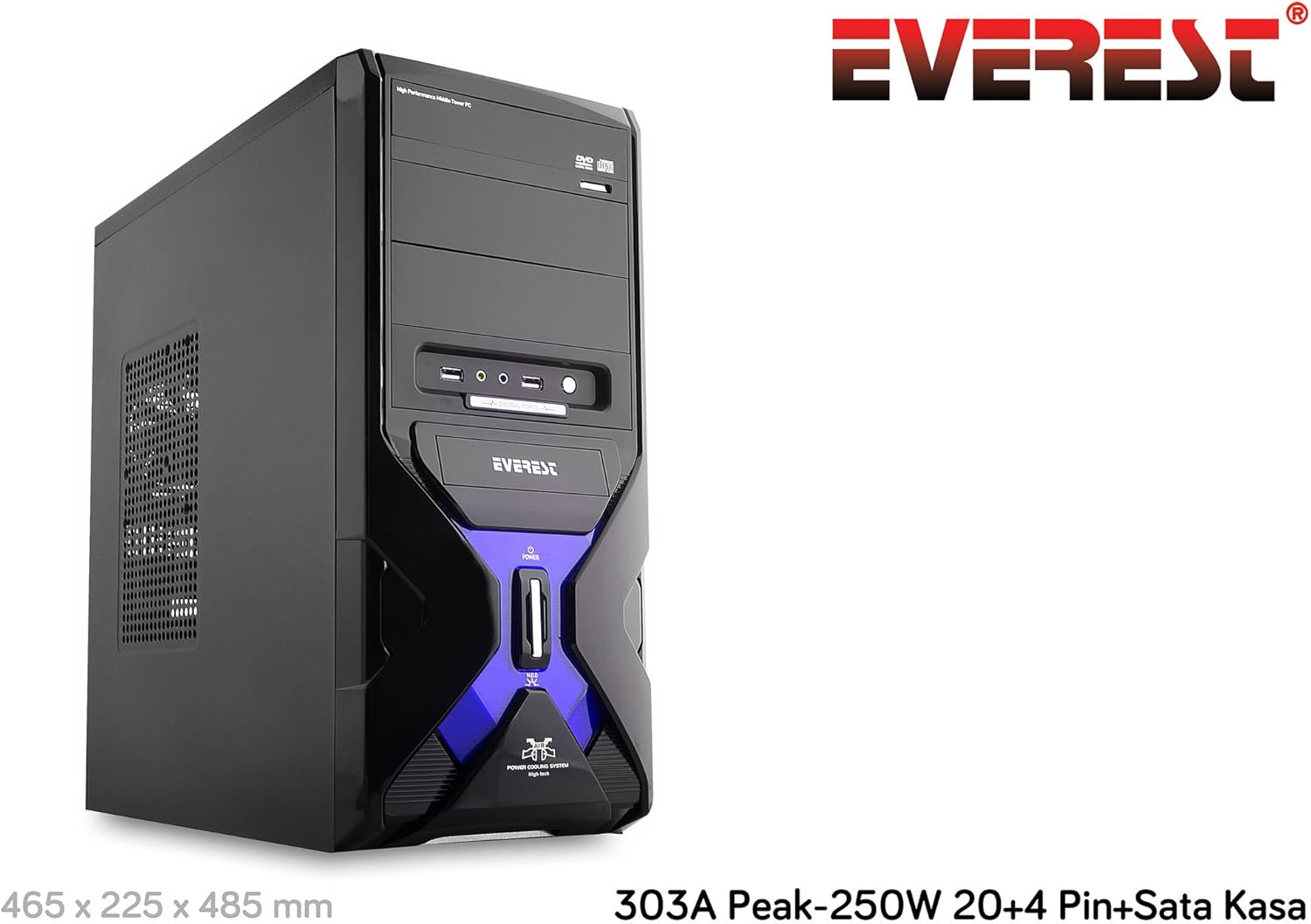
Image: Front view of the Everest 303A PC case, showcasing its design and providing key dimensions: 465 x 225 x 485 mm. The Everest brand logo is also visible.
| Brand | Everest |
| Model | 303A Peak-250W |
| Case Type | Mid Tower |
| Motherboard Compatibility | ATX, Micro ATX, ITX |
| Integrated Power Supply | 250W Peak |
| Front I/O Ports | 2 x USB 2.0, Audio In/Out |
| Product Weight | 4.74 Kilogram |
| Dimensions (L x W x H) | 465 x 225 x 485 mm |
| Origin | China |
9. Warranty and Support
For warranty information and technical support, please refer to the documentation provided with your purchase or contact your retailer. Keep your proof of purchase for warranty claims.
