
JVC GY-HM100
JVC GY-HM100 ProHD Camcorder User Manual
Model: GY-HM100
Introduction
The JVC GY-HM100 ProHD Camcorder is a compact, lightweight, and high-performance video camera designed for professional and enthusiast use. It integrates advanced broadcast camcorder features into a portable form factor, offering high-definition video recording up to 35 Mbps directly to SDHC cards. This manual provides essential information for setting up, operating, maintaining, and troubleshooting your GY-HM100 camcorder.
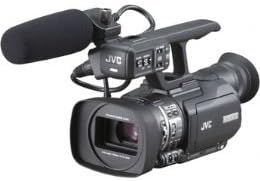
Image: The JVC GY-HM100 ProHD Camcorder, showcasing its compact design with an attached microphone and lens. This view highlights the main body, lens, and handle with control buttons.
What's in the Box
Before you begin, please ensure all components are present:
- JVC GY-HM100 ProHD Camcorder
- Battery
- SDHC Card
- Power Adapter/Charger
- USB Cable
- HDMI Cable
Setup
1. Battery Installation and Charging
- Locate the battery compartment on the camcorder.
- Insert the provided battery, ensuring it clicks securely into place.
- Connect the power adapter to the camcorder and a power outlet. The charging indicator will illuminate.
- Allow the battery to fully charge before first use. Refer to the charging indicator for status.
2. SDHC Card Insertion
The GY-HM100 supports two hot-swappable SDHC card slots for extended recording times.
- Open the SDHC card slot cover.
- Insert the SDHC card with the label facing the correct direction (usually towards the front or top of the camcorder) until it clicks.
- Close the card slot cover.
- It is recommended to format new SDHC cards within the camcorder before first use to ensure optimal performance.
3. Initial Power On
- Ensure the battery is charged or the camcorder is connected to power.
- Locate the power switch and slide it to the "ON" position.
- The camcorder's display will power on, and it will be ready for operation.
Operating Instructions
1. Basic Recording
- Power On: Turn the camcorder on using the power switch.
- Select Mode: Use the mode dial or menu to select your desired recording mode (e.g., Manual, Auto).
- Resolution Settings: Navigate to the menu to select video capture resolution (1080p, 720p, 480p) and format (MP4, MOV).
- Start/Stop Recording: Press the REC button to start recording. Press it again to stop.
2. Focus Assist
The GY-HM100 features a sophisticated focus assist function to aid in achieving sharp focus, especially in manual focus mode. Activate this feature via the menu or a dedicated button (refer to your camcorder's specific button layout) to highlight in-focus areas on the display.
3. Audio Settings
The camcorder supports uncompressed audio (PCM) for high-quality sound recording. Adjust audio input levels, microphone settings, and monitoring options through the audio menu. Ensure external microphones are properly connected if used.
4. Optical Image Stabilization
To minimize camera shake and produce smoother footage, activate the optical image stabilization feature. This is particularly useful when shooting handheld or in dynamic environments. Access this setting through the camcorder's menu.
5. Connectivity (USB, HDMI)
- USB: Connect the camcorder to a computer using a USB cable to transfer recorded files from the SDHC card. The camcorder will appear as a mass storage device.
- HDMI: Use an HDMI cable to connect the camcorder to an external monitor or TV for high-definition playback of your footage.
Maintenance
1. Cleaning
- Lens: Use a soft, lint-free cloth specifically designed for optical lenses. Gently wipe the lens surface. For stubborn smudges, use a small amount of lens cleaning fluid applied to the cloth, not directly to the lens.
- Body: Wipe the camcorder body with a soft, dry cloth. For dirt, slightly dampen the cloth with water. Avoid using strong detergents or solvents.
- Connectors: Keep USB and HDMI ports free of dust and debris.
2. Battery Care
- Store batteries in a cool, dry place when not in use.
- Avoid fully discharging the battery frequently to prolong its lifespan.
- Charge the battery regularly, even if not in use, to maintain its capacity.
3. SDHC Card Handling
- Always power off the camcorder before removing SDHC cards, unless using the hot-swap feature during recording.
- Avoid bending or exposing SDHC cards to extreme temperatures or moisture.
- Regularly back up your footage to a computer or external storage device.
Troubleshooting
| Problem | Possible Cause | Solution |
|---|---|---|
| Camcorder does not power on. | Battery is depleted or not inserted correctly. | Charge the battery or ensure it is properly seated. Check power adapter connection if using AC power. |
| Recording error message. | SDHC card is full, corrupted, or incompatible. | Delete unnecessary files, format the card (backing up data first), or try a different, compatible SDHC card. |
| Poor image quality / blurry footage. | Lens is dirty, focus is incorrect, or lighting is insufficient. | Clean the lens. Adjust focus manually or use focus assist. Ensure adequate lighting for your shooting environment. |
| No audio recorded. | Microphone is muted, disconnected, or audio levels are too low. | Check audio settings in the menu. Ensure external microphone is securely connected and not muted. Adjust audio input levels. |
Specifications
- Brand: JVC
- Model Name: GY-HM100
- Camcorder Type: Video Camera
- Photo Sensor Technology: CMOS
- Video Capture Resolution: 1080p, 720p, 480p
- Flash Memory Type: SDHC
- Video Capture Format: MP4, MOV
- Supported Audio Format: PCM
- Connectivity Technology: USB, HDMI
- Special Feature: Lightweight
Warranty and Support
For warranty information and technical support, please refer to the official JVC website or contact their customer service. Keep your purchase receipt as proof of purchase for warranty claims. Specific warranty terms may vary by region and retailer.
For further assistance, visit the JVC Store on Amazon or the official JVC global website.
Related documentsGY-HM100


Ask a question about this manual
Ask about setup, troubleshooting, compatibility, parts, safety, or missing instructions. Manuals+ will review the question and use this page’s manual context to help answer it.