Introduction
This manual provides detailed instructions for the setup, operation, and maintenance of your Inland Pro Bluetooth Optical Mouse, Model 07349. This device offers reliable wireless connectivity and precise optical tracking for an enhanced computing experience. Its ergonomic design ensures comfortable use over extended periods.
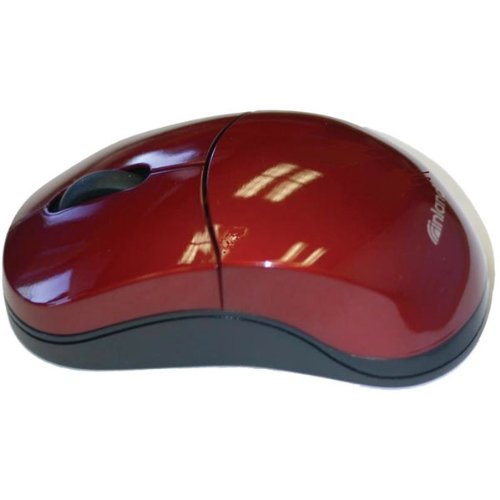
Figure 1: The Inland Pro Bluetooth Optical Mouse, Model 07349, featuring its ergonomic design and burgundy finish.
Setup
1. Battery Installation
The Inland Pro Bluetooth Optical Mouse requires batteries for operation. Batteries are not included with the mouse and must be purchased separately.
- Locate the battery compartment cover on the underside of the mouse.
- Slide or lift the cover to open the compartment.
- Insert the required batteries, ensuring correct polarity (+/-) as indicated inside the compartment.
- Replace the battery compartment cover securely.
2. Bluetooth Pairing
Follow these steps to pair your mouse with a Bluetooth-enabled device:
- Ensure the mouse has fresh batteries installed and is powered on (if it has an on/off switch).
- Activate Bluetooth on your computer or device. Refer to your device's operating system instructions for specific steps.
- Put the mouse into pairing mode. This is typically done by pressing and holding a small button on the underside of the mouse, often labeled "Connect" or with a Bluetooth symbol, until an indicator light on the mouse begins to flash.
- On your device, search for new Bluetooth devices. The mouse should appear in the list, possibly as "Inland Mouse" or "Bluetooth Mouse 07349".
- Select the mouse from the list to complete the pairing process. Once paired, the indicator light on the mouse may stop flashing or turn solid.
If pairing fails, ensure the mouse is within range and not connected to another device. You may need to remove previous pairings from your device's Bluetooth settings and try again.
Operating Instructions
Once successfully paired, your Inland Pro Bluetooth Optical Mouse is ready for use.
- Left Click: Press the left button to select items, open links, or activate functions.
- Right Click: Press the right button to open context menus or access additional options.
- Scroll Wheel: Roll the scroll wheel up or down to navigate through documents and web pages. The scroll wheel may also function as a middle click button for specific applications.
- Optical Tracking: The mouse uses optical technology for precise cursor movement. For optimal performance, use the mouse on a clean, non-reflective surface.
Maintenance
Proper maintenance ensures the longevity and optimal performance of your mouse.
- Cleaning: Use a soft, dry, lint-free cloth to clean the exterior of the mouse. For stubborn dirt, slightly dampen the cloth with water. Avoid using harsh chemicals or abrasive cleaners.
- Optical Sensor: Periodically check the optical sensor on the underside of the mouse for dust or debris. Gently clean it with a cotton swab if necessary.
- Battery Replacement: When the mouse's performance degrades or it stops responding, it is likely time to replace the batteries. Follow the battery installation steps outlined in the Setup section.
- Storage: When not in use for extended periods, consider removing the batteries to prevent leakage and store the mouse in a dry, dust-free environment.
Troubleshooting
If you encounter issues with your Inland Pro Bluetooth Optical Mouse, refer to the following common problems and solutions:
| Problem | Possible Solution |
|---|---|
| Mouse does not respond. |
|
| Erratic or no cursor movement. |
|
| Unable to pair the mouse. |
|
Specifications
| Feature | Detail |
|---|---|
| Brand | Inland |
| Model Number | 07349 |
| Connectivity Technology | Bluetooth |
| Movement Detection Technology | Optical |
| Number of Buttons | 2 (Left, Right) + Scroll Wheel |
| Wireless Type | 2.4 GHz Radio Frequency, 802.11abg |
| Special Features | Bluetooth, Ergonomic Design, Optical Tracking |
| Item Dimensions (LxWxH) | 20.3 x 6.4 x 18.3 Centimeters |
| Item Weight | 109 g |
| Batteries Included | No |
Warranty and Support
For warranty information and technical support, please refer to the documentation included with your product packaging or visit the official Inland website. Keep your purchase receipt as proof of purchase for warranty claims.


