
1. Introduction
This manual provides essential information for the safe and efficient operation of your Panasonic VIERA TC-P55GT50 55-Inch Full HD 3D Plasma TV. Please read these instructions thoroughly before using your television and retain them for future reference. The TC-P55GT50 features a 55-inch 1080p display, 600Hz refresh rate, Full HD 3D capabilities, an Infinite Black Pro Panel, and built-in VIERA Connect Wi-Fi for smart functionality.
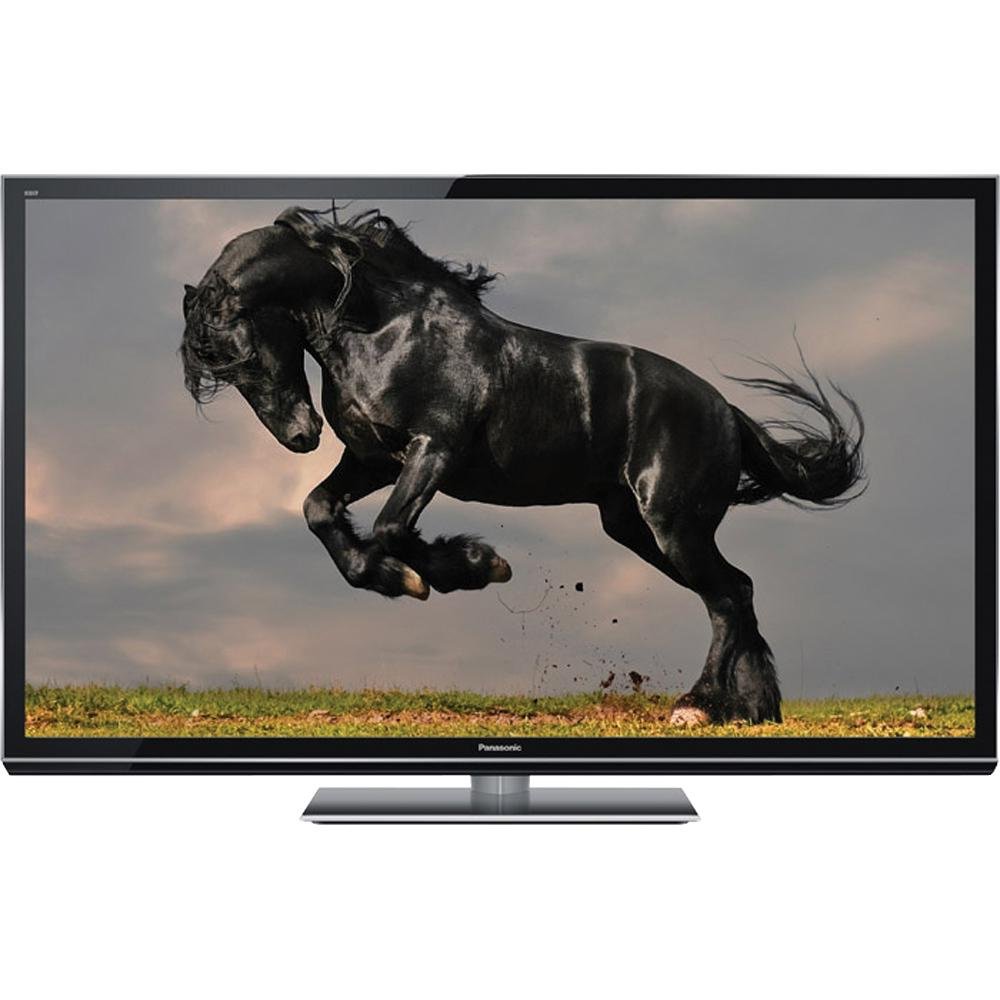
Image 1.1: The Panasonic VIERA TC-P55GT50 Plasma TV displayed in a living room setting, showcasing its slim design and large screen.
2. Safety Information
Observe the following safety precautions to prevent damage to the television and ensure personal safety.
- Power Source: Connect the TV only to an AC 120 V, 60 Hz power supply. Do not overload power outlets.
- Ventilation: Ensure adequate ventilation around the TV. Do not block ventilation openings. Maintain a minimum distance of 10 cm (4 inches) from walls and other objects.
- Placement: Place the TV on a stable, level surface. Avoid placing it in direct sunlight, near heat sources, or in areas with high humidity or dust.
- Liquid and Moisture: Do not expose the TV to rain or moisture. Do not place objects filled with liquids, such as vases, on the TV.
- Cleaning: Disconnect the power cord before cleaning. Use a soft, dry cloth. Do not use liquid cleaners or aerosol cleaners.
- Child Safety: This product includes a Child Safety Guide. Follow its recommendations to prevent tip-over accidents.
3. What's in the Box
Verify that all the following items are included with your Panasonic VIERA TC-P55GT50 TV:
- Panasonic VIERA TC-P55GT50 Plasma TV
- Remote Control
- AC Power Cord
- Pedestal (TV Stand)
- Owner's Manual (this document)
- Child Safety Guide
- Quick Start Guide
- Product Registration Card (U.S.A.)
- 2 x AA Batteries (for remote control)
4. Setup
4.1. Pedestal Assembly
Carefully place the TV screen-down on a soft, clean cloth on a flat surface. Attach the pedestal to the TV using the provided screws, ensuring it is securely fastened. Refer to the Quick Start Guide for detailed diagrams.
4.2. Connecting Devices
Connect your external devices such as Blu-ray players, cable/satellite boxes, and gaming consoles to the TV's input ports (HDMI, Component, etc.).
- HDMI: For high-definition video and audio. Use HDMI cables for best quality.
- Antenna/Cable: Connect an antenna or cable TV line to the RF input.
- Audio Out: Use the optical digital audio output for connecting to a soundbar or home theater system.
Image 4.2: A close-up view of the side of the Panasonic VIERA TC-P55GT50, illustrating the various input and output ports available for connecting external devices.
4.3. Initial Power On and Network Setup
- Plug the AC power cord into the TV and then into a wall outlet.
- Press the Power button on the remote control or the TV.
- Follow the on-screen instructions to select your language, country, and perform an initial channel scan.
- For internet features, navigate to the Network Settings menu. Select your Wi-Fi network and enter the password. The TV supports VIERA Connect for accessing online services.
5. Operating Instructions
5.1. Basic TV Functions
- Power: Press the POWER button on the remote to turn the TV on or off.
- Volume: Use the VOL +/- buttons to adjust the volume.
- Channel: Use the CH +/- buttons to change channels.
- Input: Press the INPUT button to select connected devices (HDMI 1, HDMI 2, etc.).
- Menu: Press the MENU button to access picture, sound, and other settings.
5.2. VIERA Connect (Smart Features)
VIERA Connect provides access to various internet services and applications. Ensure your TV is connected to the internet.
- Press the VIERA Connect button on your remote control.
- Navigate through the available applications using the arrow buttons.
- Select an application (e.g., YouTube, Hulu Plus, Netflix) and press OK to launch it.
- The built-in web browser allows for general internet browsing.
5.3. Full HD 3D Viewing
Your TC-P55GT50 supports Full HD 3D content. Active 3D glasses (sold separately) are required for 3D viewing.
- Play 3D content from a compatible source (e.g., 3D Blu-ray player).
- Put on your active 3D glasses. The TV should automatically detect the 3D signal and activate 3D mode.
- If 3D mode does not activate automatically, press the 3D button on your remote control and select the appropriate 3D format.
- Adjust 3D settings (depth, viewpoint) via the Picture menu if desired.
6. Maintenance
6.1. Cleaning the Screen
To clean the plasma screen, first turn off the TV and unplug the power cord. Gently wipe the screen with a soft, dry, lint-free cloth. For stubborn marks, lightly dampen the cloth with water or a specialized screen cleaner designed for plasma displays. Do not apply pressure or use abrasive materials.
6.2. Cleaning the Cabinet
Wipe the TV cabinet with a soft, dry cloth. Do not use strong detergents, waxes, or solvents as they can damage the finish.
6.3. Preventing Image Retention (Burn-in)
Plasma displays can exhibit temporary image retention if static images are displayed for extended periods. To minimize this:
- Avoid displaying static images (e.g., channel logos, video game HUDs, computer desktop) for more than a few hours.
- Use the TV's built-in pixel orbiter or screen saver functions if available.
- Regularly watch varied content to help clear any temporary image retention.
7. Troubleshooting
Before contacting customer support, try the following solutions for common issues:
| Problem | Possible Cause / Solution |
|---|---|
| No power |
|
| No picture, but sound is present |
|
| No sound, but picture is present |
|
| Cannot connect to Wi-Fi / Internet |
|
| Image retention (temporary burn-in) |
|
8. Specifications
Key technical specifications for the Panasonic VIERA TC-P55GT50 Plasma TV:
| Feature | Detail |
|---|---|
| Model Number | TC-P55GT50 |
| Screen Size | 55 Inches (diagonal) |
| Display Technology | Plasma |
| Resolution | 1080p (1920 x 1080) |
| Refresh Rate | 600Hz Sub-field Drive |
| 3D Capability | Full HD 3D (Active Shutter) |
| Connectivity | Wi-Fi Built-In |
| Internet Services | VIERA Connect (Skype, FOX Sports, SHOUTcast, AccuWeather, Hulu Plus, MLB.tv, Pandora, Youtube) |
| Product Dimensions (without stand) | 50.6-Inch (W) x 14.1-Inch (H) x 1.7-Inch (D) |
| Product Dimensions (with stand) | 50.6-Inch (W) x 32.3-Inch (H) x 14.1-Inch (D) |
| Item Weight | 59.6 Pounds |
| Included Components | Remote Control, AC Power Cord, Pedestal, Owner's Manual, Child Safety Guide, Quick Start Guide, Product Registration Card (U.S.A.), 2 x AA Batteries |
9. Warranty and Support
This product is covered by the manufacturer's warranty. The seller offers no additional warranty beyond the remainder of the original manufacturer's warranty. For specific warranty terms, please refer to the Product Registration Card or contact Panasonic customer support directly.
For technical assistance, troubleshooting beyond this manual, or warranty claims, please contact Panasonic customer support. Contact information can typically be found on the Panasonic official website or on the Product Registration Card included with your TV.