
Rane Sixty-Two
Rane Sixty-Two DJ Mixer User Manual
Model: Sixty-Two | Brand: Rane
Introduction
The Rane Sixty-Two is a professional two-channel DJ mixer designed for seamless integration with Serato DJ Pro. It offers robust features for live performance, including dual USB ports for easy DJ changeovers, comprehensive software control, and a high-quality internal effects engine. This manual provides essential information for setting up, operating, and maintaining your Rane Sixty-Two mixer.
Key Features:
- Two-deck digital vinyl simulation
- SP-6 sample player integration
- Bundled with Serato DJ Pro software
- Fully integrated MIDI controller functionality
- Includes 2 each vinyl and CD control discs
- Dual USB ports for connecting two computers simultaneously
- 32-bit floating point audio processing at 48 kHz
- Mic/line input with gain trim and two-band EQ
- Internal Effects Engine with Filter, Flanger, Phaser, Echo, Robot, and Reverb
- Magnetic crossfader and channel faders with reverse and contour controls
Package Contents
Upon opening the package, please verify that all components are present and in good condition. The Rane Sixty-Two package typically includes:
- Rane Sixty-Two DJ Mixer
- Power Cable
- USB Cables (x2)
- Serato DJ Pro Software License (or download instructions)
- Serato Control Vinyl (x2)
- Serato Control CDs (x2)
- User Manual (this document)

Image: The Rane Sixty-Two DJ Mixer is typically shipped in a sturdy brown cardboard box, featuring the Rane logo and shipping information. This image shows the exterior of the product packaging.
Setup
Follow these steps to set up your Rane Sixty-Two DJ Mixer for optimal performance.
1. Connecting Power
Connect the provided power cable to the mixer's power input on the rear panel and then to a suitable electrical outlet. Ensure the power switch is in the OFF position before connecting.
2. Connecting Audio Inputs and Outputs
The Sixty-Two offers a variety of input and output options. Refer to the rear panel diagram below for connection points.
- Main Out: Connect to your main sound system or amplifier using XLR or 1/4-inch TRS cables.
- Booth Out: Connect to your booth monitor speakers using 1/4-inch TRS cables.
- Session Out/In: Use these RCA connections for linking multiple mixers or recording your set.
- Analog Inputs (Phono/CD): Connect turntables (Phono) or CDJs/line-level devices (CD) to the respective RCA inputs. Use the INPUT SELECT switch to toggle between Phono and CD for each channel.
- FlexFX Loop: Connect external effects units using the Send and Return 1/4-inch TRS jacks.
- Mic Input: Connect a microphone to the XLR/TRS combo jack.
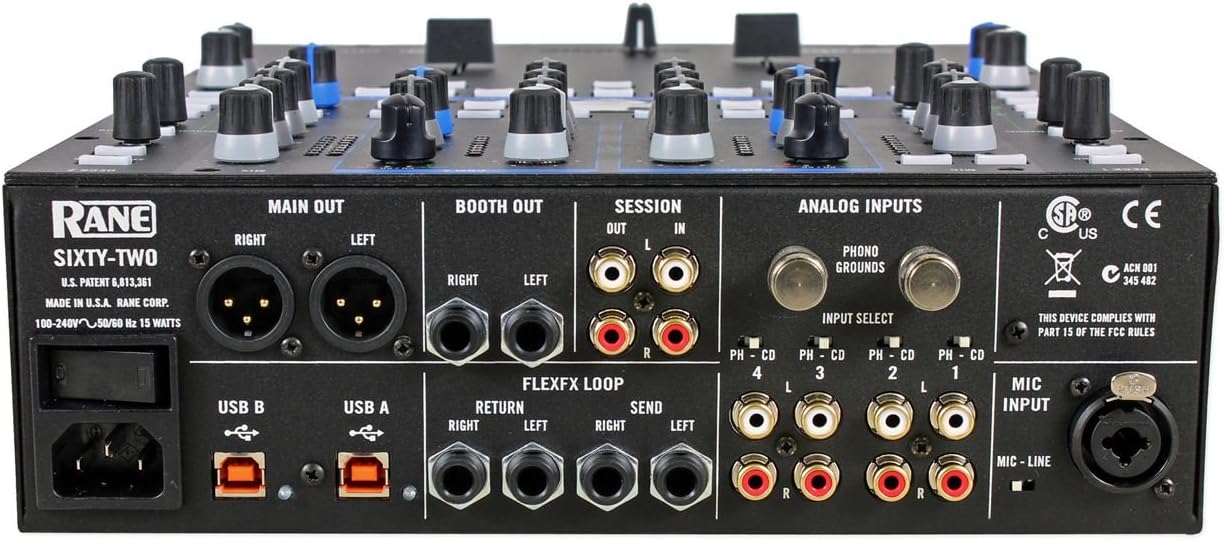
Image: This image displays the rear panel of the Rane Sixty-Two DJ Mixer, highlighting all available input and output ports including Main Out, Booth Out, Session I/O, Analog Inputs (Phono/CD), FlexFX Loop, USB ports, and Mic Input.
3. USB Connection
The Rane Sixty-Two features two USB ports (USB A and USB B) for connecting to two separate computers simultaneously. This allows for seamless DJ changeovers. Connect a USB cable from either USB port on the mixer to an available USB port on your computer.
4. Software Installation (Serato DJ Pro)
The Rane Sixty-Two is designed to work with Serato DJ Pro. Ensure you have the latest version of Serato DJ Pro installed on your computer. Drivers for the Sixty-Two are typically included with the Serato DJ Pro installation. Visit the official Serato website for software downloads and installation instructions.
Operating Your Rane Sixty-Two
This section provides an overview of the mixer's controls and basic operation.
1. Mixer Layout Overview
The Rane Sixty-Two features a clear and intuitive layout, with controls logically grouped for efficient performance.
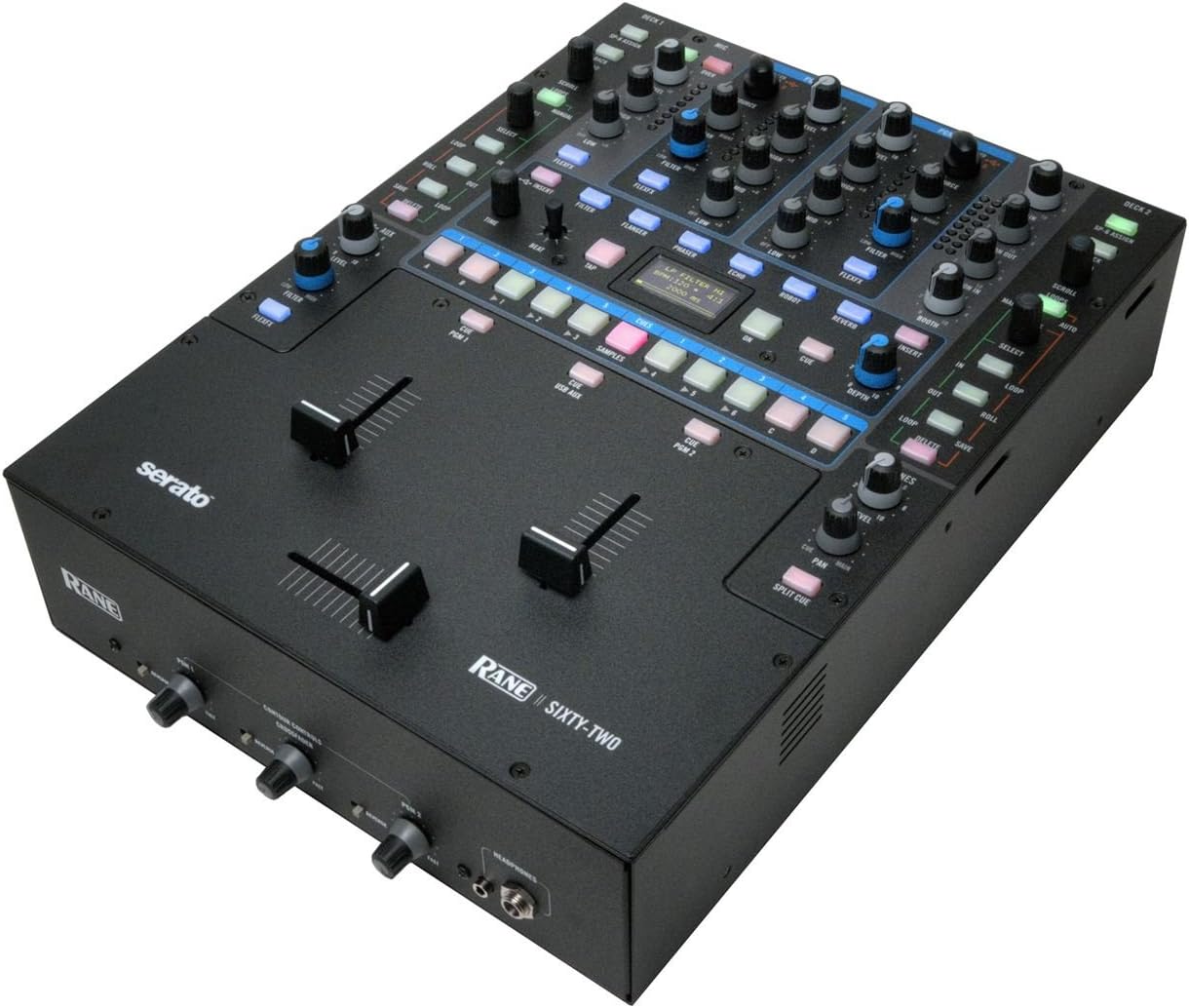
Image: A comprehensive top-down view of the Rane Sixty-Two DJ Mixer, illustrating the arrangement of its various knobs, buttons, and faders, including the main channels, effects section, and crossfader area.
2. Channel Controls
Each of the two main channels features:
- Gain Knob: Adjusts the input level for the channel.
- EQ Knobs (High, Mid, Low): Three-band equalizer for shaping the sound.
- Filter Knob: Applies a high-pass or low-pass filter.
- Flex FX Assign Buttons: Routes the channel audio to the internal or external effects loop.
- Cue Button: Sends the channel audio to the headphone output for monitoring.
- Channel Fader: Controls the volume of the channel.
3. Crossfader and Faders
The Sixty-Two is equipped with Rane's renowned magnetic faders, known for their durability and smooth performance.
- Crossfader: Blends audio between Channel 1 and Channel 2.
- Reverse Switch: Reverses the direction of the crossfader.
- Contour Control: Adjusts the curve of the crossfader and channel faders, from sharp cuts to smooth fades.

Image: A direct front view of the Rane Sixty-Two DJ Mixer, focusing on the crossfader, channel faders, and the headphone output section with its dedicated volume controls.
4. Effects Engine
The internal effects engine provides a range of high-quality effects that can be applied to individual channels or the master output.
- Effect Select: Choose from Filter, Flanger, Phaser, Echo, Robot, and Reverb.
- Parameter Controls: Adjust specific parameters for each effect (e.g., depth, rate, feedback).
- Tap Button: Manually tap the tempo for time-based effects.
5. Serato DJ Pro Integration
The Sixty-Two offers deep integration with Serato DJ Pro, allowing direct control of software functions from the mixer.
- Library Navigation: Browse your music library directly from the mixer.
- Loop Controls: Create and manipulate loops.
- Cue Points: Set and trigger cue points.
- SP-6 Sampler: Control the Serato SP-6 sample player.
- Software FX: Access and control Serato's internal software effects.
6. Dual USB Ports
The dual USB ports are a key feature, enabling two DJs to connect their laptops simultaneously. This facilitates smooth transitions between performers without interrupting the music.
Maintenance
Proper maintenance will ensure the longevity and optimal performance of your Rane Sixty-Two mixer.
- Cleaning: Regularly wipe the mixer's surface with a soft, dry, lint-free cloth. For stubborn dirt, a slightly damp cloth can be used, followed by immediate drying. Avoid abrasive cleaners or solvents.
- Fader Care: The magnetic faders are designed for high durability. Avoid spilling liquids into the fader slots. If fader performance degrades, consult a qualified service technician.
- Storage: When not in use, store the mixer in a clean, dry environment, away from direct sunlight, extreme temperatures, and excessive dust. Using a dust cover is recommended.
- Cable Management: Ensure all cables are connected securely and are not under undue strain. Avoid sharp bends or kinks in cables.
Troubleshooting
If you encounter issues with your Rane Sixty-Two, refer to the following common problems and solutions.
- No Sound Output:
- Check all audio cable connections (Main Out, Booth Out) to your sound system/speakers.
- Ensure the Master Volume and Channel Faders are turned up.
- Verify that the correct input source (Phono/CD) is selected for each channel.
- Confirm that Serato DJ Pro is running and audio is routed correctly within the software.
- Serato DJ Pro Not Connecting/Recognizing Mixer:
- Ensure the USB cable is securely connected to both the mixer and your computer.
- Try a different USB port on your computer or a different USB cable.
- Restart both the mixer and your computer.
- Verify that the latest Serato DJ Pro software and drivers are installed.
- Check your computer's sound settings to ensure the Rane Sixty-Two is selected as the audio device.
- Distorted Audio:
- Check the Gain levels on each channel and the Master Volume. Ensure no input or output is clipping (indicated by red lights).
- Verify that the correct input type (Phono/CD) is selected for your source. Phono inputs are for turntables, CD inputs are for line-level devices.
- Inspect audio cables for damage or loose connections.
- Fader Issues (Sticking, Bleeding):
- Ensure no debris has entered the fader slot.
- If issues persist, professional servicing may be required. Do not attempt to disassemble the faders yourself.
Technical Specifications
Below are the key technical specifications for the Rane Sixty-Two DJ Mixer:
| Specification | Value |
|---|---|
| Item Weight | 13.5 pounds |
| Product Dimensions | 19.1 x 15.2 x 7.6 inches |
| Item Model Number | Sixty-Two |
| Date First Available | February 13, 2012 |
| Compatible Devices | CDJs, Laptop, Turntables |
| Computer Platform | Mac or PC |
| Hardware Interface | USB |
| Supported Software | Serato |
| Mixer Channel Quantity | 2 |
| Power Source | Corded Electric |
| Number of Channels (Internal) | 20 (referring to internal audio channels) |
| Connectivity Technology | USB |
| Frequency (Sampling) | 48 KHz |
Warranty Information
Rane products are manufactured to high standards and come with a limited warranty. The specific terms and duration of the warranty may vary by region and product. Please refer to the warranty card included with your product or visit the official Rane website for detailed warranty information and registration procedures. Keep your proof of purchase for warranty claims.
Customer Support
For technical assistance, troubleshooting beyond this manual, or service inquiries, please contact Rane customer support. You can find contact information, FAQs, and additional resources on the official Rane website:
Related documentsSixty-Two


Ask a question about this manual
Ask about setup, troubleshooting, compatibility, parts, safety, or missing instructions. Manuals+ will review the question and use this page’s manual context to help answer it.