1. Setup Guide
1.1 Package Contents
Verify that all items are present in the package:
- Rapoo T6 Wireless Mouse
- USB Nano Receiver
- 1x AA Alkaline Battery (pre-installed)
- Quick Start Guide
1.2 Battery Installation
The Rapoo T6 mouse comes with a pre-installed AA alkaline battery. If replacement is needed:
- Locate the battery compartment cover on the underside of the mouse.
- Slide the cover open.
- Insert one AA battery, ensuring correct polarity (+/-).
- Close the battery compartment cover securely.
1.3 Connecting the USB Receiver
The USB Nano Receiver provides the wireless connection between the mouse and your computer.
- Locate the USB Nano Receiver. It may be stored inside the mouse's battery compartment for transport.
- Plug the USB Nano Receiver into an available USB port on your computer.
- The computer should automatically detect the receiver and install necessary drivers.
- Turn on the mouse using the power switch located on its underside.

Figure 1: Top view of the Rapoo T6 Wireless Mouse. This image displays the mouse's minimalist design, highlighting its smooth, white multi-touch surface without visible buttons, indicating its gesture-based functionality.
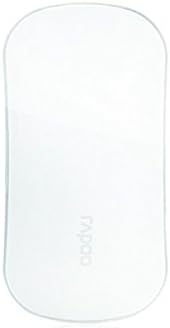
Figure 2: Alternative top view of the Rapoo T6 Wireless Mouse. This image provides a slightly different angle, further illustrating the mouse's slim and elongated form factor, designed for portability and multi-touch interaction.
2. Operating Instructions
2.1 Basic Functions
- Left Click: Press the left side of the mouse surface.
- Right Click: Press the right side of the mouse surface.
2.2 Multi-Touch Gestures
The Rapoo T6 mouse features intelligent multi-touch technology for intuitive navigation.
- Vertical Scroll: Slide one finger up or down the center of the mouse surface.
- Horizontal Scroll: Slide one finger left or right across the center of the mouse surface.
2.3 Power Management
The mouse is equipped with an energy-saving technology to extend battery life.
- Power Switch: Use the ON/OFF switch on the underside of the mouse to conserve battery when not in use.
- Battery Life: With typical usage, the included AA battery can last up to 3 months.
3. Maintenance and Care
Proper care ensures the longevity and optimal performance of your mouse.
- Cleaning: Use a soft, dry cloth to clean the mouse surface. Avoid abrasive cleaners or solvents.
- Storage: When not in use for extended periods, turn off the mouse and store it in a dry, cool place.
- Battery Replacement: Replace the AA battery when performance degrades or the mouse becomes unresponsive.
4. Troubleshooting
If you encounter issues with your Rapoo T6 mouse, refer to the following common solutions:
- No Mouse Movement:
- Ensure the mouse is powered on.
- Check if the USB Nano Receiver is securely plugged into a working USB port.
- Replace the AA battery if it is low or depleted.
- Try plugging the receiver into a different USB port.
- Erratic or Delayed Movement:
- Ensure the mouse is within the 10-meter operating range of the receiver.
- Remove any potential obstructions or sources of interference (e.g., other wireless devices, large metal objects).
- Clean the optical sensor on the underside of the mouse.
- Multi-Touch Gestures Not Responding:
- Ensure your fingers are clean and dry.
- Perform gestures smoothly and deliberately across the touch surface.
5. Product Specifications
| Feature | Specification |
|---|---|
| Model | T6 |
| Connectivity Technology | 2.4GHz Wireless (RF) |
| Operating Range | Up to 10 meters |
| Movement Detection | Optical |
| Movement Resolution | 1000 dpi |
| Number of Buttons | Multi-touch surface (Left Click, Right Click) |
| Multi-Touch Functions | Vertical Scroll, Horizontal Scroll |
| Power Source | 1x AA Alkaline Battery |
| Battery Life | Up to 3 months (typical usage) |
| Dimensions (LxWxH) | 4.5 x 0.9 x 2.3 inches (approx.) |
| Weight | 4.8 ounces (approx.) |
| Color | White |
6. Warranty and Support
Rapoo products are designed for reliability and performance. For specific warranty details and support, please refer to the warranty card included with your product or visit the official Rapoo support website.
For further assistance, please contact Rapoo customer support.


