
1. Introduction
The Planet Audio PHP32 Infrared Wireless Headphones are designed to provide a high-quality audio experience for users of compatible Planet Audio monitors with infrared audio transmission. These dual-channel stereo headphones offer wireless convenience, making them ideal for in-car entertainment systems.
1.1 Package Contents
Ensure all items are present in your package:
- Dual-channel IR Wireless Headphones (1 unit)
- AAA Batteries (2 units, pre-installed or included separately)
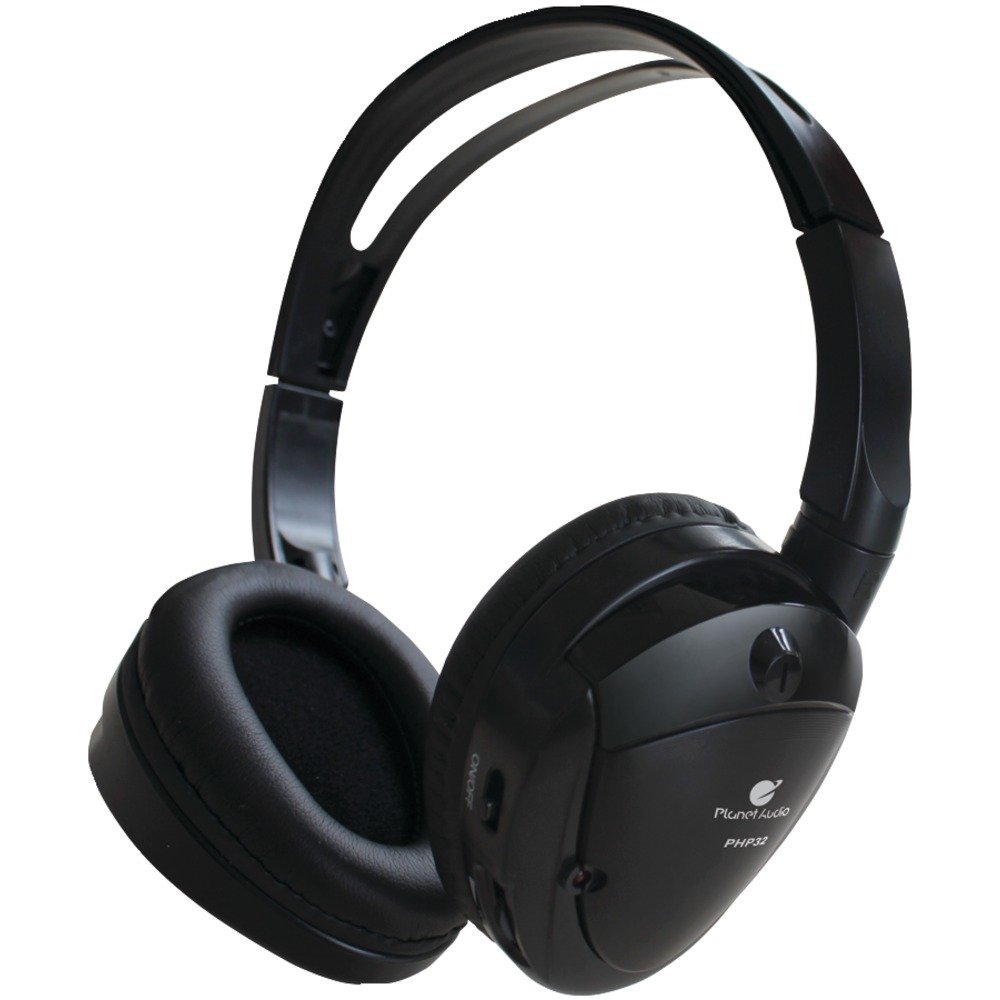
Image: Planet Audio PHP32 Infrared Wireless Headphones. This image displays the foldable design of the headphones, highlighting the earcups and adjustable headband.
2. Important Safety Information
Please read all safety instructions carefully before using this product. Failure to follow these instructions may result in injury or damage to the headphones.
- Do not expose headphones to extreme temperatures, moisture, or direct sunlight.
- Avoid dropping or subjecting the headphones to strong impacts.
- Keep out of reach of small children.
- Do not attempt to disassemble or modify the headphones. This will void the warranty.
- Listen at moderate volume levels to prevent hearing damage.
California Proposition 65 Warning: This product contains chemicals known to the State of California to cause cancer and birth defects or other reproductive harm.
3. Setup Guide
3.1 Battery Installation
The PHP32 headphones require 2 AAA batteries for operation. These are typically included with your purchase.
- Locate the battery compartment cover on one of the earcups.
- Gently slide or unclip the cover to open the compartment.
- Insert 2 AAA batteries, ensuring the correct polarity (+ and -) as indicated inside the compartment.
- Close the battery compartment cover securely.
Note: If the headphones are not used for an extended period, remove the batteries to prevent leakage.
3.2 Connecting to an Infrared Source
The PHP32 headphones are designed to receive audio signals from compatible infrared (IR) transmitters, typically found in Planet Audio car monitors or DVD players.
- Ensure your Planet Audio monitor or IR audio source is powered on and transmitting an audio signal.
- Turn on your PHP32 headphones using the power switch (refer to Section 4.1).
- Position yourself within the line of sight of the IR transmitter. Infrared signals require a clear path between the transmitter and the headphones.
- The headphones should automatically detect and connect to the IR signal. If not, try adjusting your position or checking the channel selection (refer to Section 4.2).
4. Operating Instructions
4.1 Powering On/Off
- To power on the headphones, slide the POWER switch to the 'ON' position. An indicator light may illuminate.
- To power off, slide the POWER switch to the 'OFF' position. The indicator light will turn off.
4.2 Channel Selection
The PHP32 headphones support dual-channel operation (Channel A and Channel B). This allows multiple users to listen to different audio sources simultaneously if your IR transmitter supports it.
- Locate the CHANNEL SELECTOR switch on the headphones.
- Slide the switch to 'A' or 'B' to select the desired audio channel.
- Match the selected channel on the headphones to the output channel of your IR audio source.
4.3 Volume Control
Adjust the listening volume using the VOLUME dial or buttons located on the earcup.
- Rotate the dial or press the '+' button to increase volume.
- Rotate the dial or press the '-' button to decrease volume.
4.4 Wearing the Headphones
Adjust the headband to ensure a comfortable and secure fit. The earcups are designed to fit over the ears for optimal sound isolation and comfort.
5. Care and Maintenance
5.1 Cleaning
- Wipe the headphones with a soft, dry cloth.
- Do not use abrasive cleaners, solvents, or harsh chemicals.
- Avoid getting moisture into any openings.
5.2 Storage
- Store the headphones in a cool, dry place away from direct sunlight and extreme temperatures.
- The foldable design allows for compact storage when not in use.
- Remove batteries if storing for extended periods.
6. Troubleshooting
If you encounter issues with your PHP32 headphones, refer to the following table for common problems and solutions.
| Problem | Possible Cause | Solution |
|---|---|---|
| No sound | Headphones not powered on Low or dead batteries Incorrect channel selected Out of range or obstructed IR signal Audio source not transmitting | Ensure power switch is ON Replace batteries Select correct channel (A or B) Move closer to IR transmitter; ensure clear line of sight Verify audio source is on and playing |
| Poor sound quality / Static | Weak IR signal Interference Low batteries | Move closer to IR transmitter Ensure no objects are blocking the signal path Replace batteries |
| Headphones not powering on | Dead or incorrectly installed batteries | Replace batteries with new ones; check polarity |
7. Product Specifications
Below are the technical specifications for the Planet Audio PHP32 Infrared Wireless Headphones:
| Feature | Specification |
|---|---|
| Model Name | Dual-Channel IR Wireless Headphones |
| Connectivity Technology | Wireless, Infrared |
| Wireless Communication Technology | Infrared |
| Included Components | Dual-channel IR Wireless Headphones |
| Age Range (Description) | Adult |
| Compatible Devices | Monitors, DVD Players with IR audio transmission |
| Cable Feature | Without Cable |
| Style | Dual Channel Stereo Headphones |
| Number of Items | 1 |
| Battery Life | Approximately 3 Hours (may vary with usage) |
| Earpiece Shape | Over Ear |
| Special Feature | Noise Cancellation (passive) |
| Manufacturer | Planet Audio |
| Product Dimensions | 7.51 x 7.01 x 1.89 inches |
| Item Weight | 3.2 ounces |
| Item Model Number | PHP32 |
| Batteries | 2 AAA batteries required (included) |
| Color | Black |
| Ear Placement | Over Ear |
| Form Factor | On Ear / Over Ear |
| Noise Control | None (passive noise isolation from over-ear design) |
8. Warranty and Support
Planet Audio products are designed for reliability and performance. For specific warranty information regarding your PHP32 headphones, please refer to the warranty card included with your purchase or visit the official Planet Audio website.
For technical support, troubleshooting assistance beyond this manual, or to inquire about replacement parts, please contact Planet Audio customer service through their official website: planetaudio.com
