
1. Introduction
The iLuv MobiAir iMM377BLK is a Bluetooth stereo speaker dock designed for smartphones. It allows users to stream music wirelessly via Bluetooth, charge compatible micro-USB smartphones, and engage in hands-free conversations using its built-in speakerphone. This manual provides detailed instructions for the proper setup, operation, and maintenance of your device.
2. Package Contents
Please verify that all items listed below are included in your package:
- iLuv MobiAir iMM377BLK Bluetooth Stereo Speaker Dock
- AC Adapter
- Quick Start Guide
3. Product Overview
Familiarize yourself with the components of your MobiAir speaker dock.

Figure 3.1: Front view of the iLuv MobiAir iMM377BLK with a smartphone securely docked.
3.1 Front Panel and Docking Area
- Speaker Grilles: Located on the left and right sides, providing stereo audio output.
- myBot Robotic Arms: Adjustable arms that secure your smartphone in place, accommodating various phone sizes.
- Sliding Micro-USB Connector: A flexible connector that slides and rotates to align with your smartphone's micro-USB port for charging.

Figure 3.2: Top-mounted control buttons for power, playback, volume, and Bluetooth functions.
3.2 Top Panel Controls
- Power Button: Turns the unit on or off.
- Bluetooth Pairing Button: Initiates Bluetooth pairing mode.
- Volume Up/Down Buttons: Adjusts the audio output volume.
- Play/Pause Button: Controls media playback.
- Track Skip Buttons: Skips to the next or previous track.
- Call Answer/End Button: Manages phone calls when connected via Bluetooth.
- Microphone: For hands-free calling.

Figure 3.3: Rear panel with auxiliary input and DC power port.
3.3 Rear Panel Connections
- DC IN Port: Connects to the provided AC adapter for power.
- AUX IN Jack: Allows connection of external audio devices via a 3.5mm audio cable (not included).
4. Setup
4.1 Power Connection
- Connect the supplied AC adapter to the DC IN port on the rear of the MobiAir dock.
- Plug the AC adapter into a standard wall outlet.
- Press the Power button on the top panel to turn on the unit.
4.2 Docking Your Smartphone
The MobiAir features adjustable myBot robotic arms and a sliding micro-USB connector to accommodate various smartphone designs.
- Gently pull apart the myBot robotic arms to create enough space for your smartphone.
- Position your smartphone between the arms.
- Adjust the sliding micro-USB connector to align with your smartphone's charging port. The connector can also rotate to match the port's orientation.
- Carefully push your smartphone onto the micro-USB connector until it is securely seated and charging begins.
- Release the myBot arms to gently secure the smartphone in the dock.

Figure 4.1: Horizontal adjustment of the myBot robotic arms to fit various smartphone widths.
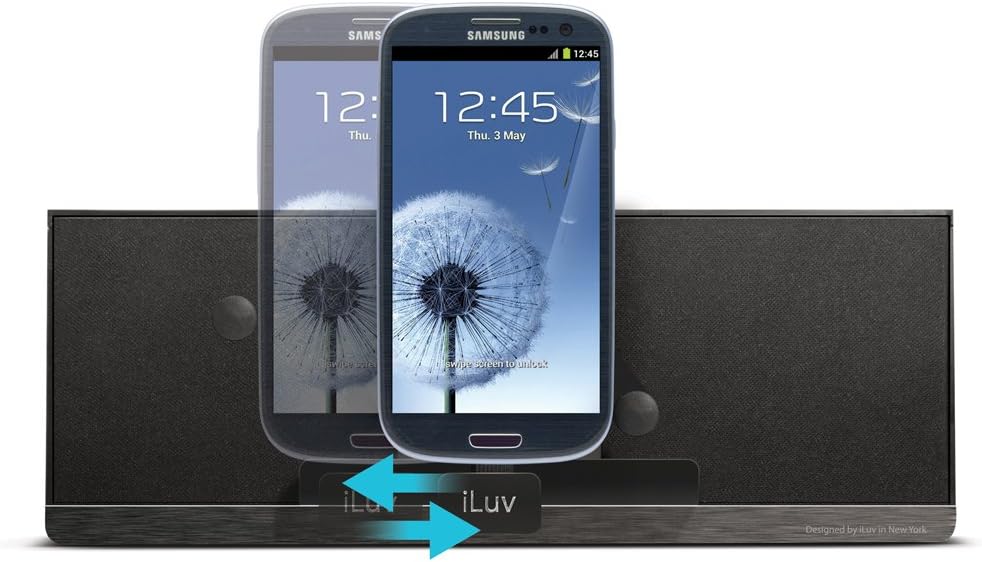
Figure 4.2: Vertical adjustment of the myBot robotic arms for different smartphone heights.
5. Operating Instructions
5.1 Bluetooth Pairing and Audio Streaming
- Ensure the MobiAir dock is powered on.
- Press and hold the Bluetooth Pairing button on the top panel until the Bluetooth indicator light begins to flash, indicating pairing mode.
- On your smartphone, navigate to the Bluetooth settings and enable Bluetooth.
- Search for available devices and select "iLuv MobiAir" (or similar name) from the list.
- Once paired, the Bluetooth indicator light will become solid, and you can now stream audio wirelessly from your smartphone to the dock.
- Use the Play/Pause and Track Skip buttons on the dock, or your smartphone, to control playback.
- Adjust volume using the Volume Up/Down buttons on the dock or your smartphone.
5.2 Using the Auxiliary Input (AUX IN)
For devices without Bluetooth capability, or if you prefer a wired connection, use the AUX IN jack.
- Connect one end of a 3.5mm audio cable (not included) to the AUX IN jack on the rear of the MobiAir dock.
- Connect the other end of the audio cable to the headphone jack or audio output of your external audio device.
- The dock will automatically switch to AUX IN mode. If not, ensure no Bluetooth device is actively streaming.
- Control playback and track selection directly from your external audio device. Volume can be adjusted on both the device and the dock.
5.3 Hands-Free Speakerphone Function
When your smartphone is connected via Bluetooth, you can use the MobiAir dock as a speakerphone.
- Answering a Call: When a call comes in, press the Call Answer/End button on the top panel.
- Ending a Call: Press the Call Answer/End button again to end the conversation.
- Making a Call: Initiate a call from your smartphone. The audio will automatically route through the MobiAir dock.
6. Maintenance
- Cleaning: Use a soft, dry cloth to clean the surface of the unit. Do not use liquid cleaners or abrasive materials.
- Storage: When not in use for extended periods, unplug the AC adapter and store the unit in a cool, dry place.
- Avoid Moisture: Keep the unit away from water and high humidity.
- Avoid Extreme Temperatures: Do not expose the unit to direct sunlight or extreme heat/cold.
7. Troubleshooting
| Problem | Possible Cause | Solution |
|---|---|---|
| No power | AC adapter not connected or power outlet not active. | Ensure the AC adapter is securely connected to the dock and a working power outlet. Press the Power button. |
| No audio via Bluetooth | Not paired, out of range, or volume too low. |
|
| Smartphone not charging | Micro-USB connector misalignment or incompatible phone. |
|
| Poor sound quality | Low quality audio source, interference, or incorrect volume levels. |
|
8. Specifications
| Feature | Detail |
|---|---|
| Model Number | iMM377BLK |
| Brand | iLuv |
| Product Dimensions | 8.5 x 4.5 x 6.5 inches (21.6 x 11.4 x 16.5 cm) |
| Item Weight | 1.2 pounds (0.54 kg) |
| Color | Black |
| Hardware Interface | USB 2.0 (for charging) |
| Compatible Devices | Smartphones with Micro-USB charging and Bluetooth (A2DP) audio capability |
| Total USB Ports | 1 (Micro-USB for charging) |
| Input Voltage | 5 Volts (DC) |
| Connectivity | Bluetooth (A2DP), 3.5mm AUX IN |
9. Warranty and Support
For warranty information and technical support, please refer to the warranty card included with your product or visit the official iLuv website.
iLuv Customer Support: For assistance with product setup, troubleshooting, or warranty claims, please contact iLuv customer service through their official channels.


