
AVerMedia H837
Contents
AVerMedia AVerTV Volar Hybrid Q User Manual
Model: H837 | Brand: AVerMedia
1. Introduction
The AVerMedia AVerTV Volar Hybrid Q is a versatile USB TV tuner designed to bring digital and analog television, as well as FM radio, to your PC. Its compact design and powerful features allow you to enjoy high-quality entertainment on your computer. Key functionalities include robust digital TV and FM radio reception via its extendable High Gain Antenna, and the ability to connect analog video devices for capturing content. With the accompanying AVer MediaCenter3D software, you can utilize features like TimeShift for live TV control, schedule recordings, and even record in formats compatible with iPhone and iPad for on-the-go viewing. The device is fully compatible with Windows Media Center, offering a familiar viewing experience.
2. Package Contents
Please verify that all items listed below are included in your product package:
- AVerTV Volar Hybrid Q USB TV Tuner
- Installation CD
- Quick Installation Guide
- High Gain Antenna

Image: AVerMedia AVerTV Volar Hybrid Q retail box showing the tuner, antenna, and installation disc.
3. Setup Guide
3.1. Software Installation
Before connecting the AVerTV Volar Hybrid Q, it is recommended to install the necessary software. The AVerTV MediaCenter 3D software provides the interface for watching TV, listening to FM radio, and managing recordings.
- Insert the provided Installation CD into your computer's optical drive.
- Follow the on-screen prompts to install AVerTV MediaCenter 3D and the required drivers. If you do not have an optical drive, you can download the latest software and drivers from the official AVerMedia support website.
Video: An instructional video demonstrating the software installation process for the AVerMedia AVerTV Volar Hybrid Q.
3.2. Connect the High-Gain Antenna
The included High-Gain Antenna is essential for receiving digital TV and FM radio signals.
- Locate the coaxial input port on the AVerTV Volar Hybrid Q.
- Connect the High-Gain Antenna to this port by screwing it clockwise until secure.
- Extend the antenna rods for optimal signal reception. Position the antenna near a window or in an open area for best results.

Image: The AVerMedia AVerTV Volar Hybrid Q with its extendable High-Gain Antenna attached to the coaxial input.
3.3. Connect to Your Computer
Once the software is installed and the antenna is connected, you can connect the tuner to your computer.
- Remove the protective cap from the USB connector of the AVerTV Volar Hybrid Q.
- Insert the USB connector into an available USB 2.0 or 3.0 port on your laptop or desktop computer.
- Your computer should automatically detect the device. If prompted, allow the installation of any remaining drivers.

Image: The AVerMedia AVerTV Volar Hybrid Q with its USB cap removed, showing the USB connector ready for insertion into a computer port.
4. Operating Instructions
4.1. Using AVerTV MediaCenter 3D
Launch the AVerTV MediaCenter 3D application from your desktop or Start Menu. The software provides a user-friendly interface for all your media needs.
- Live TV: Select the 'TV' option to begin watching digital (ATSC, Clear QAM) or analog television channels. The first time you use it, you may need to perform a channel scan.
- Channel Management: Easily switch between channels using the on-screen controls or your remote control (if applicable).
- Volume Control: Adjust audio levels directly within the application or using your computer's system volume controls.
- Color Adjustment: Customize video display settings such as brightness, contrast, hue, saturation, and sharpness to suit your preferences.
- TimeShift: Pause, fast forward, and rewind live TV broadcasts. This feature allows you to take breaks without missing any part of your program.
- Scheduled Recording: Utilize the Electronic Program Guide (EPG) to view upcoming programs and schedule recordings.
- Format Recording: Record shows in various digital formats, including those compatible with iPod, iPhone, or iPad, for convenient playback on mobile devices.
- Multi-channel Preview: View multiple channels simultaneously to quickly see what's on.
- FM Radio: Switch to the 'FM Radio' mode to listen to your favorite local radio stations.
- Remote Viewing (SnugTV): The accompanying SnugTV Station software allows you to stream your home TV to your iPhone or iPad over the internet, enabling remote viewing.
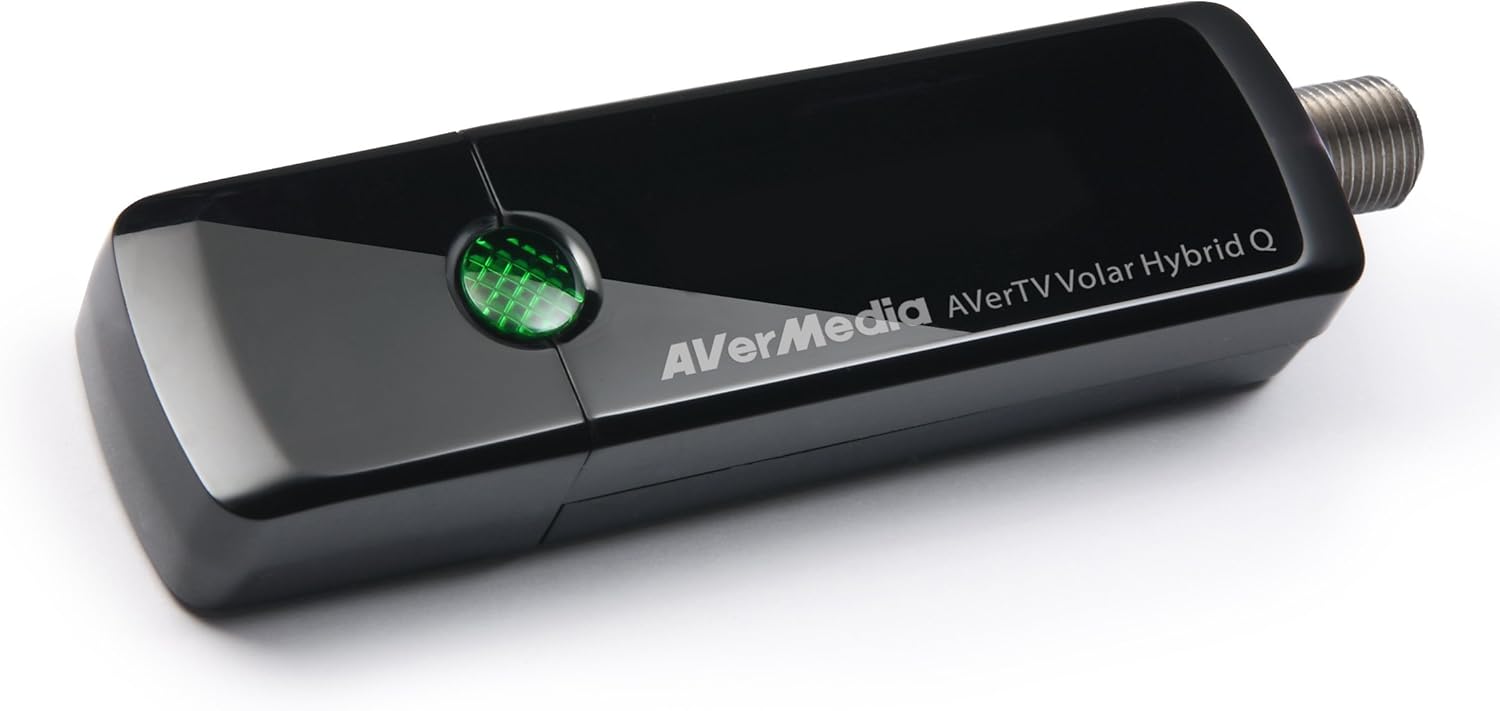
Image: The AVerMedia AVerTV Volar Hybrid Q USB TV Tuner, a compact device for digital and analog TV reception.
5. Technical Specifications
| Feature | Detail |
|---|---|
| Brand | AVerMedia |
| Model Number | H837 |
| Hardware Platform | PC |
| Item Weight | 8 ounces (approx. 227g) |
| Product Dimensions | 5.91 x 1.97 x 7.87 inches (approx. 15 x 5 x 20 cm) |
| Color | Black |
| Connector Type | USB |
| Connectivity Technology | USB |
| Input Video Compatibility | ATSC, Clear QAM, Analog TV (NTSC/PAL via optional AV input cable) |
| Audio Support | FM Radio, L/R Stereo (via optional AV input cable) |
| Video Encoding | MPEG-2 & H.264 HDTV Ready |
| Operating System Support | Windows 7, Windows 10 (and compatible with Windows Media Center) |
6. Troubleshooting
Common Issues and Solutions
- No Signal or Poor Reception:
Ensure the High-Gain Antenna is fully extended and positioned in an area with good signal strength, ideally near a window. Perform a channel scan within the AVerTV MediaCenter 3D software. If you are in a weak signal area, consider using a larger, external antenna.
- Software Not Launching or Crashing:
Verify that your computer meets the minimum system requirements. Ensure all drivers for the AVerTV Volar Hybrid Q are correctly installed and up to date. Try reinstalling the AVerTV MediaCenter 3D software. Close other demanding applications that might be consuming system resources.
- Device Gets Hot During Use:
It is normal for the AVerTV Volar Hybrid Q to generate some heat during operation, especially at the metal connection point. This is part of its design for heat dissipation. Ensure the device is not covered and has adequate airflow around it.
- Choppy Video Playback or Stuttering:
This can be caused by insufficient system resources. Ensure your computer's processor and RAM meet the recommended specifications for video playback. Update your graphics card drivers. Reduce the video quality settings in the AVerTV MediaCenter 3D software if available.
- No Audio Output:
Check the volume settings within the AVerTV MediaCenter 3D application and your computer's master volume. Ensure your speakers or headphones are properly connected and selected as the default audio output device in your computer's sound settings.
7. Warranty and Support
For detailed warranty information, technical support, and frequently asked questions, please visit the official AVerMedia website. You can also refer to the comprehensive documentation provided with your product.
Additional resources:
- User Manual (PDF): Download User Manual
- User Guide (PDF): Download User Guide
Documents and downloads
Ask a question about this manual
Ask about setup, troubleshooting, compatibility, parts, safety, or missing instructions. Manuals+ will review the question and use this page’s manual context to help answer it.