Introduction
This manual provides essential information for the safe and effective use of your Sony Cyber-shot DSC-WX50 digital camera. Please read it thoroughly before operating the camera and retain it for future reference. The DSC-WX50 is a compact digital camera featuring a 16.2 MP Exmor R CMOS sensor, 5x optical zoom, and Full HD 1080/60i video recording capabilities.
What's in the Box
Carefully unpack your camera and ensure all items are present. The standard package contents include:
- Sony Cyber-shot DSC-WX50 Digital Camera
- Rechargeable Battery Pack
- AC Adaptor
- USB Connection Cable
- Wrist Strap
- Instruction Manuals and Documentation
- HDMI Cable (Built-in Media)

Image: All contents of the Sony Cyber-shot DSC-WX50 package, including the camera, cables, and documentation, laid out.

Image: A closer view of the included accessories, such as the charger and USB cable, within their packaging.
Setup
1. Charging the Battery
Before first use, fully charge the supplied battery pack. Connect the camera to the AC adaptor using the USB cable, then plug the AC adaptor into a wall outlet. The charge lamp will light up during charging and turn off when complete.
2. Inserting the Battery and Memory Card
Open the battery/memory card cover on the bottom of the camera. Insert the charged battery pack firmly until it locks into place. Insert a compatible memory card (SD/SDHC/SDXC or Memory Stick Duo/Pro Duo/Pro-HG Duo) into the memory card slot until it clicks. Close the cover securely.

Image: Front view of the Sony Cyber-shot DSC-WX50 camera, showing the lens and flash.
3. Initial Settings
When you turn on the camera for the first time, you will be prompted to set the date, time, and time zone. Follow the on-screen instructions to complete these settings.
Operating the Camera
Power On/Off
Press the POWER button to turn the camera on or off. The lens will extend when powered on.
Basic Still Image Shooting (Intelligent Auto Mode)
- Turn the camera on.
- Set the mode dial to Intelligent Auto (green camera icon).
- Frame your subject on the 2.7-inch LCD screen.
- Press the shutter button halfway down to focus. The focus indicator will turn green when focus is achieved.
- Press the shutter button fully down to take the picture.
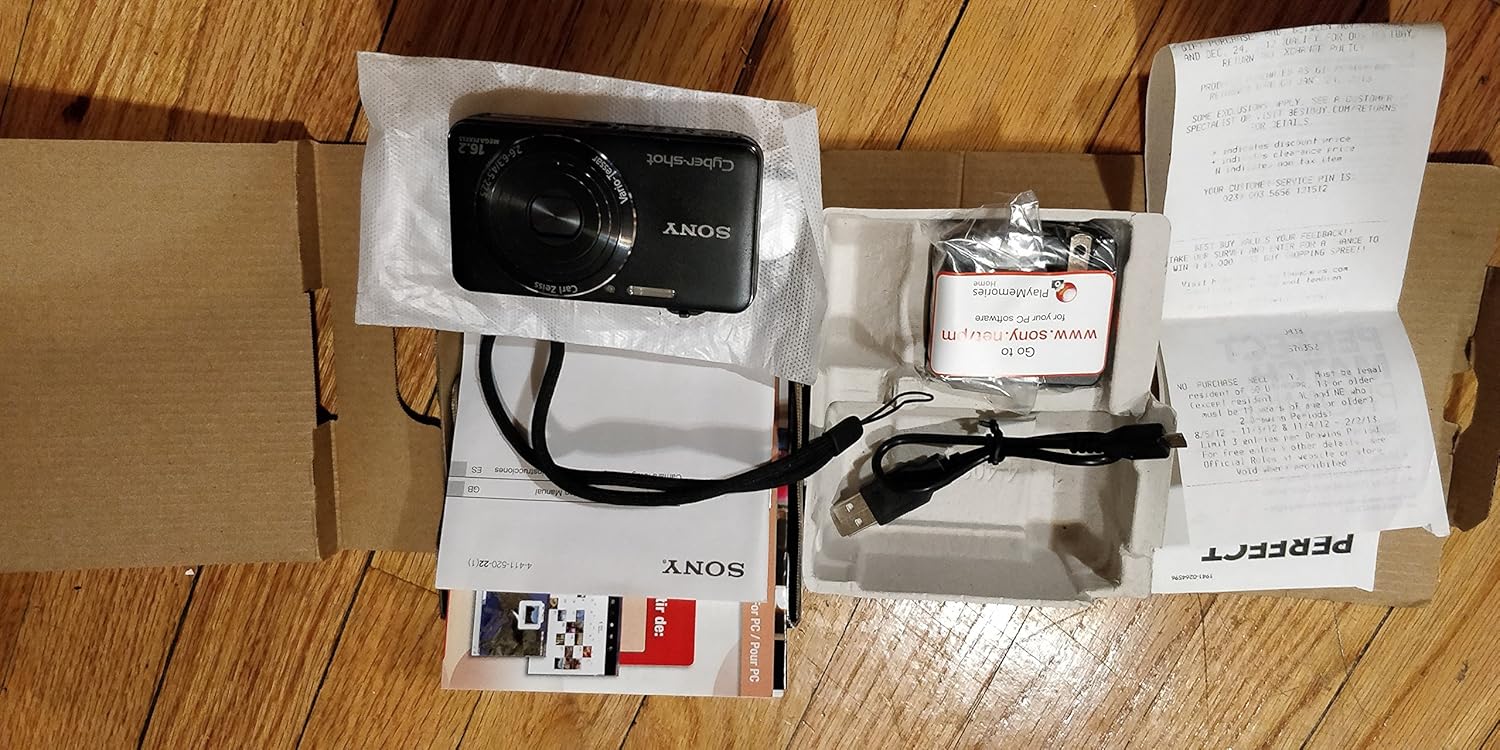
Image: Rear view of the Sony Cyber-shot DSC-WX50, highlighting the 2.7-inch LCD screen and control buttons.
Zoom Function
Use the zoom lever around the shutter button to adjust the focal length. The camera features 5x optical zoom and Clear Image Zoom for enhanced magnification without significant quality loss.
Video Recording (Full HD 1080/60i)
To record movies, press the dedicated MOVIE button. Press it again to stop recording. The camera supports Full HD 1080/60i video in AVCHD format, allowing for high-quality video capture with Optical SteadyShot Active Mode for reduced blur.
Special Shooting Modes and Features
- Superior Auto Mode: Automatically detects 33 scenes and optimizes settings for dynamic pictures with reduced noise and improved clarity.
- Intelligent Sweep Panorama HR: Capture wide panoramic images by sweeping the camera. The camera stitches multiple frames automatically.
- 3D Still Image & 3D Sweep Panorama: Create 3D images for viewing on compatible 3D displays.
- Picture Effect: Apply creative filters to your photos, such as Toy Camera, Pop Color, Partial Color, and more.
- Background Defocus: Blurs the background to emphasize your subject, similar to DSLR effects.
- Soft Skin Mode: Enhances portraits by reducing the appearance of blemishes and wrinkles.
- Face Detection & Smile Shutter: Automatically detects faces and can trigger the shutter when a smile is detected.
- Anti-blink Function: Helps prevent photos with subjects blinking by capturing multiple shots.
- Natural Flash: Corrects colors for more lifelike images when using flash.
- Motion Detection: Adjusts ISO and shutter speed to reduce blur in moving subjects.
- Sweep Multi Angle Mode: Captures 15 images at different angles to create a 3D-like view on the camera's LCD when tilted.
Maintenance
Cleaning the Camera
- Camera Body: Wipe with a soft, dry cloth. For stubborn dirt, use a cloth lightly dampened with water or a mild detergent, then wipe dry.
- Lens: Use a lens brush to remove dust, then gently wipe with a lens cleaning cloth. Avoid touching the lens surface with your fingers.
- LCD Screen: Gently wipe with a soft, dry cloth. Avoid pressing hard on the screen.
Battery Care
To prolong battery life, avoid exposing it to extreme temperatures. Store the battery in a cool, dry place when not in use. If the camera will not be used for an extended period, remove the battery.
Memory Card Care
Always format new memory cards in the camera before first use. Avoid removing the memory card while the camera is writing data (indicated by a flashing access lamp) to prevent data corruption.
Troubleshooting
If you encounter issues with your camera, refer to the following common solutions:
| Problem | Solution |
|---|---|
| Camera does not power on. |
|
| "Writing to Memory card was incomplete" error. |
|
| Images are blurry. |
|
| Flash does not fire. |
|
For further assistance, please contact Sony customer support.
Specifications
| Feature | Detail |
|---|---|
| Effective Still Resolution | 16.2 MP |
| Photo Sensor Technology | BSI CMOS |
| Optical Zoom | 5x |
| Digital Zoom | 20x |
| Screen Size | 2.7 Inches |
| Display Type | LCD |
| Image Stabilization | Optical SteadyShot |
| Video Resolution | Full HD 1080p (1080/60i AVCHD) |
| Supported File Format | JPEG (Exif 2.3), 3D: MPF, Video: MPEG-4, AVCHD |
| Memory Card Compatibility | SD/SDHC/SDXC, Memory Stick Duo/Pro Duo/Pro-HG Duo |
| Connectivity | HDMI, USB |
| Minimum Focal Length | 25 Millimeters |
| Maximum Focal Length | 125 Millimeters |
| Maximum Aperture | f/6.3 |
| Minimum Shutter Speed | 4 seconds |
| Maximum Shutter Speed | 1/1600 Seconds |
| Item Weight | 0.26 Pounds |
Warranty and Support
For warranty information and customer support, please refer to the documentation included with your product or visit the official Sony support website. Keep your proof of purchase for warranty claims.
Official Sony Support: www.sony.com/electronics/support


