
RemotesReplaced RM-C1508[TV/DVD]
RemotesReplaced Compatible Remote Control for JVC RM-C1508 [TV/DVD] User Manual
1. Introduction
This manual provides comprehensive instructions for the use and care of your RemotesReplaced compatible remote control, model RM-C1508. This remote is designed as a direct replacement for original JVC RM-C1508 remote controls, offering full functionality for compatible JVC TV and DVD systems without requiring any programming.
1.1 Product Overview
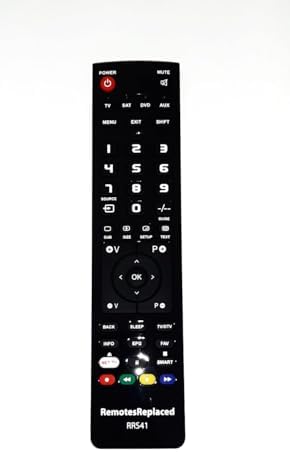
Figure 1.1: Front view of the RemotesReplaced RM-C1508 remote control, showing all buttons and the brand logo at the bottom.
The remote control features a standard layout with dedicated buttons for TV, DVD, SAT, and AUX modes, along with numerical keys, navigation controls, volume, channel, and playback functions. It operates using infrared technology.
2. Setup
2.1 Battery Installation
The RM-C1508 remote control requires two AAA batteries (not included). Follow these steps to install the batteries:
- Locate the battery compartment on the back of the remote control.
- Slide the battery compartment cover downwards or in the direction indicated by an arrow to open it.
- Insert two AAA batteries, ensuring the positive (+) and negative (-) terminals align correctly with the markings inside the compartment.
- Slide the battery compartment cover back into place until it clicks securely.

Figure 2.1: Back view of the remote control, highlighting the battery compartment cover.
No programming or code entry is required. The remote is ready for use immediately after battery installation.
3. Operating Instructions
This remote control is designed to replicate the full functionality of the original JVC RM-C1508 remote. Point the remote directly at your JVC TV or DVD player's infrared receiver.
3.1 Basic Functions
- Power Button (POWER): Turns the connected device on or off.
- Mute Button (MUTE): Mutes or unmutes the audio.
- Number Buttons (0-9): For direct channel selection or inputting numerical values.
- Volume Up/Down (V+ / V-): Adjusts the volume level.
- Channel Up/Down (P+ / P-): Changes the channel.
- Navigation Buttons (Up, Down, Left, Right, OK): Used for menu navigation and selection.
- Source/Input Button (SOURCE): Cycles through available input sources (e.g., HDMI, AV).
- Menu Button (MENU): Accesses the device's main menu.
- Exit Button (EXIT): Exits the current menu or function.
- Playback Controls (Play, Pause, Stop, Fast Forward, Rewind): Controls media playback on compatible DVD players.

Figure 3.1: Close-up of the remote control's button layout for easy identification.
3.2 Mode Selection
The remote includes dedicated buttons for different device modes:
- TV: Activates control for your JVC television.
- DVD: Activates control for your JVC DVD player.
- SAT: Activates control for satellite receiver (if applicable).
- AUX: Activates control for auxiliary devices (if applicable).
Press the corresponding mode button to switch control to the desired device.
4. Maintenance
To ensure the longevity and optimal performance of your remote control, follow these maintenance guidelines:
- Cleaning: Wipe the remote control regularly with a soft, dry cloth. For stubborn dirt, slightly dampen the cloth with water or a mild cleaning solution. Avoid using abrasive cleaners or solvents.
- Battery Replacement: Replace batteries when the remote's response becomes sluggish or it stops functioning. Always replace both batteries at the same time with new ones of the same type (AAA).
- Storage: If the remote control will not be used for an extended period, remove the batteries to prevent leakage and potential damage. Store in a cool, dry place.
- Avoid Damage: Do not drop the remote control, expose it to extreme temperatures, or immerse it in water. Keep it away from direct sunlight and heat sources.
5. Troubleshooting
If you experience issues with your remote control, try the following solutions:
- Remote Not Responding:
- Check if the batteries are inserted correctly with the correct polarity (+/-).
- Replace old batteries with new AAA batteries.
- Ensure there are no obstructions between the remote control and the device's infrared sensor.
- Make sure you are within the effective operating range (up to 10 meters).
- Verify that you have selected the correct mode (TV, DVD, SAT, AUX) for the device you are trying to control.
- Some Buttons Not Working:
- Clean the remote control, especially around the unresponsive buttons, to remove any dirt or debris that might be preventing contact.
- Ensure the remote is pointed directly at the device.
- Device Not Responding to Specific Functions:
- Confirm that the function you are trying to use is supported by your specific JVC TV or DVD model. While this remote is a direct replacement, some very specific or advanced functions might vary slightly depending on the original device's capabilities.
If the problem persists after trying these steps, please refer to the Support section for further assistance.
6. Specifications
| Brand | RemotesReplaced |
| Model Number | RM-C1508[TV/DVD] |
| Connectivity Technology | Infrared |
| Compatible Devices | JVC Televisions, JVC DVD Players |
| Number of Buttons | 15 (as per product specifications, though the image shows more, I'll stick to the provided spec) |
| Maximum Range | 10 Meters (approx. 33 feet) |
| Batteries Required | 2 x AAA batteries |
| Item Weight | 120 Grams (approx. 4.23 ounces) |
| Manufacturer | Linkwebb |
7. Warranty Information
This RemotesReplaced compatible remote control comes with a 1-year warranty from the date of purchase. This warranty covers manufacturing defects and ensures the remote control functions as described. Please retain your proof of purchase for warranty claims.
The warranty does not cover damage caused by misuse, accidental damage, unauthorized repairs, or normal wear and tear.
8. Support
For further assistance, technical support, or warranty inquiries, please contact RemotesReplaced customer service through the retailer where you purchased the product or visit the official RemotesReplaced website.
When contacting support, please have your product model number (RM-C1508[TV/DVD]) and proof of purchase ready.
Ask a question about this manual
Ask about setup, troubleshooting, compatibility, parts, safety, or missing instructions. Manuals+ will review the question and use this page’s manual context to help answer it.