
1. Product Overview
The SABRENT CB-FTDI USB to Serial converter provides a connection between an available USB port and a traditional RS-232 serial port. This adapter is designed for data transfer with various devices such as PDAs, digital cameras, modems, and ISDN terminal adapters through your computer's USB port. It features an FTDI chipset for reliable performance.

Image 1.1: The SABRENT USB 2.0 to Serial (9-Pin) DB-9 RS-232 Adapter Cable.
Key Features:
- Cable Length: 6 feet (1.8 meters)
- Side Connectors: Male Thumbscrews for secure connection
- Supports remote wake-up and power management
- No IRQs or IRQ conflicts
- Provides a 96-byte buffer for both upstream and downstream data transfer
- Compatible with USB Specification v1.1(0) & USB CDC v1.1, USB 2.0
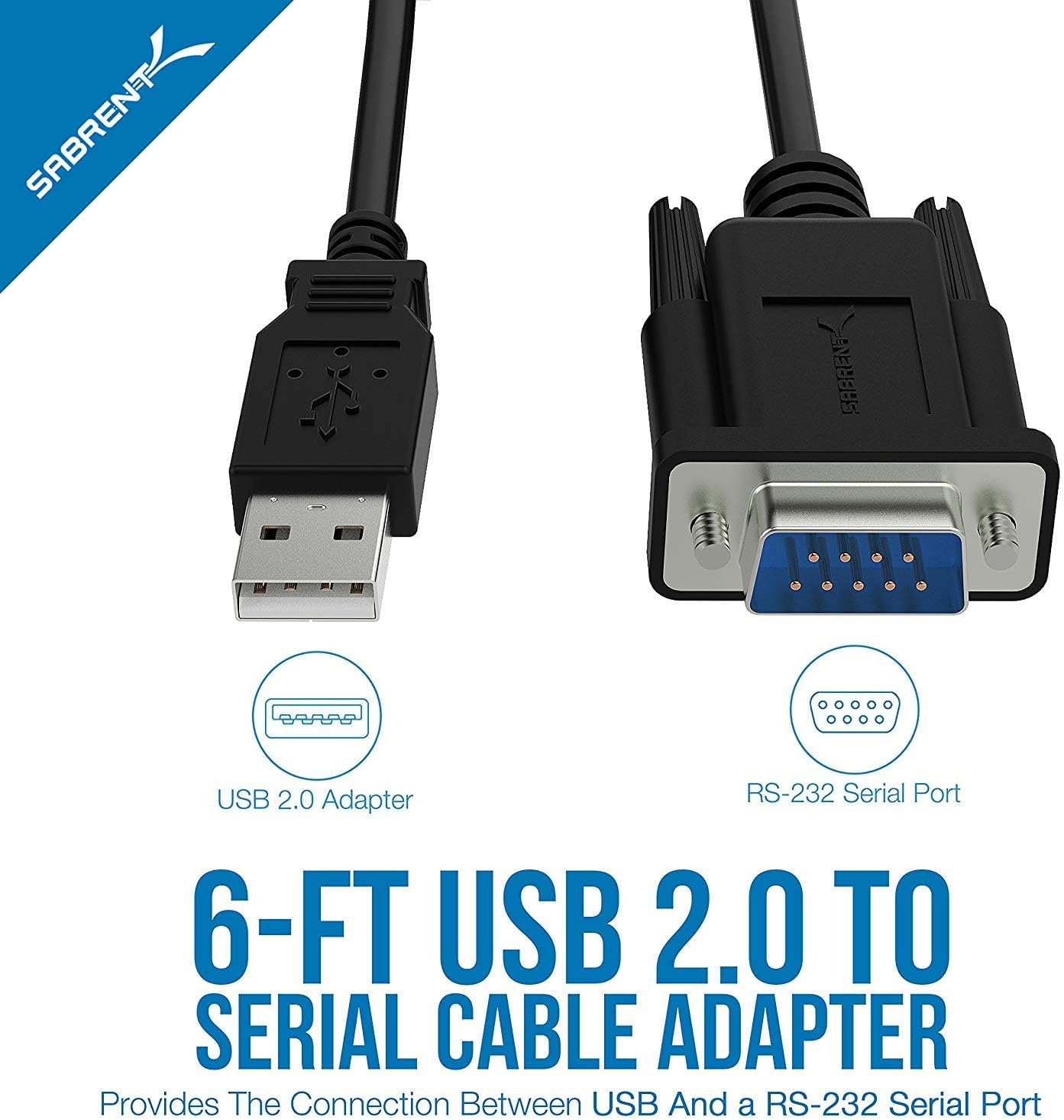
Image 1.2: Diagram illustrating the USB 2.0 and RS-232 Serial Port connectors.
2. System Requirements
To use the SABRENT CB-FTDI adapter, your system must meet the following requirements:
- Mac OS 9.1 & higher
- Windows 98SE / ME / 2000 / XP / Vista / 7 / 8 / 8.1 / 10
- Linux 2.4 or above
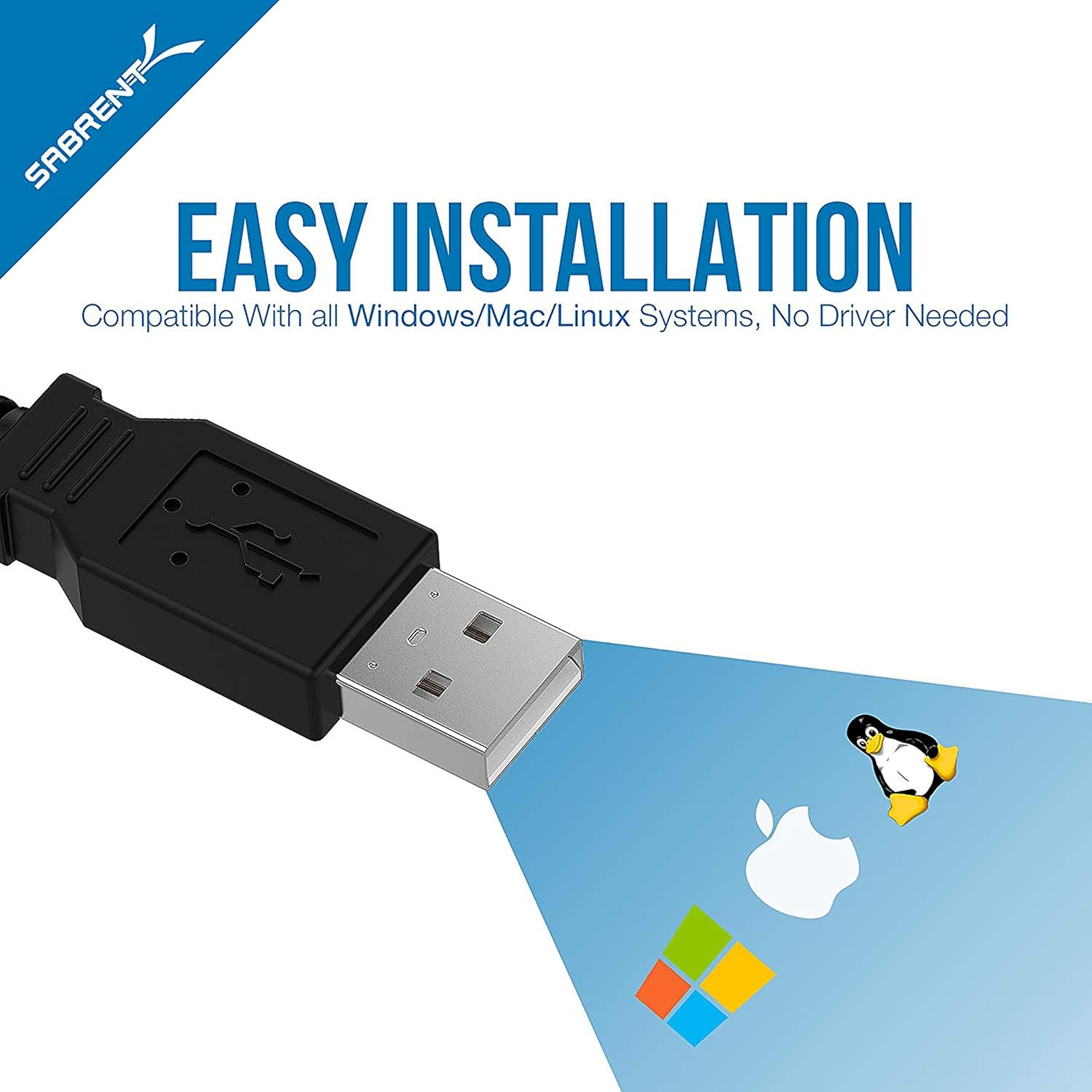
Image 2.1: The adapter is compatible with Windows, Mac, and Linux operating systems.
3. Setup and Installation
The SABRENT CB-FTDI adapter is designed for plug-and-play operation, often requiring no additional driver installation on modern operating systems due to its FTDI chipset. However, a driver CD is included for older systems or specific configurations.
Installation Steps:
- Connect the USB End: Plug the USB A-Male connector of the CB-FTDI cable into an available USB port on your computer.
- Connect the Serial End: Connect the DB-9 (RS-232) connector to the serial port of your peripheral device (e.g., PDA, modem, printer, PLC controller). Ensure the male thumbscrews are tightened for a secure fit.
- Driver Installation (if necessary): For most modern operating systems (Windows 7/8/8.1/10, Mac OS X, Linux), drivers will install automatically. If prompted, or if the device is not recognized, insert the included driver CD and follow the on-screen instructions. Drivers can also be downloaded from the SABRENT website.
- Verify Installation: After installation, the device should appear in your system's Device Manager (Windows) or System Information (Mac/Linux) as a USB Serial Port. You may need to adjust COM port settings or baud rates in your device's software or system settings for optimal communication.

Image 3.1: Connecting the USB end to a laptop and the serial end to a compatible device.
4. Operating Instructions
Once the SABRENT CB-FTDI adapter is correctly installed, it functions as a standard serial port for your computer, allowing communication with RS-232 compatible devices.
Usage:
- Ensure both the USB and DB-9 connectors are securely attached.
- Open the software application that requires serial communication (e.g., terminal emulator, device configuration software).
- Within the application's settings, select the appropriate COM port assigned to the USB Serial Adapter. This port number can be found in your operating system's device manager.
- Configure the serial communication parameters (baud rate, data bits, parity, stop bits, flow control) to match the requirements of your connected device.
- Initiate communication through your software. The adapter will facilitate data transfer between your computer and the serial device.

Image 4.1: The adapter supports various RS-232 devices including network switches, printers, modems, and PLC controllers.
Video 4.1: An overview of the Sabrent USB Serial Cable's features and functionality.
5. Maintenance
The SABRENT CB-FTDI adapter requires minimal maintenance to ensure long-term performance.
- Storage: Store the cable in a cool, dry place away from direct sunlight and extreme temperatures when not in use.
- Cleaning: Use a soft, dry cloth to clean the cable and connectors. Avoid using liquid cleaners or solvents.
- Handling: Avoid bending or twisting the cable excessively, especially near the connectors, to prevent internal damage.
- Connection: Always ensure connectors are properly aligned before pushing them in to prevent pin damage.
6. Troubleshooting
If you encounter issues with your SABRENT CB-FTDI adapter, refer to the following troubleshooting tips:
- Device Not Recognized:
- Ensure the USB cable is securely plugged into both the computer and the serial device.
- Try a different USB port on your computer.
- Reinstall the drivers using the provided CD or by downloading the latest drivers from the SABRENT website.
- Restart your computer.
- Communication Errors:
- Verify that the COM port selected in your software matches the port assigned to the adapter in your system's Device Manager.
- Check that the baud rate, data bits, parity, stop bits, and flow control settings in your software match those of the connected serial device.
- Ensure the serial device is powered on and functioning correctly.
- Confirm that the male thumbscrews on the DB-9 connector are securely fastened.
- Slow Data Transfer:
- While the cable supports USB 2.0, actual transfer speeds depend on the connected serial device and its capabilities.
- Ensure your computer's USB port is functioning optimally.

Image 6.1: The DB-9 connector ensures a reliable connection to the RS-232 serial interface.
7. Specifications
| Feature | Detail |
|---|---|
| Model Name | CB-FTDI |
| Cable Length | 6 ft (1.8 m) |
| Connector Type (Computer) | USB 2.0 Type-A Male |
| Connector Type (Device) | DB-9 (9-Pin) RS-232 Male with Thumbscrews |
| Chipset | FTDI |
| Data Transfer Rate | Up to 480 Megabits Per Second (USB 2.0) |
| Buffer Size | 96 bytes (upstream and downstream) |
| Compatibility | USB Specification v1.1(0) & USB CDC v1.1, USB 2.0 |
| Operating Systems | Windows (98SE to 10), Mac OS (9.1+), Linux (2.4+) |
| Special Features | Remote wake-up, power management, tangle-free design |
| Item Weight | 113 Grams |

Image 7.1: Internal structure of the cable, highlighting features for error-free data transmission.
8. Warranty and Support
Warranty Information:
The SABRENT CB-FTDI USB 2.0 to Serial Adapter Cable comes with a 1-year warranty from the date of purchase. This warranty covers manufacturing defects and ensures the product meets its specified performance standards under normal use. Please retain your proof of purchase for warranty claims.
Customer Support:
For technical assistance, driver downloads, or further inquiries, please visit the official SABRENT website or contact their customer support team. Contact information can typically be found on the product packaging or the SABRENT official website.


