
Introduction
This manual provides essential instructions for setting up, operating, maintaining, and troubleshooting your Logitech Wireless Mouse M217 and the accompanying 16-inch sleeve. Please read this manual thoroughly before using your product to ensure optimal performance and longevity.
Package Contents
Verify that all items are present in your package:
- Logitech Wireless Mouse M217
- USB Nano-receiver
- 16-inch Protective Sleeve
- 1 AA Battery (pre-installed or included separately)
- User Documentation
Setup
1. Mouse Battery Installation
If the battery is not pre-installed, open the battery compartment cover on the underside of the mouse. Insert the included AA battery, ensuring correct polarity (+/-). Close the battery compartment cover securely.

Image: Top view of the Logitech Wireless Mouse M217 and its USB Nano-receiver.
2. Connect the USB Nano-receiver
Locate an available USB port on your computer. Plug the USB Nano-receiver into the USB port. Your computer should automatically detect and install the necessary drivers. No additional software installation is required.
3. Using the 16-inch Sleeve
The protective sleeve is designed to safely carry your laptop and mouse. Place your laptop into the main compartment of the sleeve. The mouse can be stored in a dedicated pocket or alongside the laptop, depending on the sleeve's design.
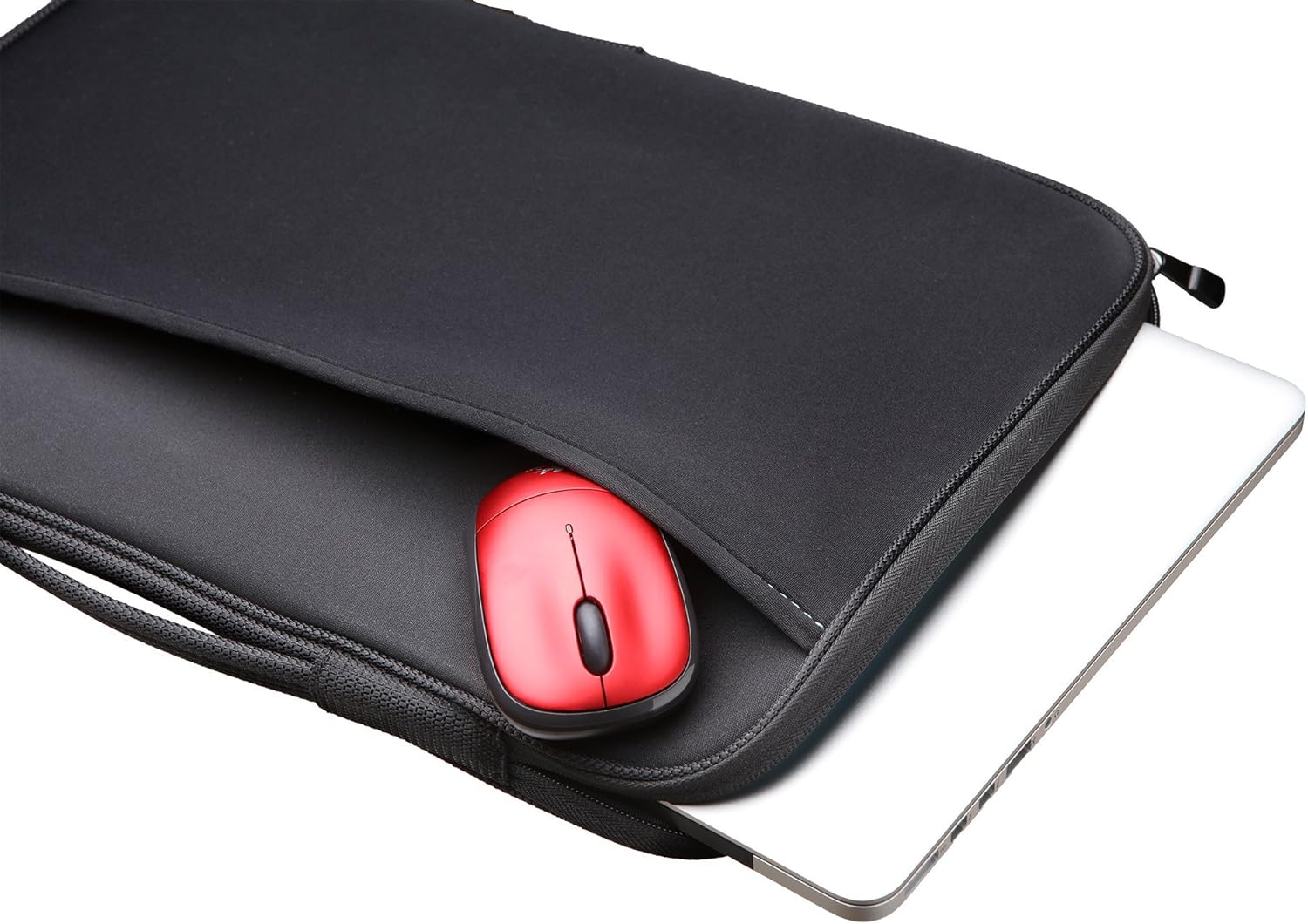
Image: The Logitech Wireless Mouse M217 placed inside the protective sleeve next to a laptop.
Operating Instructions
Mouse Usage
Once the USB Nano-receiver is connected and the mouse has power, you can begin using it. The mouse provides smooth, precise tracking for navigation, easy text selection, and effortless scrolling. Position the mouse on a flat surface for optimal performance.

Image: Side view of the Logitech Wireless Mouse M217, highlighting its ergonomic design.
Power Management
The mouse features an On/Off switch located on its underside to conserve battery life when not in use. Additionally, a smart sleep mode automatically activates after a period of inactivity, further extending battery life. To wake the mouse from sleep mode, simply move it or click a button.
Maintenance
Battery Replacement
When the mouse performance degrades or the indicator light (if present) signals low battery, replace the AA battery. Open the battery compartment, remove the old battery, and insert a new AA battery with correct polarity. Dispose of used batteries responsibly.
Cleaning
- Mouse: Use a soft, lint-free cloth slightly dampened with water or a mild cleaning solution. Avoid harsh chemicals or abrasive materials. Do not allow liquids to enter the mouse.
- Sleeve: Spot clean with a damp cloth and mild soap as needed. Allow to air dry completely.
Storage
When not in use, the USB Nano-receiver can be stored inside the mouse's battery compartment to prevent loss. Store the mouse and sleeve in a clean, dry environment away from extreme temperatures.
Troubleshooting
- Mouse not responding:
- Ensure the mouse is powered on using the On/Off switch.
- Check the battery. Replace it if necessary.
- Ensure the USB Nano-receiver is securely plugged into a working USB port. Try a different USB port.
- Move the mouse closer to the receiver to rule out interference.
- Erratic cursor movement:
- Clean the optical sensor on the underside of the mouse.
- Ensure you are using the mouse on a suitable surface. Avoid highly reflective or transparent surfaces.
- Check for potential wireless interference from other devices.
- Short battery life:
- Ensure the mouse is turned off when not in use.
- Verify that you are using a fresh, high-quality AA battery.
Specifications
| Feature | Detail |
|---|---|
| Model Number | 910-002139 |
| Product Dimensions | 12 x 3 x 12 inches (packaging/bundle) |
| Item Weight | 8 ounces (packaging/bundle) |
| Connectivity Technology | Wireless (Bluetooth) |
| Movement Detection Technology | Optical |
| Power Source | 1 AA battery (included) |
| Color | Red |
Warranty and Support
Logitech products are manufactured to high quality standards. For specific warranty information, please refer to the warranty card included with your product or visit the official Logitech support website. For technical assistance, troubleshooting guides, and frequently asked questions, please visit support.logi.com.


