1. Introduction
This manual provides essential information for the proper setup, operation, and maintenance of your Lenovo ThinkPad X220 12.5-inch laptop. Please read these instructions carefully to ensure optimal performance and longevity of your device.
The ThinkPad X220 is a compact and powerful laptop featuring an Intel Core i5 processor, 4GB DDR3 RAM, a 128GB Solid State Drive, and a 12.5-inch display. It comes pre-installed with Windows 7 Home Premium and includes integrated Intel HD Graphics 3000, a webcam, and a fingerprint reader for enhanced security.

Figure 1: Angled view of the Lenovo ThinkPad X220 laptop, showcasing its compact design.
2. Setup
2.1 Unpacking and Initial Inspection
Carefully remove the laptop and all accessories from the packaging. Inspect the device for any signs of damage. If any components are missing or damaged, contact your vendor immediately.
2.2 Connecting Power
- Connect the AC adapter to the power connector on the laptop.
- Plug the AC adapter into a grounded electrical outlet.
- The battery will begin charging automatically. It is recommended to fully charge the battery before initial use.
2.3 Initial Boot and Operating System Setup
Press the power button to turn on the laptop. Follow the on-screen instructions to complete the Windows 7 Home Premium setup process. This typically involves setting up user accounts, language preferences, and network connections.
2.4 Connecting External Devices
The ThinkPad X220 offers various ports for connecting peripherals:
- USB 2.0 Ports: Three ports are available for connecting USB devices such as mice, keyboards, or external storage.
- VGA Port: Connect an external monitor or projector using a VGA cable.
- Ethernet (LAN) Port: For wired network connections.
- Audio Jack: For connecting headphones or external speakers.
- ExpressCard Slot: For compatible expansion cards.

Figure 2: Left side of the ThinkPad X220, showing the USB, Ethernet, and audio jack ports.
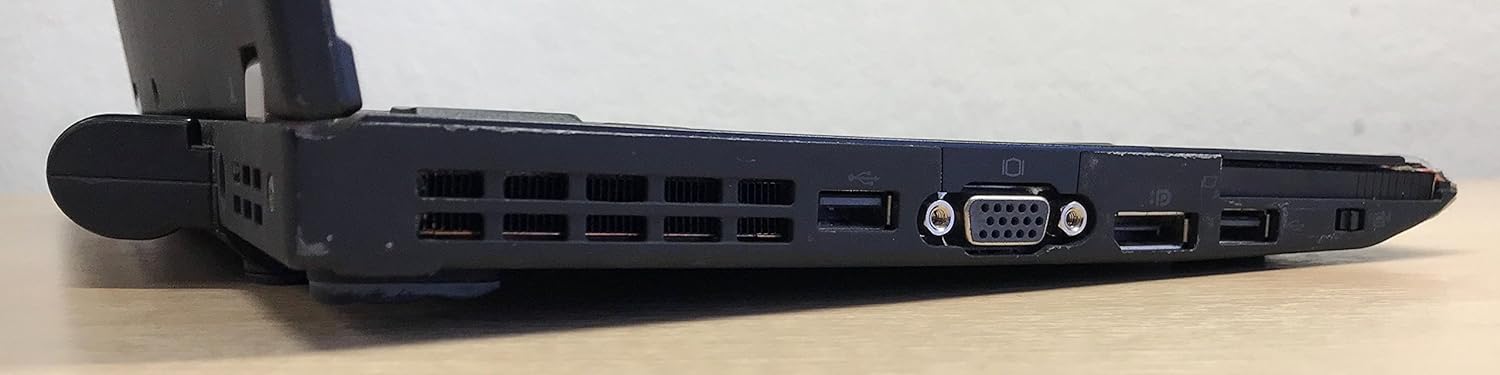
Figure 3: Right side of the ThinkPad X220, featuring the VGA port, additional USB ports, and the ExpressCard slot.
3. Operating Your Laptop
3.1 Power On/Off
- Power On: Press the power button located on the top right of the keyboard deck.
- Power Off: Click the Start button in Windows, then select 'Shut down'. Do not force power off by holding the power button unless the system is unresponsive.
3.2 Keyboard and Input Devices
The ThinkPad X220 features a full-sized keyboard, a TrackPoint pointing device (red dot in the center of the keyboard), and a multi-touch touchpad.
- Keyboard: Standard QWERTY layout with function keys (Fn) for system controls.
- TrackPoint: Use the TrackPoint to move the cursor and the associated buttons below the spacebar for left, right, and middle-click functions.
- Touchpad: Use gestures for navigation, scrolling, and clicking.
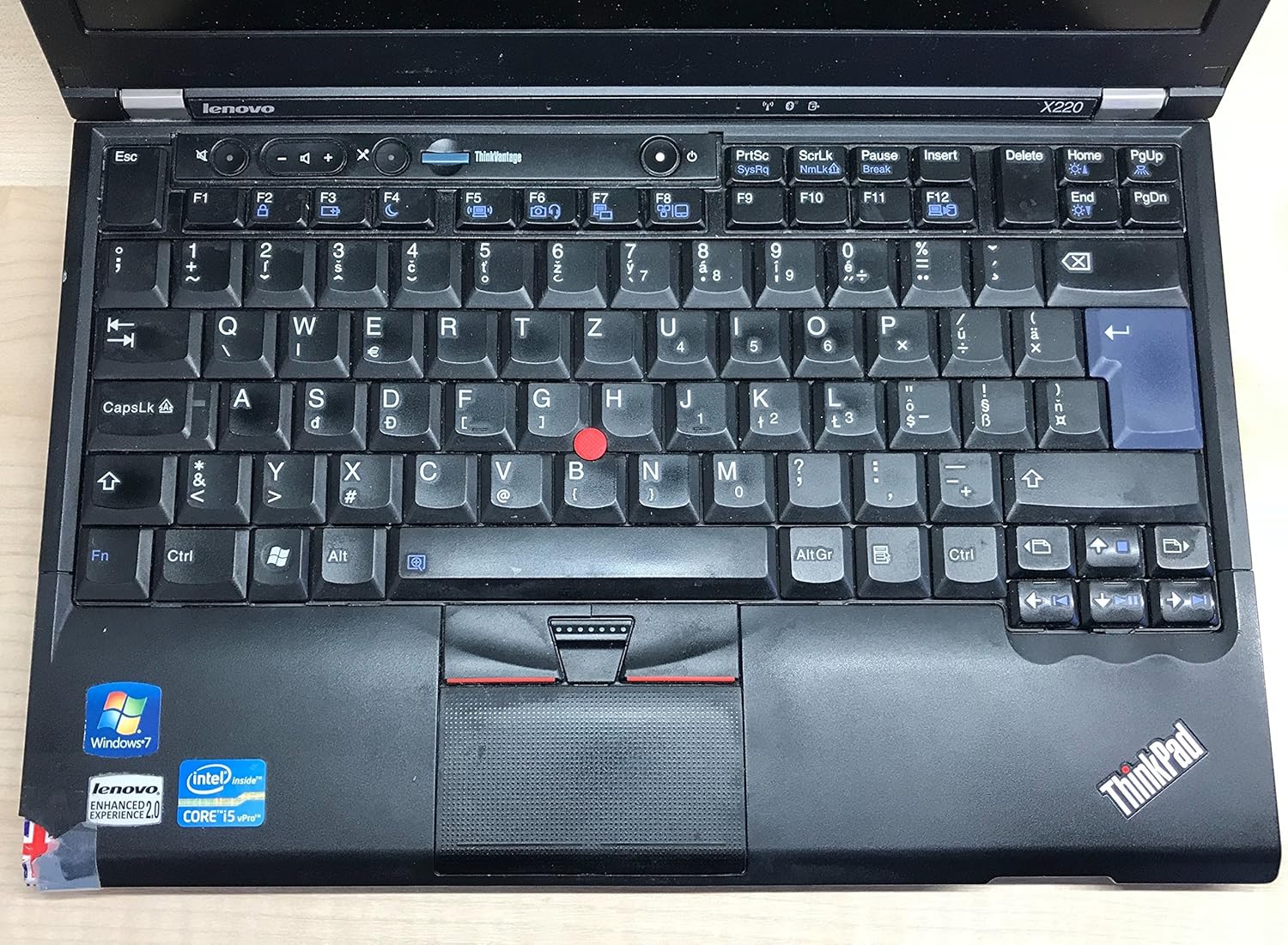
Figure 4: Detailed view of the ThinkPad X220 keyboard, TrackPoint, and touchpad.
3.3 Wireless Connectivity
- Wi-Fi (802.11bgn): To connect to a wireless network, click the network icon in the system tray and select your desired network. Enter the password if prompted.
- Bluetooth: Enable Bluetooth through the Windows settings to connect to compatible devices such as headphones or mice.
3.4 Using the Webcam and Fingerprint Reader
- Webcam: The integrated webcam can be used for video conferencing and recording. Access it through applications like Skype or the built-in camera software.
- Fingerprint Reader: For enhanced security, configure the fingerprint reader through Windows security settings to log in or authenticate.
4. Maintenance
4.1 Cleaning Your Laptop
- Screen: Use a soft, lint-free cloth lightly dampened with water or a screen cleaner. Do not spray liquid directly onto the screen.
- Keyboard and Casing: Use a soft cloth and a mild cleaning solution. For dust, use compressed air. Ensure the laptop is powered off before cleaning.
4.2 Battery Management
- To maximize battery life, avoid extreme temperatures and fully discharging the battery frequently.
- Calibrate the battery periodically by fully discharging and then fully recharging it.
- The average battery life is approximately 2.45 hours, but this can vary based on usage.
4.3 Software Updates
Regularly check for and install operating system updates (Windows Update) and driver updates from the Lenovo support website to ensure system stability and security.
5. Troubleshooting
This section addresses common issues you might encounter with your ThinkPad X220.
- Laptop does not power on: Ensure the AC adapter is securely connected and the power outlet is functional. If using battery power, ensure the battery is charged.
- Display issues: If the screen is blank, try pressing Fn + F7 to cycle through display modes (internal, external, both). Ensure external monitors are properly connected.
- Input devices (keyboard/touchpad/TrackPoint) unresponsive: Restart the laptop. Check for driver updates if the issue persists. For the TrackPoint, ensure no debris is obstructing its movement.
- No internet connection: Verify Wi-Fi is enabled and connected to a network. For wired connections, ensure the Ethernet cable is properly inserted. Check network adapter drivers.
- System slow or unresponsive: Close unnecessary applications. Check Task Manager for processes consuming high CPU or memory. Consider running a virus scan.
For more complex issues, refer to the Lenovo support website or contact technical support.
6. Specifications
| Feature | Specification |
|---|---|
| Brand | Lenovo |
| Series | ThinkPad |
| Model Number | 428743U |
| Screen Size | 12.5 Inches |
| Screen Resolution | 1366 x 768 pixels |
| Processor | Intel Core i5-2430M (2.4 GHz) |
| RAM | 4 GB DDR3 (1333 MHz) |
| Hard Drive | 128 GB SSD (Serial ATA) |
| Graphics Coprocessor | Intel HD Graphics 3000 |
| Wireless Type | 802.11bgn |
| USB 2.0 Ports | 3 |
| Operating System | Windows 7 Home Premium |
| Average Battery Life | 2.45 Hours |
| Item Weight | 0.01 ounces (Note: This weight is likely incorrect and refers to packaging or a component, actual laptop weight is typically around 3 lbs) |
| Product Dimensions (LxWxH) | 15 x 13 x 5 inches |
| Color | Black |
| Special Feature | Fingerprint Reader |
7. Warranty and Support
7.1 Warranty Information
Your Lenovo ThinkPad X220 laptop is covered by a limited warranty. The specific terms and duration of the warranty may vary based on your region and point of purchase. Please refer to the warranty documentation included with your product or visit the official Lenovo support website for detailed information.
7.2 Technical Support
For technical assistance, driver downloads, or further troubleshooting, please visit the official Lenovo Support website. You can typically find support resources by searching for your specific model (ThinkPad X220) on their site. Have your product's serial number ready when contacting support.
Lenovo Support Website: https://support.lenovo.com


