
Introduction
The Roland SPD-SX is a versatile sampling pad designed for musicians and performers. It offers powerful sample creation and playback capabilities, making it suitable for various musical setups, including acoustic and electronic drum kits, percussion setups, DJ booths, and keyboard rigs. This manual provides essential information for setting up, operating, and maintaining your SPD-SX.

Figure 1: Top view of the Roland SPD-SX Percussion Sampling Pad, showcasing its nine velocity-sensitive pads and control panel.
Setup
1. Unpacking and Initial Inspection
Carefully remove the SPD-SX from its packaging. Verify that all components are present and undamaged. Retain the packaging for future transport or storage.
2. Power Connection
Connect the included Roland PSB-1U AC adaptor to the DC IN jack on the rear panel of the SPD-SX. Plug the adaptor into a standard AC outlet. Ensure the power switch is in the OFF position before connecting power.
3. Connecting Audio Inputs and Outputs
The SPD-SX offers various audio connectivity options:
- Master Out: Connect the L/MONO and R jacks to your mixer, amplifier, or audio interface for main stereo output.
- Phones: Connect headphones to the PHONES jack for private monitoring.
- Sub Out: Utilize the L/MONO and R SUB OUT jacks for sending specific sounds or click tracks to separate destinations.
- Audio In: Connect external audio sources (e.g., CD player, microphone) to the AUDIO IN jacks. Use the GAIN knob to adjust the input level for LINE or MIC sources.

Figure 2: Rear panel connections of the SPD-SX, highlighting Master Out, Sub Out, Phones, Audio In, Trigger Inputs, Foot Switch, and USB ports.
4. Connecting to Computer (USB & MIDI)
The SPD-SX features comprehensive USB and MIDI connectivity:
- USB COMPUTER: Connect a USB cable from this port to your computer for MIDI and audio data transfer. This allows the SPD-SX to function as an audio interface and MIDI controller.
- USB MEMORY: Insert a USB flash drive into this port for importing/exporting samples and system data.
- MIDI IN/OUT: Use standard MIDI cables to connect the SPD-SX to other MIDI devices for control or synchronization.
5. External Triggers and Foot Switches
Expand your playing possibilities by connecting external pads or foot switches:
- TRIG IN (1/2, 3/4): These dual-trigger inputs allow you to connect external Roland pads or acoustic drum triggers for additional playing surfaces.
- FOOT SW (1/2): Connect a footswitch (e.g., BOSS FS-5U) to control various functions hands-free, such as starting/stopping phrases or changing kits.
Operating
1. Basic Controls and Interface
The SPD-SX features nine velocity-sensitive rubber pads, including three shoulder pads, for expressive performance. Each pad has an accompanying LED that illuminates upon being struck, with illumination strength indicating audio level. High-contrast red divider lines enhance visibility in various lighting conditions.
The large 128x64 backlit LCD provides clear visual feedback. Illuminated function and navigation buttons simplify operation, even in dimly lit environments.
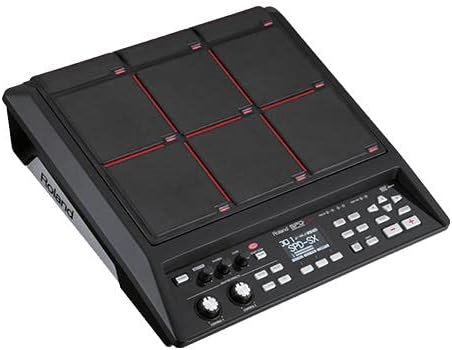
Figure 3: Angled view of the SPD-SX, highlighting the pad layout and control surface for easy access during performance.
2. Sampling and Wave Management
The SPD-SX boasts 4 GB of internal memory, allowing for approximately 720 minutes of mono sampling without external memory. Its Multi-Pad Sampling feature enables streaming audio from external sources (via USB or Audio In) directly to the pads, automatically truncating and assigning sounds.
The included Wave Manager software facilitates easy importing, assigning, and organizing of samples and kits on your computer. This software streamlines the process of preparing your audio content for the SPD-SX.

Figure 4: Screenshot of the SPD-SX Wave Manager software, illustrating the wave list and pad assignment interface.
3. Multi-Effects Engines
The unit features three multi-effects engines with two real-time control knobs and four dedicated effect buttons. These allow for real-time manipulation of sounds, adding depth and character to your performances.
4. Click/Tempo Management
The click output can be routed individually for convenient and discreet monitoring, with a dedicated knob for click level and a start/stop click button. This is crucial for maintaining precise timing during live performances or practice sessions.
5. Product Video Overview
For a visual demonstration of the Roland SPD-SX's features and capabilities, please watch the official product video below. This video provides an overview of its design, functionality, and various applications in a musical setting.
Video 1: Official Roland Sampling Percussion Pad (SPD-SX) overview, demonstrating key features and usage scenarios.
Maintenance
1. Cleaning
To maintain the appearance and functionality of your SPD-SX, regularly wipe the surface with a soft, dry cloth. For stubborn dirt, use a slightly damp cloth and then dry thoroughly. Avoid abrasive cleaners or solvents.
2. Software Updates
Periodically check the official Roland website for firmware updates for your SPD-SX. Updates can provide new features, improve performance, and address any known issues. Refer to the update instructions provided by Roland for the correct procedure.
Troubleshooting
If you encounter issues with your Roland SPD-SX, consider the following common troubleshooting steps:
- No Sound Output:
- Check all audio cable connections (Master Out, Phones).
- Ensure the volume levels on the SPD-SX and connected audio equipment are turned up.
- Verify that the correct output routing is selected for your sounds/kits.
- Pads Not Responding:
- Ensure the SPD-SX is powered on.
- Check if the pad sensitivity settings are appropriate.
- Confirm that sounds are assigned to the pads in the current kit.
- Sampling Issues:
- Verify that the audio input source is connected correctly and its level is adequate.
- Ensure sufficient internal memory is available for new samples.
- Check the sampling settings (e.g., input source, threshold) in the SPD-SX menu.
- USB Connectivity Problems:
- Ensure the USB cable is securely connected to both the SPD-SX and your computer.
- Install the latest USB drivers for the SPD-SX from the Roland website.
- Try a different USB port or cable on your computer.
For more detailed troubleshooting or complex issues, refer to the comprehensive User Guide PDF or contact Roland customer support.
Specifications
| Feature | Detail |
|---|---|
| Internal Memory | 4 GB (approx. 720 minutes mono) |
| Pads | 9 velocity-sensitive rubber pads (3 shoulder pads) |
| Multi-Effects | 3 units onboard with real-time control |
| Display | Large backlit LCD (128 x 64 dots) |
| Connectivity | USB (Memory, Computer), MIDI In/Out, Audio In, Master Out, Sub Out, Phones, Trig In (x2), Foot SW |
| Dimensions (L x W x H) | 13.63 x 14.38 x 3.75 inches (34.62 x 36.53 x 9.53 cm) |
| Weight | 5.94 pounds (2.7 kg) |
| Power Supply | AC Adaptor (Roland PSB-1U) |
| Current Draw | 600 mA |
Warranty and Support
For information regarding product warranty, please refer to the warranty card included with your SPD-SX or visit the official Roland website. Roland provides comprehensive customer support for its products.
For the complete and official user guide, which contains detailed instructions and safety information, please download the PDF document: