1. Introduction
This manual provides comprehensive instructions for the setup, operation, maintenance, and troubleshooting of your Xerox DocuMate 3125 Duplex Document Scanner. Please read this manual thoroughly before using the device to ensure proper functionality and to maximize its performance.
The Xerox DocuMate 3125 is designed for efficient document management, offering fast duplex scanning, a 50-page Automatic Document Feeder (ADF), and compatibility with both PC and Mac operating systems. It features Visioneer Acuity technology for enhanced image clarity and One Touch scanning for simplified workflows.
2. Package Contents
Verify that all items are present in the package:
- Xerox DocuMate 3125 Scanner Unit
- USB Cable
- Power Adapter
- Software Installation Disc (or download instructions)
- Quick Start Guide
3. Setup Guide
3.1 Unpacking and Physical Setup
Carefully remove the scanner from its packaging. Place the scanner on a stable, flat surface with adequate space for document feeding and output.
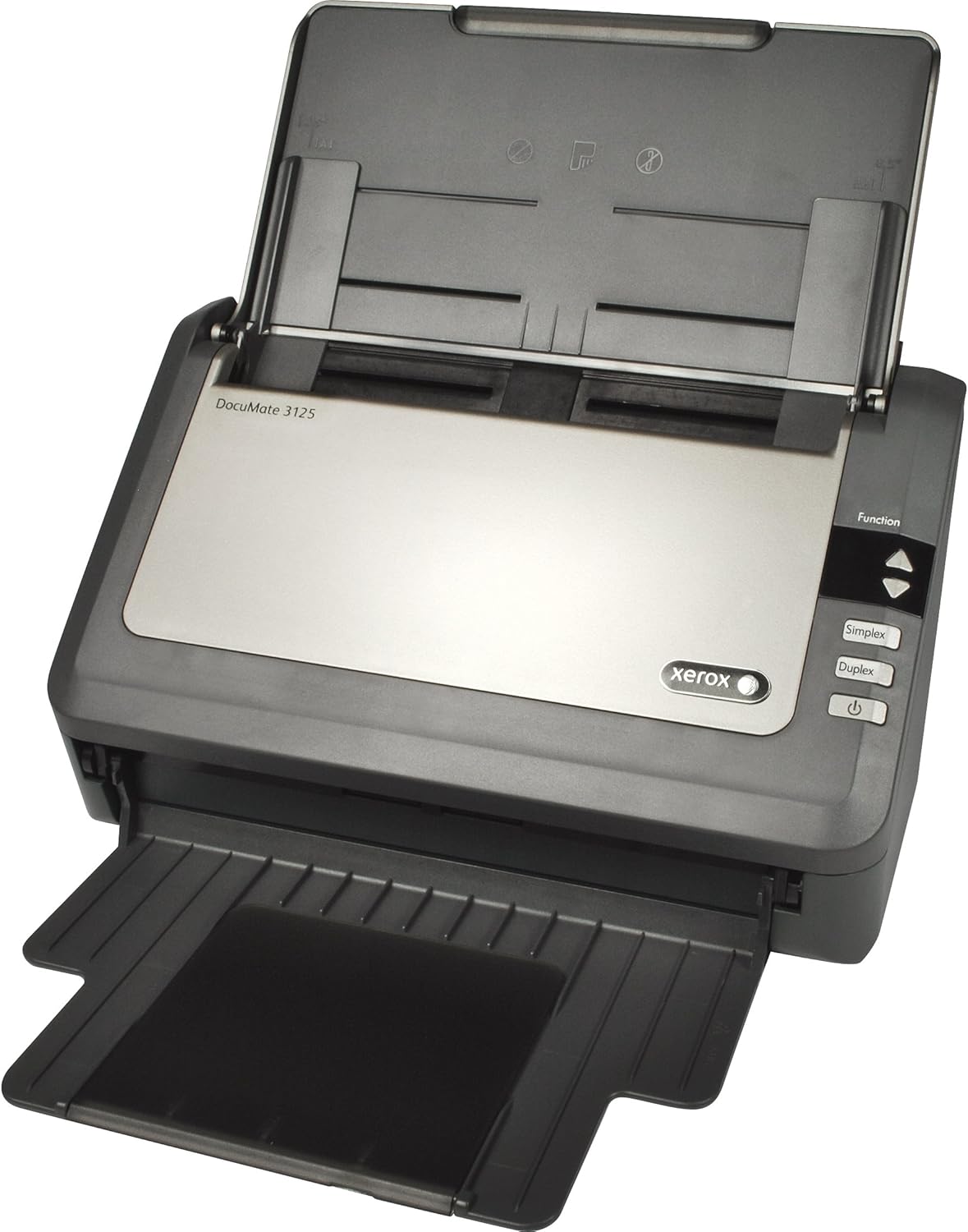
Figure 1: Xerox DocuMate 3125 Scanner with open lid and extended trays.
Extend the input and output trays as shown in Figure 1 to prepare the scanner for operation.
3.2 Connecting the Scanner
- Connect the power adapter to the scanner's power input and then to an electrical outlet.
- Connect the USB cable to the scanner's USB port and then to an available USB port on your computer (PC or Mac).
3.3 Software Installation
Before using the scanner, install the necessary drivers and software. This typically includes the scanner driver, Visioneer OneTouch software, and other utility applications.
- Insert the provided installation disc into your computer's optical drive, or download the latest software package from the official Xerox support website.
- Follow the on-screen instructions to complete the installation. Restart your computer if prompted.

Figure 2: The scanner is compatible with both PC (Windows) and Mac operating systems.
4. Operating the Scanner
4.1 Loading Documents
Open the Automatic Document Feeder (ADF) cover and extend the input tray. Fan the edges of your documents to prevent misfeeds. Place the documents face down in the ADF, ensuring they are aligned with the document guides. The ADF can hold up to 50 pages.
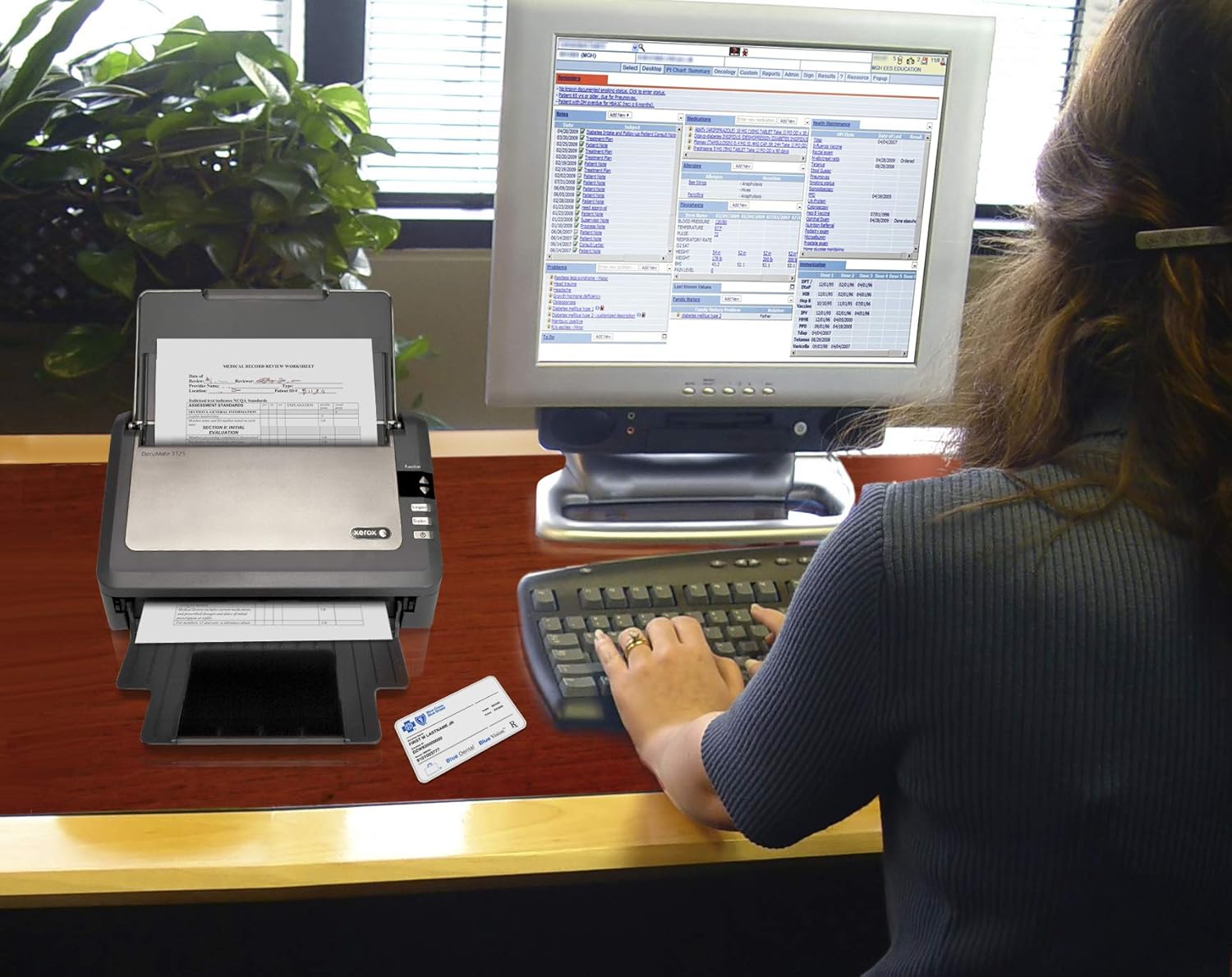
Figure 3: Document scanning in progress with the Xerox DocuMate 3125.
The scanner supports various media types, including standard documents, photos, receipts, and embossed plastic cards.
4.2 One Touch Scanning
The DocuMate 3125 features One Touch scanning, allowing you to initiate scans and send them to predefined destinations with a single button press. These destinations can include searchable PDF files, email attachments, or cloud storage services.
Figure 4: Control panel with Simplex and Duplex scan options.
- Simplex Scanning: Press the "Simplex" button to scan one side of a document.
- Duplex Scanning: Press the "Duplex" button to scan both sides of a document simultaneously.
- Custom profiles can be configured via the Visioneer OneTouch software to specify scan settings (color, resolution, file format) and destinations.

Figure 5: Scanned documents can be saved to various cloud services.
5. Maintenance
Regular maintenance ensures optimal performance and extends the lifespan of your scanner.
5.1 Cleaning the Scanner
- Exterior: Wipe the exterior surfaces with a soft, damp cloth. Avoid abrasive cleaners.
- ADF Rollers: Periodically clean the ADF rollers with a lint-free cloth lightly dampened with isopropyl alcohol to prevent paper jams and improve feeding accuracy.
- Glass Strip: Clean the glass strip inside the scanner with a soft, lint-free cloth and a non-abrasive glass cleaner. Dust or smudges on the glass can appear as lines on scanned images.
Always power off and unplug the scanner before performing any cleaning procedures.
6. Troubleshooting
This section addresses common issues you might encounter with your scanner.
| Problem | Possible Cause | Solution |
|---|---|---|
| Scanner not recognized by computer | Loose USB cable, driver not installed, power off | Check USB connection, ensure scanner is powered on, reinstall drivers. |
| Paper jams in ADF | Misaligned documents, worn rollers, too many pages | Remove jammed paper, fan documents, clean rollers, reduce page count. |
| Scanned images have lines or streaks | Dust or smudges on glass strip or rollers | Clean the glass strip and ADF rollers. |
| Slow scanning speed | High resolution settings, computer performance | Reduce scan resolution, close other applications on your computer. |
If you encounter issues not covered here, refer to the comprehensive troubleshooting guide available on the Xerox support website or contact customer support.
7. Specifications
| Feature | Detail |
|---|---|
| Model Name | Xerox DocuMate 3125 |
| Scanner Type | Document, Sheetfed, Duplex |
| Connectivity | USB |
| Scanning Speed | Up to 40 ppm / 70 ipm (at 200 dpi) |
| Automatic Document Feeder (ADF) Capacity | 50 sheets |
| Daily Duty Cycle | 3,000 pages/day |
| Optical Resolution | 600 dpi |
| Output Bit Depth | 24-bit Color, 8-bit Grayscale, 1-bit Black & White |
| Product Dimensions | 6.5 x 11.2 x 6.7 inches |
| Item Weight | 5.41 pounds |
| Power Consumption | 30 watts (operating) |
| Minimum System Requirements | Windows 7 (or newer), Mac OS X (specific version may vary with driver updates) |
8. Warranty and Support
The Xerox DocuMate 3125 scanner typically comes with a manufacturer's warranty. Please refer to the warranty card included with your product or visit the official Xerox support website for detailed warranty terms and conditions.
For technical assistance, driver downloads, or further support, please visit the official Xerox support portal. Contact information for customer service is usually available on the support website.


