
1. Product Overview
The Mitel MiVoice 5304 IP Phone is a compact and cost-effective entry-level display phone designed for various environments such as hotel rooms, university dorms, classrooms, and retail spaces. It provides essential communication features and integrates seamlessly with Mitel IP-based communication platforms.
This phone supports both MiNet and SIP protocols, offering flexibility in deployment. It features a backlit display, two lines with LED indication, and programmable keys for enhanced functionality.
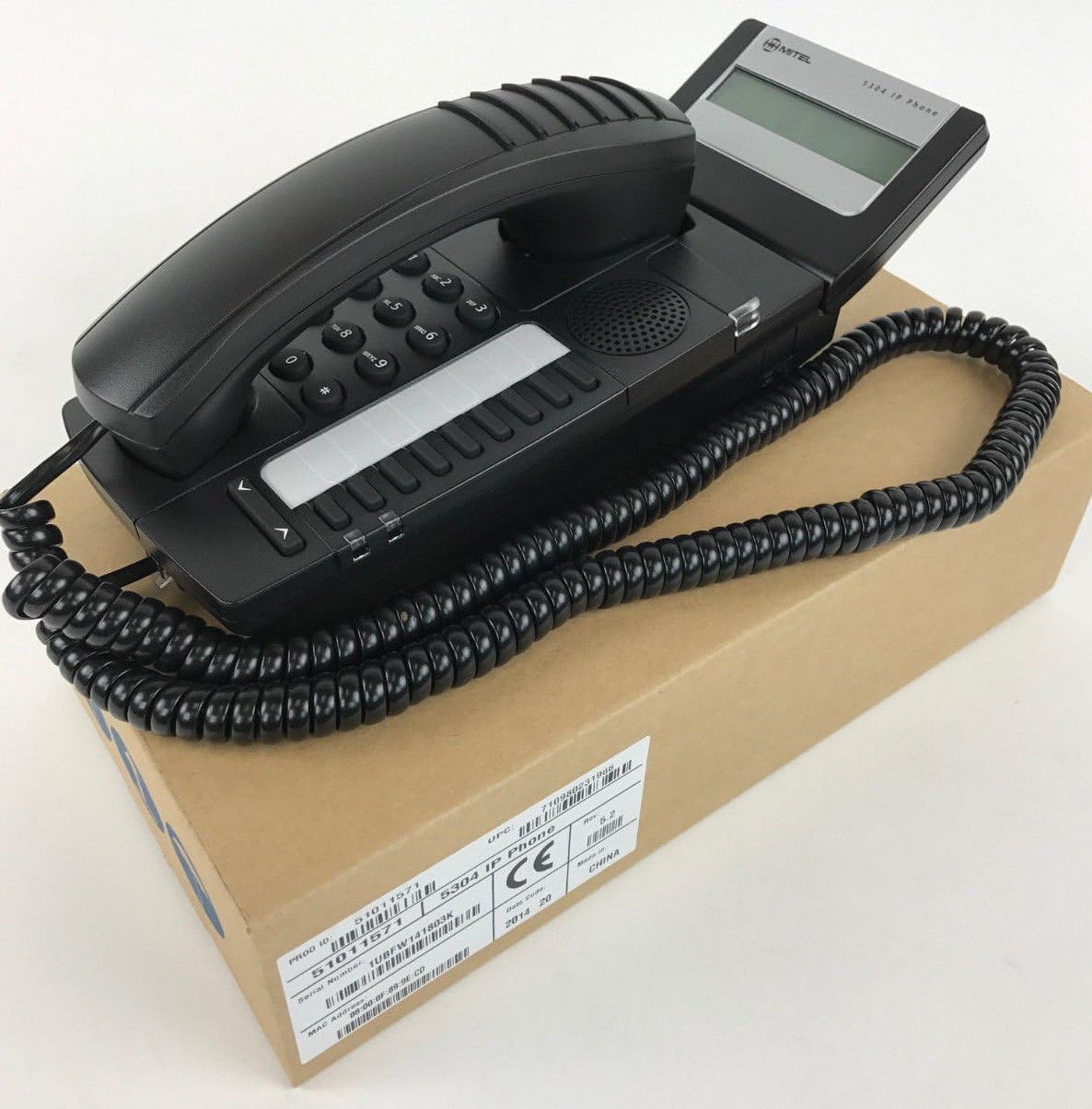
Figure 1: Mitel MiVoice 5304 IP Phone. This image shows the black IP phone with its coiled handset cord, resting on a brown cardboard box. The phone features a numeric keypad, several function buttons, and a small display screen.
2. Key Features
- Display: Two x 20 character backlit display with auto-dimming.
- Lines: Two lines with LED indication (one prime line, one programmable key).
- Programmable Keys: Eight programmable keys for speed dials, feature access codes, paging, conferencing, voicemail access, etc.
- Paging: Paging and page receive capability, including direct page and group page support.
- Dual-Mode Support: Compatible with both MiNet and SIP protocols.
- Visual Indicators: Incoming call visual indication and message waiting indication.
- Audio Controls: Adjustable volume and ringing controls.
- Mounting: Wall-mountable (optional accessory may be required).
- Powering: Multiple powering options, including 802.3af compliant Power over Ethernet (PoE).
- Accessibility: ADA-compliant (HAC handset).
- Compact Design: Small footprint (approximately 26.5 cm x 10 cm or 10.5 x 4 inches).
- Energy Efficient: Designed for power conservation to reduce overall energy consumption.
3. Setup and Installation
3.1 Package Contents
Before you begin, ensure all components are present:
- Mitel MiVoice 5304 IP Phone unit
- Handset
- Handset coiled cord
- Ethernet cable
- (Optional) Power adapter if PoE is not used
3.2 Connecting the Phone
- Connect the Handset: Plug one end of the coiled handset cord into the handset and the other end into the handset port on the phone base.
- Connect to Network: Connect one end of the Ethernet cable to the LAN port on the back of the phone and the other end to an active network port (e.g., a wall jack or network switch). If using Power over Ethernet (PoE), the phone will power on automatically.
- Connect Power (if not using PoE): If your network does not provide PoE, connect an optional Mitel-approved power adapter to the power port on the phone and then to a standard electrical outlet.
- Initial Boot-up: The phone will power on and begin its boot-up sequence. This may take a few moments as it obtains an IP address and registers with your communication system.
3.3 Wall Mounting (Optional)
The Mitel 5304 IP Phone can be wall-mounted. An optional wall-mount kit (sold separately) may be required. Follow the instructions provided with the wall-mount kit for proper installation.
4. Operating Instructions
4.1 Making and Answering Calls
- To Make a Call:
- Lift the handset or press the Speaker button.
- Dial the desired number using the keypad.
- Press the Dial or Send button (if available) or wait for the call to connect automatically.
- To Answer a Call:
- Lift the handset or press the flashing line button or the Speaker button.
- To End a Call:
- Replace the handset or press the End Call or Speaker button.
4.2 Using Programmable Keys
The Mitel 5304 features eight programmable keys. Their functions are typically configured by your system administrator and can include:
- Speed Dial numbers
- Access to specific features (e.g., Call Forward, Do Not Disturb)
- Paging functions
- Voicemail access
- Conferencing
To use a programmable key, simply press the button corresponding to the desired function.
4.3 Adjusting Volume
Use the volume control buttons (usually located below the keypad or on the side of the phone) to adjust the handset, speakerphone, or ringer volume. Press the + button to increase volume and the - button to decrease volume.
4.4 Message Waiting Indication
A flashing LED indicator on the phone signifies that you have new voicemail messages. To retrieve messages, press the dedicated Message button (if configured) or dial your voicemail access code.
5. Maintenance and Care
- Cleaning: Use a soft, slightly damp cloth to clean the phone's surface. Do not use abrasive cleaners, solvents, or strong chemicals, as these can damage the finish.
- Dust: Regularly dust the phone, especially around the keypad and display, to prevent accumulation that could affect performance.
- Environment: Keep the phone away from excessive heat, direct sunlight, and moisture. Ensure proper ventilation if placed in an enclosed space.
- Cables: Ensure all cables are securely connected and not pinched or damaged.
6. Troubleshooting
| Problem | Possible Cause | Solution |
|---|---|---|
| Phone does not power on. | No power from Ethernet (PoE) or power adapter not connected/faulty. |
|
| No dial tone or cannot make calls. | Network connectivity issue, phone not registered, or system configuration problem. |
|
| Display is blank or unreadable. | Power issue or display fault. |
|
| Cannot hear caller or caller cannot hear me. | Volume settings, handset/speaker issue, or network audio problem. |
|
7. Specifications
| Attribute | Detail |
|---|---|
| Model Number | 51011571 |
| Product Dimensions (L x W x H) | 10 x 10 x 6 inches (25.4 x 25.4 x 15.24 cm) |
| Item Weight | 1.9 pounds (0.86 kg) |
| Color | Black |
| Telephone Type | Corded IP Phone |
| Power Source | Corded Electric (PoE 802.3af compliant or optional power adapter) |
| Dialer Type | Single Keypad |
| Display | Two x 20 character backlit display |
| Line Support | 2 Lines with LED indication |
| Protocols Supported | MiNet, SIP |
| Compatible Devices | VoIP services, IP-based communication systems, Mitel 3300, Mitel SX-200 IP Communications Platforms |
| Conference Call Capability | 2-way |
8. Warranty and Support
For information regarding product warranty, please refer to the warranty card included with your purchase or visit the official Mitel website. For technical support, service, or further inquiries, please contact your Mitel authorized dealer or system administrator.
You can also find additional resources and contact information on the official Mitel website: www.mitel.com


