
1. Introduction
This manual provides essential information for the safe and efficient operation of your Datalogic PowerScan M8300-AR910RB Handheld Laser Bar Code Reader. Please read this manual thoroughly before using the device to ensure proper setup, operation, and maintenance. Keep this manual for future reference.
2. Safety Information
Always observe the following safety precautions to prevent injury or damage to the device:
- Laser Safety: This device emits a laser beam. Do not stare directly into the laser beam or point it at others. Avoid direct eye exposure.
- Battery Safety: Use only Datalogic-approved batteries and charging accessories. Do not expose batteries to extreme temperatures, puncture, or disassemble them. Dispose of batteries according to local regulations.
- Environmental Conditions: Do not operate the device in explosive atmospheres or near flammable materials. Keep the device dry and away from extreme temperatures.
- Maintenance: Refer all servicing to qualified service personnel. Do not attempt to open or modify the device.
3. Package Contents
Verify that all items are present in the package:
- Datalogic PowerScan M8300-AR910RB Handheld Laser Bar Code Reader
- Removable Battery
- Charging/Communication Cradle (may be sold separately depending on configuration)
- USB or Serial Cable (for cradle connection, may be sold separately)
- Power Supply (for cradle, may be sold separately)
- Quick Start Guide
4. Product Overview
The Datalogic PowerScan M8300 is a robust, cordless handheld laser bar code reader designed for industrial applications. It features a durable casing and a 910MHz radio for reliable wireless communication.
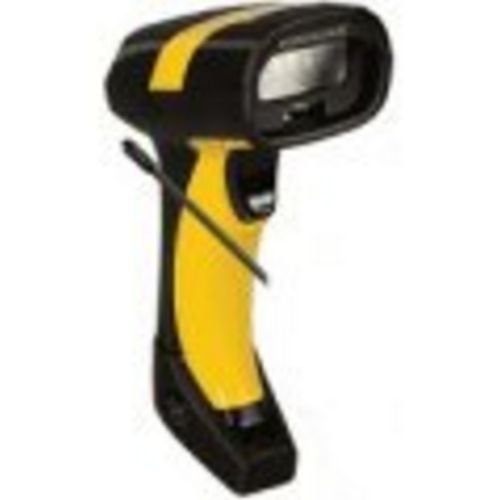
Image 1: Datalogic PowerScan M8300 Handheld Laser Bar Code Reader. This image displays the front view of the scanner, highlighting its ergonomic design, scan window, and trigger button.
Key Components:
- Scan Window: Located at the front, where the laser beam exits to read barcodes.
- Trigger: Activates the laser for scanning.
- Indicator Lights: Provide feedback on scan status, battery level, and communication.
- Battery Compartment: Located at the base of the handle, housing the removable battery.
- Communication Interface: For wireless data transmission via the 910MHz radio.
5. Setup
5.1. Battery Installation
- Ensure the scanner is powered off.
- Locate the battery compartment cover at the bottom of the handle.
- Open the cover and insert the removable battery, ensuring correct polarity.
- Close the battery compartment cover securely.
5.2. Charging the Battery
- Place the scanner into its charging cradle. Ensure the contacts on the scanner align with those on the cradle.
- Connect the power supply to the charging cradle and plug it into an electrical outlet.
- The scanner's indicator light will show charging status (typically amber for charging, green for fully charged).
- Allow the battery to fully charge before first use (approximately 4 hours).
5.3. Connecting to a Host System
The PowerScan M8300 uses a 910MHz radio for wireless communication. It typically connects to a host system (e.g., PC, laptop) via a base station or cradle connected by a USB or serial cable.
- Connect the communication cable (USB or serial) from the charging/communication cradle to your host system.
- Connect the power supply to the cradle and plug it in.
- Place the scanner in the cradle. The scanner and cradle will automatically establish a wireless link.
- Install any necessary drivers or software on your host system as prompted or as instructed by Datalogic documentation for your specific cradle model.
6. Operating Instructions
6.1. Powering On/Off
- To Power On: The scanner typically powers on automatically when removed from the cradle or when the trigger is pressed.
- To Power Off: The scanner will enter a low-power sleep mode after a period of inactivity. To fully power off, remove the battery.
6.2. Scanning Barcodes
- Aim the scan window at the barcode you wish to read.
- Press and hold the trigger button. A laser line will appear.
- Position the laser line across the entire barcode.
- Once the barcode is successfully read, the scanner will emit an audible beep and/or an indicator light will illuminate.
- Release the trigger. The scanned data will be transmitted to the connected host system.
6.3. Data Transmission
The PowerScan M8300 transmits scanned data wirelessly to its paired base station/cradle. Ensure the scanner is within range of its base station for successful data transfer. Out-of-range scanning capabilities may vary by configuration; refer to advanced programming guides for details.
7. Maintenance
7.1. Cleaning the Device
- Use a soft, clean cloth dampened with water or a mild cleaning solution.
- Do not use abrasive cleaners, solvents, or harsh chemicals.
- Gently wipe the scan window and the exterior of the scanner.
- Ensure no liquid enters the device openings.
7.2. Battery Care
- Charge the battery regularly.
- Avoid fully discharging the battery frequently.
- Store the scanner and spare batteries in a cool, dry place when not in use.
7.3. Storage
When storing the scanner for extended periods, ensure the battery is partially charged (around 50%) and remove it from the device if possible. Store in a temperature-controlled environment.
8. Troubleshooting
If you encounter issues with your PowerScan M8300, refer to the following common problems and solutions:
| Problem | Possible Cause | Solution |
|---|---|---|
| Scanner does not power on. | Dead or improperly installed battery. | Check battery installation. Charge the battery. Replace battery if necessary. |
| Scanner does not read barcodes. | Barcode damaged or poorly printed; scan window dirty; incorrect symbology enabled. | Try scanning a different barcode. Clean the scan window. Refer to the programming guide to enable/disable symbologies. |
| No data transmitted to host. | Scanner out of range; base station not connected; communication issue. | Move scanner closer to the base station. Verify base station connection to host. Check base station power. |
| Battery life is short. | Battery nearing end of life; frequent use; improper charging. | Replace battery. Ensure full charges. Reduce backlight/power settings if configurable. |
If the problem persists, contact Datalogic technical support.
9. Specifications
The following specifications apply to the Datalogic PowerScan M8300-AR910RB model:
- Model Number: PM8300-AR910RB
- Product Dimensions: 2.72 x 4.49 x 8.15 inches
- Item Weight: 13.9 ounces
- Manufacturer: Datalogic ADC
- Power Source: Battery Powered
- Connectivity Technology: Wireless (910MHz)
- Compatible Devices: Desktop, Laptop
- UPC: 053926383351
10. Warranty Information
Datalogic products are covered by a limited warranty against defects in materials and workmanship. The specific terms and duration of the warranty may vary by region and product. Please refer to the warranty card included with your product or visit the official Datalogic website for detailed warranty information and registration procedures.
11. Support
For technical assistance, product inquiries, or to report issues, please contact Datalogic customer support:
- Website: Visit the official Datalogic website for support resources, FAQs, and driver downloads.
- Contact: Refer to the 'Contact Us' section on the Datalogic website for phone numbers and email addresses specific to your region.
When contacting support, please have your product model number (PM8300-AR910RB) and serial number ready.


