
iLuv iMM514BLK
iLuv ArtStation Pro 30-Pin Dock Sound System User Manual
Model: iMM514BLK
1. Product Overview
The iLuv ArtStation Pro is a versatile docking sound system designed to enhance your audio and visual experience with compatible Apple devices. It features an articulating arm for flexible viewing angles and delivers rich, clear sound through its integrated speaker system.
Key Features:
- Compatibility with 30-pin iPad, iPod, and iPhone models.
- Simultaneously plays and charges your docked device.
- Integrated desktop/bedside speaker system.
- Enhanced jAura Sound Technology for bold acoustic clarity.
- Acoustically tuned 2-way speaker system providing crisp treble and tight bass.
- Articulating arm rotates for portrait or landscape viewing options and allows tilt adjustment for maximum comfort.
- Supports full functions of the iLuv app (available for free on the App Store).
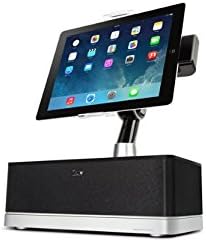
Figure 1.1: The iLuv ArtStation Pro with an iPad docked in portrait orientation, showcasing the main unit and adjustable arm.
2. Setup Guide
Follow these steps to set up your iLuv ArtStation Pro:
- Unpack the System: Carefully remove all components from the packaging. Ensure you have the main speaker unit, the articulating arm, and the power adapter.
- Connect Power: Insert the power adapter cable into the DC IN port on the back of the ArtStation Pro. Plug the other end of the power adapter into a standard electrical outlet.
- Dock Your Device: Gently align your compatible iPad, iPod, or iPhone (with a 30-pin connector) with the docking connector on the articulating arm. Carefully push down until the device is securely seated. Ensure a firm connection for charging and audio playback.
- Adjust Viewing Angle: Use the articulating arm to position your device. You can rotate it between portrait and landscape modes and adjust the tilt for optimal viewing comfort.
- Download iLuv App (Optional): For enhanced functionality and control, download the free iLuv app from the App Store on your docked device.
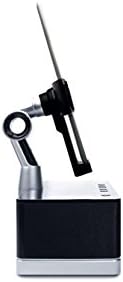
Figure 2.1: Side view illustrating the adjustable articulating arm, allowing for various viewing angles and device positioning.
3. Operating Instructions
3.1 Basic Operation
- Power On/Off: The unit powers on automatically when a device is docked and power is connected. To turn off, simply undock your device or disconnect power.
- Audio Playback: Once your device is docked, audio from your device will automatically play through the ArtStation Pro speakers. Control playback (play/pause, skip tracks) directly from your docked device.
- Volume Control: Adjust the volume directly on your docked iPad, iPod, or iPhone. The ArtStation Pro's volume output is controlled by your device's volume settings.
- Charging: Your docked device will begin charging automatically as long as the ArtStation Pro is connected to power.
3.2 Articulating Arm Adjustment
- Portrait to Landscape: Gently rotate your docked device to switch between portrait and landscape viewing modes.
- Tilt Adjustment: The arm allows for forward and backward tilting to reduce glare and optimize your viewing angle.

Figure 3.1: The iLuv ArtStation Pro with an iPad docked in landscape orientation, demonstrating the rotational capability of the articulating arm.
3.3 Remote Control (If Included)
Some versions of the ArtStation Pro may include a magnetic remote control. This remote allows for basic functions such as volume adjustment, play/pause, and track navigation from a distance. Ensure the remote's battery is functional if experiencing issues.
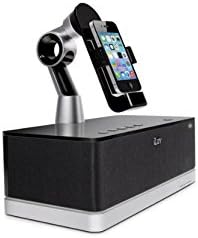
Figure 3.2: The iLuv ArtStation Pro with an iPhone docked, illustrating its compatibility with smaller 30-pin Apple devices.
4. Maintenance
- Cleaning: Use a soft, dry cloth to clean the exterior surfaces of the ArtStation Pro. Do not use liquid cleaners or abrasive materials.
- Connector Care: Keep the 30-pin docking connector free of dust and debris. Avoid applying excessive force when docking or undocking your device.
- Storage: When not in use for extended periods, store the unit in a cool, dry place away from direct sunlight and extreme temperatures.
5. Troubleshooting
If you encounter issues with your iLuv ArtStation Pro, refer to the following table for common problems and solutions:
| Problem | Possible Cause | Solution |
|---|---|---|
| No power/Unit not turning on. | Power adapter not connected or faulty outlet. | Ensure the power adapter is securely plugged into the unit and a working electrical outlet. Try a different outlet. |
| No sound from speakers. | Device not properly docked; device volume too low; device not playing audio. | Re-seat your device firmly on the 30-pin connector. Increase the volume on your device. Ensure audio is playing on your device. |
| Device not charging. | Device not properly docked; power issue. | Ensure your device is fully seated on the 30-pin connector. Verify the power adapter is connected and the outlet is functional. |
| Articulating arm is stiff or difficult to move. | Normal operation; dust accumulation. | The arm is designed to hold position firmly. Apply gentle, consistent pressure. Clean any visible dust around the joints. Do not force the arm beyond its intended range of motion. |
| Remote control not working. | Dead battery; obstruction. | Replace the remote control battery (if applicable). Ensure there are no obstructions between the remote and the unit. |
6. Technical Specifications
| Specification | Detail |
|---|---|
| Model Number | iMM514BLK |
| Product Dimensions (L x W x H) | 29.97 x 29.46 x 20.07 cm |
| Item Weight | 2.22 kg |
| Color | Black |
| Compatible Devices | iPhone 3, iPhone 3G, iPhone 4, iPhone 4G, iPod Touch (1st, 2nd, 3rd Gen), iPod Video (5th Gen), iPod Nano (1st, 2nd, 3rd, 4th, 5th, 6th Gen) |
| Audio Technology | Enhanced jAura Sound Technology, 2-way speaker system |
| Power Source | AC Power Adapter |
7. Warranty and Support
For warranty information and customer support, please refer to the documentation included with your purchase or visit the official iLuv website. Warranty terms and conditions may vary by region and retailer.
Manufacturer: Dr.Bott LLC
Related documentsiMM514BLK


Ask a question about this manual
Ask about setup, troubleshooting, compatibility, parts, safety, or missing instructions. Manuals+ will review the question and use this page’s manual context to help answer it.