
Introduction
Welcome to your new MusicMan MA Display Soundstation. This manual provides essential information for setting up, operating, and maintaining your device. Please read it carefully to ensure proper use and to maximize the lifespan of your product.
Package Contents:
- MusicMan MA Display Soundstation
- USB Charging Cable
- 3.5mm Audio Cable
- Instruction Manual
Product Overview
The MusicMan MA Display Soundstation is a portable stereo speaker featuring an integrated battery, LCD screen, MP3 player, FM radio, Micro SD card slot, and USB port. Its compact design and multiple input options make it versatile for various audio needs.
Device Layout:
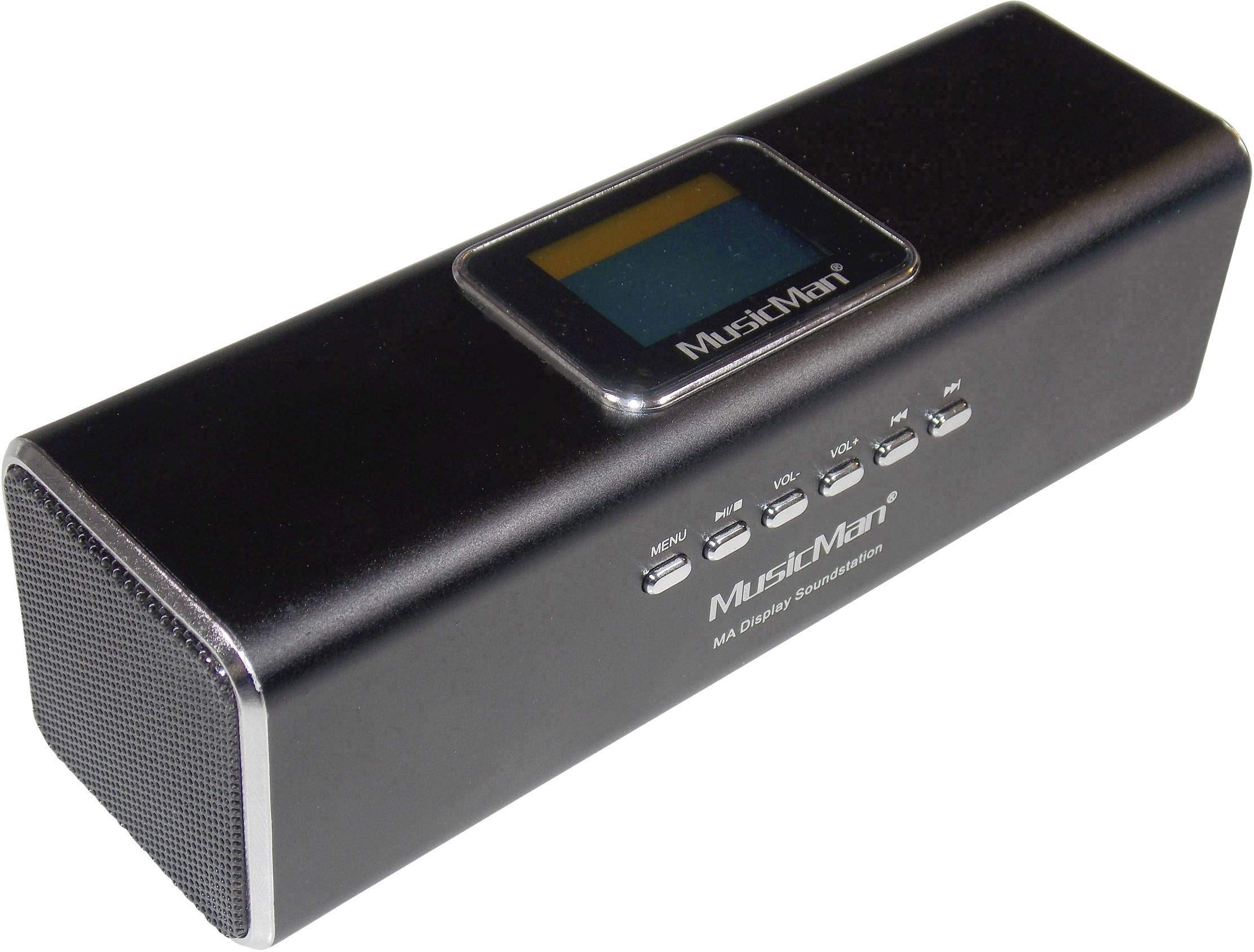
An overhead view of the MusicMan MA Display Soundstation, showcasing its rectangular black aluminum body, front-facing speaker grilles, and top-mounted LCD display and control buttons.

Close-up of the control panel on the top of the MusicMan MA Display Soundstation, showing buttons labeled MENU, Play/Pause, VOL-, VOL+, Previous Track, and Next Track.

Close-up of the rear panel of the MusicMan MA Display Soundstation, displaying the USB port, DC-5V charging port, LINE IN (3.5mm audio input), Power ON/OFF switch, Micro SD card slot, ANT (antenna port), and Headphone jack.

A detailed view of the LCD display on the MusicMan MA Display Soundstation, which shows time, date, alarm status, current music mode, and FM station information.
Setup
1. Initial Charging:
Before first use, fully charge the device. Connect the supplied USB cable to the DC-5V port on the Soundstation and the other end to a USB power adapter (not included) or a computer's USB port. The charging indicator will show the charging status.
2. Power On/Off:
Locate the Power ON/OFF switch on the rear panel. Slide the switch to the "ON" position to power on the device. Slide it to "OFF" to power off.
Operating Instructions
Basic Controls:
- MENU: Press to cycle through different modes (e.g., MP3, FM Radio, Line-In) or to access settings within a mode.
- Play/Pause (►⏸): Press to play or pause audio playback.
- VOL- / VOL+: Press to decrease or increase the volume level.
- Previous Track (◀◀): Press to go to the previous track in MP3 mode or previous station in FM mode.
- Next Track (►►): Press to go to the next track in MP3 mode or next station in FM mode.
Playing Music from USB/Micro SD:

The MusicMan Soundstation supports playing MP3, WMA, and WAV files from USB drives and MicroSD cards.
- Insert a USB flash drive into the USB port or a Micro SD card into the Micro SD card slot.
- The device should automatically switch to MP3 mode and begin playing audio files (MP3, WMA, WAV formats supported). If not, press the MENU button to select MP3 mode.
- Use the Play/Pause, VOL-, VOL+, Previous Track, and Next Track buttons to control playback.
Using Line-In (AUX) Mode:
- Connect one end of the supplied 3.5mm audio cable to the LINE IN port on the Soundstation.
- Connect the other end of the audio cable to the headphone jack or audio output of your external device (e.g., smartphone, tablet, laptop).
- Press the MENU button to select Line-In mode.
- Control playback and volume from your external device.
FM Radio Operation:
- Ensure the antenna is properly connected to the ANT port for optimal reception.
- Press the MENU button to select FM Radio mode.
- To auto-scan and save available stations, press and hold the Play/Pause button. The device will scan and store stations automatically.
- Use the Previous Track and Next Track buttons to navigate through saved FM stations.
- Adjust volume using VOL- and VOL+ buttons.
LCD Display Functions:
The LCD display shows various information depending on the mode:
- MP3 Mode: Displays track number, elapsed time, and other playback information.
- FM Radio Mode: Shows the current radio frequency.
- Clock/Alarm: Displays the current time and date. You can set an alarm through the menu options to wake up to your chosen music from a USB drive.
Maintenance
Cleaning:
Wipe the device with a soft, dry cloth. Do not use abrasive cleaners or solvents, as they may damage the surface.
Battery Care:
To prolong battery life, avoid fully discharging the battery frequently. Recharge the device regularly, even if not in use for extended periods. Store the device in a cool, dry place.
Water Resistance:
The device is water-resistant. However, avoid submerging it in water or exposing it to heavy rain for prolonged periods. Ensure all ports are dry before charging.
Troubleshooting
- No Power: Ensure the device is charged. Connect it to a power source using the USB cable. Check if the power switch is in the "ON" position.
- No Sound: Check the volume level on the Soundstation and the connected external device (if using Line-In). Ensure the correct mode (MP3, FM, Line-In) is selected. Verify that audio files on USB/Micro SD are in a supported format (MP3, WMA, WAV).
- Poor FM Reception: Extend or adjust the position of the antenna. Try auto-scanning for stations again in a different location.
- USB/Micro SD Not Recognized: Ensure the USB drive or Micro SD card is inserted correctly. Check if the storage device is formatted correctly and contains supported audio files.
- Display Not Working: If the display is blank, ensure the device is powered on and charged. If the issue persists, contact support.
Specifications
| Feature | Detail |
|---|---|
| Model Number | TXX3547 |
| Brand | MusicMan |
| RMS Power Output | 6 Watts |
| Frequency Range | 150 - 18000 Hz |
| Impedance | 4 Ohm |
| Connectivity Technology | Wired (USB, 3.5mm Jack) |
| Wireless Communication | None |
| Supported Audio Formats | MP3, WMA, WAV, Micro SD |
| Display Type | LCD |
| Battery Type | 1 Lithium-ion (included) |
| Battery Capacity | 600 mAh |
| Maximum Battery Life | 5 hours |
| Battery Recharge Time | 3 hours |
| Product Dimensions (L x W x H) | 16.6 x 5 x 4.9 cm |
| Item Weight | 200 Grams |
| Material | Aluminum |
| Water Resistance | Yes |
| Control Method | Push Button |
Warranty and Support
Limited Warranty:
This MusicMan MA Display Soundstation comes with a limited warranty. Please refer to the warranty card included in your package for specific terms and conditions. Spare parts availability is guaranteed for 1 year.
Customer Support:
For technical assistance or warranty claims, please contact your retailer or the manufacturer's customer service. Keep your purchase receipt as proof of purchase.