
1. Introduction
The SainSmart 2-Channel Relay Module is a versatile interface board designed for controlling high-current devices with low-voltage microcontrollers. It features two independent relays, each requiring 15-20mA driver current at 5V. The module is equipped with high-current relays capable of switching AC250V 10A or DC30V 10A. It provides a standard interface compatible with various microcontrollers such as Arduino, 8051, AVR, PIC, DSP, ARM, and MSP430, supporting TTL logic. Each relay includes an indication LED to show its output status.

Figure 1: SainSmart 2-Channel Relay Module. This image shows the overall view of the module with its two blue relays and screw terminals.
2. What's in the Box
Upon opening the package, you will find the following item:
- 1 x SainSmart 2-Channel Relay Module

Figure 2: The SainSmart 2-Channel Relay Module shown with its retail packaging.
3. Setup
This section details the steps required to connect and prepare your 2-Channel Relay Module for operation with a microcontroller.
3.1. Pin Description
| Pin | Description |
|---|---|
| VCC | Power supply for the module logic (typically 5V). |
| GND | Ground connection. |
| IN1 | Control input for Relay 1. A LOW signal typically activates the relay. |
| IN2 | Control input for Relay 2. A LOW signal typically activates the relay. |
| JD-VCC | Independent power supply for the relay coils (typically 5V). This can be separated from VCC using a jumper. |
| K1 / K2 Terminals | Screw terminals for connecting the load to each relay (Normally Open, Common, Normally Closed). |
3.2. Basic Wiring
- Connect the GND pin of the relay module to the Ground (GND) pin of your microcontroller.
- Connect the VCC pin of the relay module to the 5V power output of your microcontroller.
- Connect the IN1 pin of the relay module to a digital output pin on your microcontroller (e.g., Digital Pin 10 on an Arduino).
- (Optional) Connect the IN2 pin of the relay module to another digital output pin on your microcontroller for controlling the second relay.
- For controlling the relay coils independently or with a different voltage, remove the jumper between JD-VCC and VCC. Then, connect an external 5V power supply to JD-VCC and ensure its ground is common with the microcontroller's ground.
- Connect your high-current load to the appropriate K1 or K2 screw terminals. Each relay has three terminals: Normally Open (NO), Common (COM), and Normally Closed (NC).
- To switch a device ON when the relay is activated, connect one side of the load to COM and the other side to NO.
- To switch a device OFF when the relay is activated, connect one side of the load to COM and the other side to NC.

Figure 3: Top view of the relay module, highlighting the screw terminals for load connections.

Figure 4: Angled view of the relay module, showing the input pins (GND, IN1, IN2, VCC, JD-VCC).
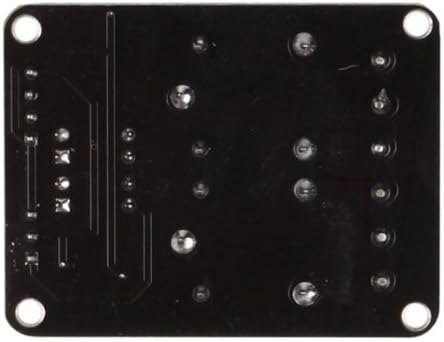
Figure 5: Bottom view of the relay module, showing solder points and mounting holes.
4. Operating the Module
The relay module is controlled by sending digital signals from your microcontroller to the IN1 and IN2 pins. The module typically uses active-LOW logic, meaning a LOW signal (0V) on an input pin will activate the corresponding relay, and a HIGH signal (5V or 3.3V depending on your microcontroller) will deactivate it.
4.1. Relay Activation Logic
- When the input pin (IN1 or IN2) receives a LOW signal, the corresponding relay will activate (close the COM-NO circuit, open the COM-NC circuit). The onboard LED for that relay will illuminate.
- When the input pin (IN1 or IN2) receives a HIGH signal, the corresponding relay will deactivate (open the COM-NO circuit, close the COM-NC circuit). The onboard LED will turn off.
4.2. Example Microcontroller Code (Conceptual)
For Arduino-compatible microcontrollers, you would typically use pinMode() to set the control pins as outputs and digitalWrite() to send HIGH or LOW signals.
void setup() {
  pinMode(10, OUTPUT); // Set digital pin 10 as an output for Relay 1
  digitalWrite(10, HIGH); // Ensure relay is off initially (active-LOW)
}

void loop() {
  digitalWrite(10, LOW);  // Activate Relay 1 (turn ON)
  delay(3000);            // Wait for 3 seconds
  digitalWrite(10, HIGH); // Deactivate Relay 1 (turn OFF)
  delay(3000);            // Wait for 3 seconds
}
This example demonstrates toggling Relay 1 every 3 seconds. Adjust pin numbers and delays as needed for your application.
5. Maintenance
The SainSmart 2-Channel Relay Module is designed for durability and requires minimal maintenance. Follow these guidelines to ensure its longevity:
- Cleaning: Keep the module free from dust and debris. Use a soft, dry cloth or a brush to gently clean the surface. Avoid using liquids or harsh chemicals.
- Storage: Store the module in a dry, cool environment away from direct sunlight and extreme temperatures. If not in use for extended periods, store it in an anti-static bag.
- Handling: Handle the module by its edges to avoid touching the electronic components, which can be sensitive to static discharge.
- Connections: Periodically check all wire connections to ensure they are secure and free from corrosion.
6. Troubleshooting
If you encounter issues with your SainSmart 2-Channel Relay Module, refer to the following common problems and solutions:
- Relay does not activate (LED does not light up):
- Verify that the module is receiving 5V power at the VCC and JD-VCC pins and that GND is properly connected.
- Ensure the control signal from your microcontroller to IN1/IN2 is a LOW (0V) signal. Remember, these modules are typically active-LOW.
- Check the jumper between JD-VCC and VCC. If you are powering the relay coils separately, ensure this jumper is removed and JD-VCC has its own 5V supply.
- Confirm that the microcontroller's digital output pin is correctly configured as an OUTPUT.
- If using a 3.3V microcontroller, ensure the input current (approx. 20mA) can be sourced by the microcontroller's GPIO pins. Some users modify the module by replacing or adding parallel resistors to R1/R4 to reduce the current draw for 3.3V operation.
- Relay activates unexpectedly or flickers on startup:
- This can occur if the microcontroller's digital output pin defaults to LOW during startup before your code sets it to HIGH. In your
setup()function, ensure you set the pin to HIGH (to keep the relay off) before settingpinMode()to OUTPUT.
- This can occur if the microcontroller's digital output pin defaults to LOW during startup before your code sets it to HIGH. In your
- Load is not switching or is always ON/OFF:
- Check the connections to the K1/K2 screw terminals. Ensure you are using the correct Normally Open (NO), Common (COM), and Normally Closed (NC) terminals for your desired operation.
- Verify the load's power requirements do not exceed the relay's maximum ratings (AC250V 10A; DC30V 10A).
- Confirm the load itself is functioning correctly.
- Audible "clack" sound when switching:
- This is normal for mechanical relays and indicates the physical switching of the contacts. It is not a sign of malfunction.
7. Specifications
| Feature | Detail |
|---|---|
| Brand | SainSmart |
| Model Number | 101-70-100 |
| Number of Channels | 2 |
| Coil Voltage | 5 Volts |
| Driver Current (per channel) | 15-20mA |
| Maximum Switching Current | 10 Amps |
| Maximum Switching Voltage (AC) | 250V AC |
| Maximum Switching Voltage (DC) | 30V DC |
| Wattage | 50 watts |
| Operation Mode | Automatic |
| Item Weight | 1.06 ounces |
| Product Dimensions (LxWxH) | 4.79 x 0.69 x 0.1 inches |
| Number of Terminals | 3 (per relay: NO, COM, NC) |
8. Warranty and Support
Specific warranty information for the SainSmart 2-Channel Relay Module is not provided in the product details. For warranty claims, technical support, or further assistance, please contact SainSmart directly through their official website or the retailer from whom you purchased the product.