
August DVB-T202
August DVB-T202 USB Freeview TV Tuner User Manual
Model: DVB-T202
Introduction
This manual provides comprehensive instructions for the installation, operation, and maintenance of your August DVB-T202 USB Freeview TV Tuner. This device allows you to watch and record digital terrestrial television (DVB-T) on your Windows PC without an internet connection.

Image: The August DVB-T202 USB Freeview TV Tuner stick, shown in black with its protective cap removed, highlighting its compact USB design.
Package Contents
Before proceeding with the installation, please ensure all components are present in the package:
- August DVB-T202 USB Freeview TV Tuner Stick
- Portable Antenna with Magnetic Base
- Quick Start Guide
- Software Installation CD (Mini-CD)

Image: A flat lay of the August DVB-T202 product box and its contents, including the USB tuner, portable antenna, quick start guide, and software mini-CD.
Setup Guide
Follow these steps to set up your DVB-T202 TV Tuner:
- System Requirements: Ensure your PC meets the minimum requirements: Windows 11, 10, 8, 7, Vista, or XP. A USB 2.0 port is required.
- Software Installation:
- Insert the provided mini-CD into your PC's CD/DVD drive. If your drive is a slot-loading type, do not use the mini-CD; instead, download the software and drivers from the official August website.
- Follow the on-screen instructions to install the TV viewing software and necessary drivers.
- Connect the Tuner:
- Plug the August DVB-T202 USB TV Tuner into an available USB 2.0 port on your computer.
- Connect the portable antenna to the antenna input port on the DVB-T202. For optimal reception, position the antenna near a window or use a rooftop aerial connected via the standard antenna port.

Image: A laptop displaying live TV, with the August DVB-T202 USB TV Tuner and its portable antenna connected to a USB port, demonstrating typical setup.

Image: A diagram illustrating how the August DVB-T202 USB tuner can connect to either the included portable aerial or a traditional rooftop aerial for improved signal reception.
Operating Instructions
Once the software is installed and the tuner is connected, you can begin watching and recording TV.
1. Launching the Software
Open the installed TV viewing application from your desktop shortcut or Start Menu. The software will typically guide you through an initial channel scan.
2. Channel Scan
Perform a channel scan to find available digital TV channels in your area. This process may take several minutes. Ensure your antenna is properly positioned for best results.
3. Watching Live TV
After the scan, select a channel from the channel list to start watching live television. You can switch channels using the software interface.
4. Electronic Program Guide (EPG)
The software includes an Electronic Program Guide (EPG) that displays upcoming programs. Use the EPG to browse schedules and plan your viewing.

Image: A laptop screen displaying the Electronic Program Guide (EPG) interface of the TV viewing software, showing channel listings and program schedules.
5. Recording TV Programs
The DVB-T202 supports live and scheduled recording. You can record programs directly to your computer's hard drive or an external storage device.
- Live Recording: Click the record button within the software interface while watching a program to start recording immediately.
- Scheduled Recording: Use the EPG to select a future program and set a recording schedule. Ensure your PC is on or in a compatible sleep mode for scheduled recordings to function.

Image: A user interacting with a laptop, which displays the TV viewing software with options for recording and managing saved programs.
Maintenance
To ensure the longevity and optimal performance of your August DVB-T202:
- Cleaning: Use a soft, dry cloth to clean the tuner stick. Do not use liquid cleaners or solvents.
- Storage: When not in use, store the tuner in a cool, dry place, away from direct sunlight and extreme temperatures. Keep the protective cap on the USB connector.
- Software Updates: Periodically check the August official website for software and driver updates to ensure compatibility with the latest operating systems and to improve performance.
Troubleshooting
If you encounter issues with your DVB-T202, refer to the following common problems and solutions:
| Problem | Possible Cause / Solution |
|---|---|
| No channels found during scan. |
|
| Poor picture quality or freezing. |
|
| Software not recognizing the tuner. |
|
| Mini-CD not readable or causing issues. |
|
Specifications
| Feature | Detail |
|---|---|
| Model | DVB-T202 |
| Brand | August |
| Tuner Technology | DVB-T |
| Interface | USB 2.0 |
| Compatible Operating Systems | Windows 11, 10, 8, 7, Vista, XP |
| Recording Features | Real-time and Scheduled Recording (MPEG4 H.264) |
| Dimensions (L x W x H) | 5.4 x 1.3 x 2.2 cm |
| Weight | 11 g |
| Included Components | USB TV Tuner, Portable Antenna with Magnetic Base, Software CD |
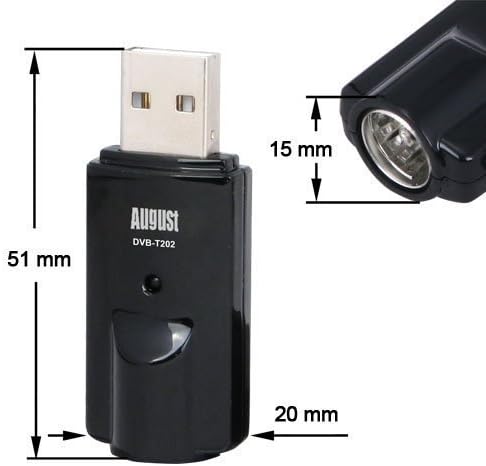
Image: A technical drawing showing the dimensions of the August DVB-T202 USB TV Tuner, with measurements of 51mm length, 20mm width, and 15mm height for the antenna port.
Warranty and Support
For warranty information and technical support, please refer to the August official website or contact their customer service. Keep your proof of purchase for warranty claims.
Official August Website: www.augustint.com
Related documentsDVB-T202


Ask a question about this manual
Ask about setup, troubleshooting, compatibility, parts, safety, or missing instructions. Manuals+ will review the question and use this page’s manual context to help answer it.