
1. Product Overview
The Logitech Wireless Mouse M305 is designed for comfort and convenience, featuring an ergonomic design with a soft rubber grip and a compact Nano-receiver. This manual provides instructions for setting up, operating, and maintaining your mouse.
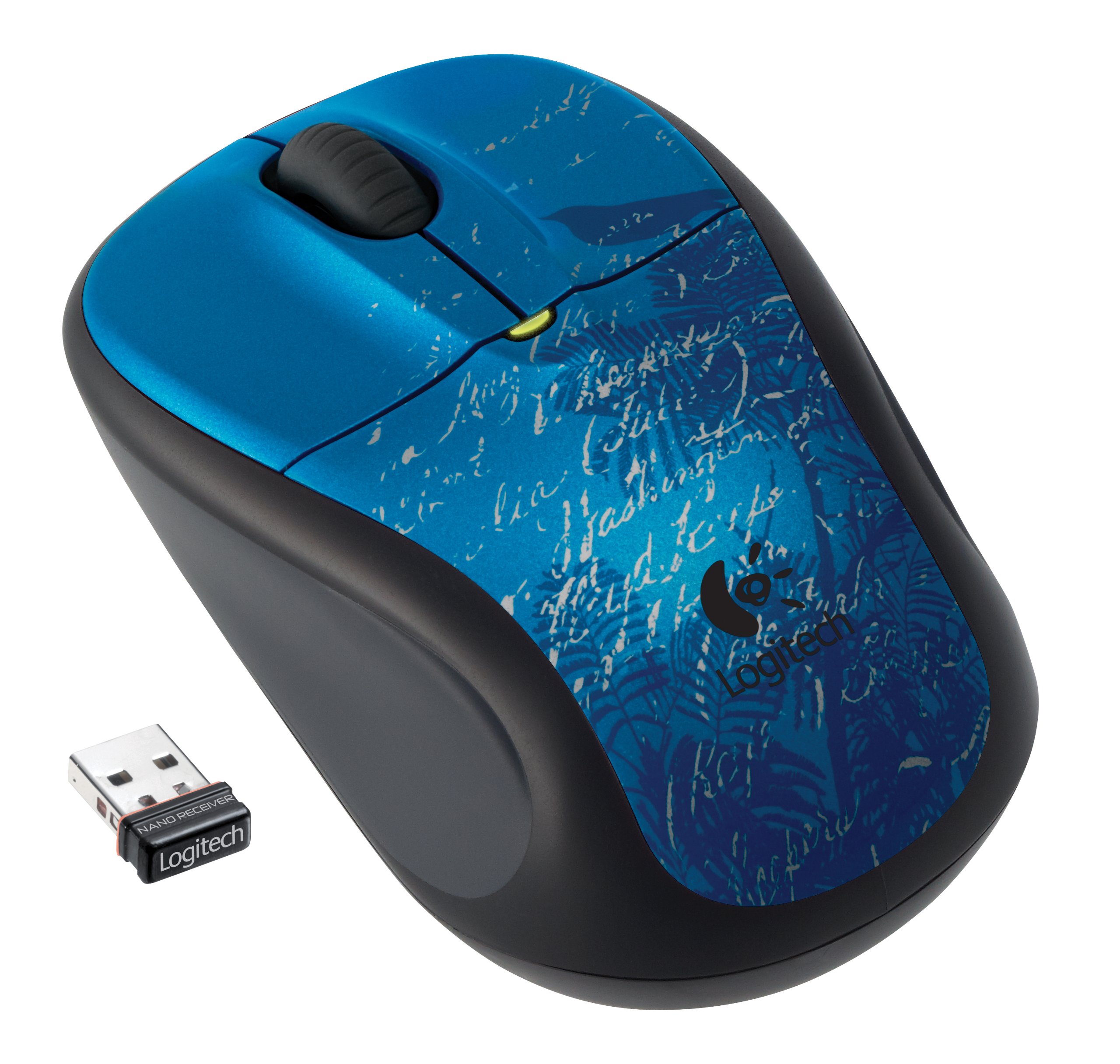
Image: Logitech Wireless Mouse M305 (Indigo Scroll) with its Nano receiver. The mouse features a blue design with white scroll patterns and a bird silhouette.
2. Setup Instructions
2.1. Battery Installation
- Locate the battery compartment on the underside of the mouse.
- Open the battery compartment cover.
- Insert one AA battery, ensuring correct polarity (+/-).
- Close the battery compartment cover.
- Turn on the mouse using the On/Off switch located on the bottom.
2.2. Connecting the Nano-Receiver
- Locate the USB Nano-receiver. It is typically stored inside the battery compartment or packaged separately.
- Plug the Nano-receiver into an available USB port on your computer.
- Your computer should automatically detect and install the necessary drivers. This process may take a few moments.
- Once the drivers are installed, the mouse is ready for use.

Image: The compact Nano receiver plugged into a laptop's USB port, demonstrating its small size.

Image: The Nano receiver shown next to a US nickel coin, highlighting its small, unobtrusive design.
3. Operating Instructions
The Logitech Wireless Mouse M305 provides standard mouse functionality with enhanced comfort and precision.
3.1. Basic Functions
- Left-Click Button: Used for selecting items, opening files, and executing commands.
- Right-Click Button: Used for accessing context menus and additional options.
- Scroll Wheel: Used for scrolling through documents and web pages. The scroll wheel may also function as a middle-click button for specific applications.
3.2. Ergonomics and Tracking
The mouse features an ergonomic design with a soft rubber grip for comfortable use over extended periods. Its high-definition optical tracking (1000 dpi) ensures responsive and smooth cursor control on various surfaces.

Image: Side view of the Logitech Wireless Mouse M305, illustrating its contoured shape and soft rubber side grips designed for comfort.
3.3. Power Management
To conserve battery life, the mouse includes an On/Off switch on its underside. It also features intelligent battery management, allowing for months of use from a single AA battery.
4. Maintenance
4.1. Battery Replacement
When the mouse's performance degrades or the battery indicator light (if present) signals low power, replace the AA battery by following the installation steps in Section 2.1.
4.2. Cleaning
To clean your mouse, use a soft, dry cloth. For stubborn dirt, a slightly damp cloth can be used, ensuring no moisture enters the internal components. Avoid using harsh chemicals or abrasive cleaners.
5. Troubleshooting
If you encounter issues with your Logitech Wireless Mouse M305, try the following troubleshooting steps:
- Mouse Not Responding:
- Ensure the mouse is turned on using the On/Off switch.
- Check the battery. Replace it if necessary.
- Ensure the Nano-receiver is securely plugged into a working USB port. Try a different USB port.
- Restart your computer.
- Erratic Cursor Movement:
- Clean the optical sensor on the underside of the mouse.
- Ensure you are using the mouse on a suitable surface. Avoid highly reflective or transparent surfaces.
- Check for interference from other wireless devices. Move the receiver closer to the mouse or away from other electronics.
- Connection Issues:
- If the connection is frequently lost, try re-pairing the mouse with the receiver using Logitech's connection utility software (if available for your operating system).
6. Specifications
| Feature | Detail |
|---|---|
| Model Number | 910-002462 |
| Product Dimensions | 8.25 x 3.5 x 5.88 inches |
| Item Weight | 4.8 ounces |
| Batteries | 1 AA battery (included) |
| Connectivity Technology | Wireless (2.4 GHz) |
| Movement Detection Technology | Optical (1000 dpi) |
| Manufacturer | Logitech, Inc |
7. Warranty and Support
For warranty information and technical support, please refer to the documentation included with your product or visit the official Logitech website. Logitech provides customer support and resources for their products.
Logitech Official Website: www.logitech.com


