
1. Introduction
This manual provides essential information for the safe and efficient operation of your InFocus IN112 Portable DLP Projector. Please read these instructions thoroughly before using the projector and retain them for future reference.
The InFocus IN112 is designed for versatile use, offering high brightness and a strong contrast ratio. It incorporates BrilliantColor technology for clear image reproduction and is 3D-ready. Its compact and lightweight design facilitates easy portability and installation.
2. What's in the Box
Verify that all items listed below are included in your product packaging:
- InFocus IN112 Projector
- Power cord
- RGB cable (VGA cable)
- A/V cable (Composite Video cable)
- Safety instructions
- User manual (this document)
- Remote control
3. Projector Overview

Figure 1: Top View - Displays the control panel with buttons for power, source selection, menu navigation, and keystone adjustment, along with the focus ring for the lens.

Figure 2: Side View - Shows the ventilation grilles essential for heat dissipation during operation. Ensure these are not obstructed.
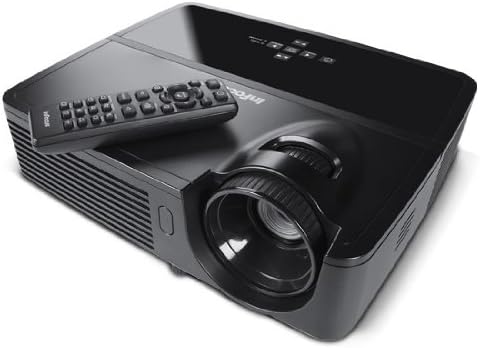
Figure 3: Angled View with Remote - Illustrates the projector from an angle, highlighting the lens and the included remote control for convenient operation.

Figure 4: Rear View - Details the various input and output ports, including power, audio in/out, video, computer (VGA), RS232, and Mini USB.
4. Setup
4.1 Placement
Position the projector on a stable, flat surface or mount it securely. Ensure adequate ventilation around the projector to prevent overheating. The distance from the screen will determine the image size. Adjust the projector's position to achieve the desired image size and clarity.
4.2 Power Connection
- Connect the supplied power cord to the projector's power inlet.
- Plug the other end of the power cord into a grounded electrical outlet.
4.3 Connecting Input Sources
The IN112 projector offers multiple input options:
- VGA (Computer In 1 & 2): Use the RGB cable to connect to a computer's VGA output.
- Composite Video: Use the A/V cable to connect to devices with composite video output.
- S-Video: Connect to devices with S-Video output.
- Audio In: Connect external audio sources using a 3.5mm stereo cable.
- RS232C: For control and automation systems.
- USB B Mini: For control and firmware updates.
Ensure all cables are securely connected before powering on the projector.
5. Operating Instructions
5.1 Power On/Off
- To power on, press the Power button on the control panel or remote control. The power indicator light will illuminate.
- To power off, press the Power button again. Confirm shutdown if prompted. Allow the projector to cool down before unplugging.
5.2 Image Adjustment
- Focus: Rotate the focus ring on the projector lens until the image is sharp and clear.
- Keystone: Use the Keystone buttons on the control panel or remote to correct trapezoidal image distortion if the projector is not perfectly perpendicular to the screen.
5.3 Source Selection
Press the Source button on the control panel or remote control to cycle through available input sources (VGA1, VGA2, Video, S-Video).
5.4 Menu Navigation
Press the Menu/Exit button to access the on-screen display (OSD) menu. Use the arrow buttons to navigate and the Select or Enter button to confirm selections. Press Menu/Exit again to close the menu.
5.5 Eco Mode
Activate Eco Mode to extend lamp life and reduce power consumption. This mode is suitable for environments with lower ambient light. The lamp life is approximately 6,000 hours in Eco Mode compared to 5,000 hours in normal mode.
5.6 3D Content Projection
The IN112 is 3D-ready. To project 3D content, you will need compatible 3D source material, a 3D-capable player, and active 3D glasses (sold separately). Refer to your 3D source device's manual for specific setup instructions.
6. Maintenance
6.1 Lamp Replacement
The projector lamp has a finite lifespan. When the lamp indicator (Temp/Lamp) illuminates or the image brightness significantly decreases, the lamp may need replacement. The lamp door is conveniently located on the top of the projector for easy access, even when installed.
Caution: Ensure the projector is powered off and completely cooled before attempting lamp replacement. Refer to the detailed lamp replacement instructions in the full service manual for safety and proper procedure.
6.2 Cleaning
The IN112 projector is designed without filters, eliminating the need for filter cleaning or replacement. Periodically wipe the exterior casing with a soft, dry cloth. For the lens, use a specialized lens cleaning cloth and solution to avoid scratches.
7. Troubleshooting
| Problem | Possible Cause | Solution |
|---|---|---|
| No image displayed | Power cable disconnected, incorrect input source selected, source device not powered on. | Check power connections. Press the Source button to select the correct input. Ensure the source device is on. |
| Image is blurry | Lens out of focus. | Adjust the focus ring on the projector lens. |
| Image is trapezoidal | Projector not perpendicular to the screen. | Use the Keystone buttons to correct the image shape. |
| Colors appear incorrect or dull | Color settings require adjustment. | Access the OSD menu and navigate to image settings to adjust color, brightness, and contrast. |
| Projector overheats and shuts down | Ventilation obstructed, high ambient temperature. | Ensure clear airflow around the projector. Operate in a well-ventilated area. |
8. Specifications
| Feature | Detail |
|---|---|
| Model Number | IN112 |
| Display Technology | DLP with BrilliantColor |
| Native Resolution | SVGA (800 x 600) |
| Brightness (ANSI Lumens) | 2700 (2200 in Eco Mode) |
| Contrast Ratio | 3000:1 |
| Lamp Life (Average) | 5,000 hours (Normal), 6,000 hours (Eco Mode) |
| 3D Ready | Yes |
| Connectivity | 2x VGA In, Composite Video, S-Video, 3.5mm Stereo In, RS232C, USB B Mini |
| Product Dimensions | 13 x 5.5 x 12.5 inches |
| Item Weight | 4.78 pounds (2.17 kg) |
| Operating Language | English |
9. Warranty and Support
9.1 Product Warranty
The InFocus IN112 projector is backed by a comprehensive warranty:
- 5-year limited warranty on the projector.
- 2-year full warranty covering parts and labor.
- 6-month warranty on the lamp.
Please retain your proof of purchase for warranty claims. For detailed terms and conditions, refer to the official InFocus warranty documentation or visit the InFocus website.
9.2 Technical Support
For technical assistance, troubleshooting, or service inquiries, please contact InFocus customer support. Contact information can typically be found on the InFocus official website or in the included documentation.
10. Related Product Information (IN130 Series)
The following video provides an overview of features found in the InFocus IN130 Series projectors. While specific models may vary, many core functionalities and design principles are shared across InFocus projector lines, offering general insight into InFocus projector capabilities.
Video: InFocus IN130 Series Overview - This video highlights features such as HDMI + Power for streaming sticks, high brightness, vivid colors, long lamp life, 3D readiness, and various connectivity options. Note: This video is for the IN130 series, but demonstrates general InFocus projector features.


