
Introduction
This manual provides essential information for setting up, operating, maintaining, and troubleshooting your Apple Mac Mini MC815LL/A. Please read this guide thoroughly to ensure proper use and to maximize the performance and longevity of your device.

Image: Top view of the Apple Mac Mini MC815LL/A.
Setup
1. Unpacking
Carefully remove the Mac Mini from its packaging. Ensure all components are present: the Mac Mini unit, power cord, and any included documentation.
2. Connecting Peripherals
The Mac Mini requires an external display, keyboard, and mouse. Connect these devices to the appropriate ports on the back of the Mac Mini.
- Display: Connect your monitor using an HDMI cable or a Thunderbolt to DVI/VGA adapter (sold separately).
- Keyboard and Mouse: Connect USB keyboard and mouse to any of the four USB ports. Wireless Bluetooth devices can be paired after initial setup.
- Power: Connect the power cord to the Mac Mini and then to a power outlet.
- Network (Optional): For a wired internet connection, connect an Ethernet cable to the Ethernet port.
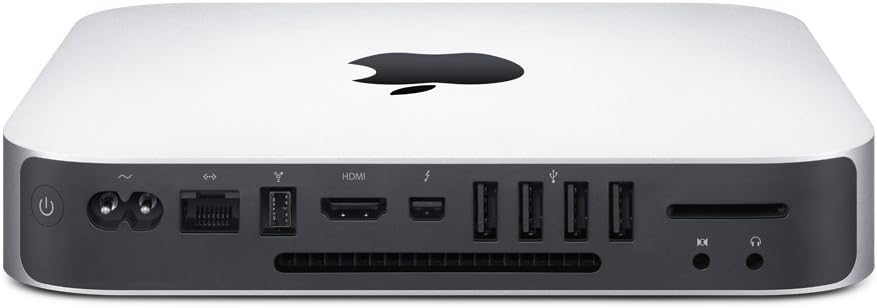
Image: Rear view of the Mac Mini showing port connections.
3. Initial Boot-Up
Press the power button located on the back of the Mac Mini. The system will boot up, and the OS X Lion Setup Assistant will guide you through the initial configuration, including language selection, network setup, and user account creation.
Operating Instructions
Power On/Off and Sleep
- Power On: Press the power button on the back.
- Sleep: Select "Sleep" from the Apple menu () or press the power button briefly.
- Shut Down: Select "Shut Down" from the Apple menu (). Always shut down properly to prevent data loss.
- Restart: Select "Restart" from the Apple menu ().
Network Connectivity
- Wi-Fi: Click the Wi-Fi icon in the menu bar, select your network, and enter the password if required.
- Ethernet: If an Ethernet cable is connected, the Mac Mini will automatically detect the wired connection.
Connecting External Devices
- USB Devices: Connect USB storage, printers, or other peripherals to the USB ports.
- Thunderbolt: Use the Thunderbolt port for high-speed data transfer or connecting compatible displays and devices.
- SDXC Card Slot: Insert SDXC memory cards for photo and data transfer.

Image: Side view of the Mac Mini.
Maintenance
Cleaning
To clean your Mac Mini, use a soft, lint-free cloth. Dampen the cloth slightly with water if necessary, but avoid getting moisture into any openings. Do not use aerosol sprays, solvents, or abrasives.
Software Updates
Regularly check for and install software updates through the App Store to ensure your system has the latest features, security enhancements, and bug fixes.
Data Backup
It is highly recommended to regularly back up your data using Apple's Time Machine feature with an external hard drive. This protects your important files in case of system failure or data loss.
Troubleshooting
No Power
- Ensure the power cord is securely connected to both the Mac Mini and a working power outlet.
- Try a different power outlet.
No Display
- Check that your monitor is powered on and correctly connected to the Mac Mini.
- Ensure the correct input source is selected on your monitor.
Network Connection Issues
- For Wi-Fi, verify your network password and ensure your router is functioning.
- For Ethernet, check the cable connection and router status.
- Restart your router and modem.
General Performance Issues
- Restart the Mac Mini.
- Ensure you have sufficient free storage space.
- Close unnecessary applications.
For more complex issues, refer to Apple's official support documentation or contact Apple Support.
Specifications
| Feature | Detail |
|---|---|
| Model Name | Mac Mini |
| Model Number | MC815LL/A |
| Processor | 2.3GHz dual-core Intel Core i5 |
| Memory (RAM) | 2GB 1333MHz DDR3 (expandable to 8GB) |
| Storage | 500GB (5400-rpm) hard drive |
| Graphics | Intel HD Graphics 3000 processor with 288MB shared memory |
| Operating System | Mac OS X v10.7 Lion |
| Ports | 4x USB 2.0, 1x HDMI, 1x Thunderbolt, Gigabit Ethernet, SDXC card slot, Audio In/Out |
| Wireless | Wi-Fi (802.11b/g/n), Bluetooth 4.0 |
| Dimensions (H x W x D) | 1.4 x 7.7 x 7.7 inches (3.6 x 19.7 x 19.7 cm) |
| Weight | 2.7 pounds (1.22 kg) |
Warranty Information
Every Mac comes with complimentary telephone technical support within 90 days of your Mac purchase. In addition, a limited hardware warranty covers your Mac and all included accessories against defects for one year from the original purchase date.
For detailed warranty terms and conditions, please refer to the documentation included with your product or visit the official Apple website.
Support
For further assistance, technical support, or service, please visit the official Apple Support website or contact Apple customer service directly.
Apple Support Website: support.apple.com


