
1. Introduction
This manual provides essential information for the safe and efficient operation of your NEC PA600X LCD Projector. Please read this manual thoroughly before using the projector and retain it for future reference. The NEC PA600X is designed for high-quality projection with features including 6000 lumens brightness and 1024 x 768 native resolution.
2. Safety Information
- Electrical Safety: Always connect the projector to a grounded power outlet. Do not use damaged power cords. Disconnect power before cleaning or servicing.
- Heat and Ventilation: Ensure adequate ventilation around the projector. Do not block ventilation openings. Avoid placing the projector near heat sources.
- Lamp Safety: The projector lamp operates at high temperatures and pressures. Allow the projector to cool down completely before moving it or performing maintenance. Do not look directly into the lens when the lamp is on.
- Handling: Handle the projector with care. Avoid dropping or subjecting it to strong impacts.
- Liquid Exposure: Do not expose the projector to rain, moisture, or any liquids.
3. Product Overview
Familiarize yourself with the various parts and connections of your NEC PA600X projector.
3.1 Front View
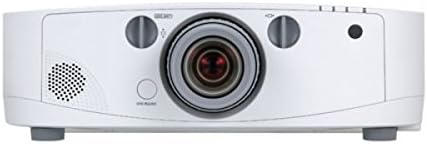
Figure 3.1: Front view of the projector. Key components include the projection lens, manual focus and zoom rings, and the power button located below the lens.
3.2 Top View

Figure 3.2: Top view of the projector. This image highlights the integrated control panel with navigation buttons and the lens shift adjustment knob.
3.3 Rear View (Input/Output Ports)
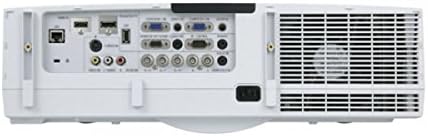
Figure 3.3: Rear view of the projector, showing the comprehensive array of input and output ports, including HDMI, VGA, USB, S-Video, DisplayPort, and audio connections.
3.4 Side View (Control Panel)

Figure 3.4: Side view of the projector, illustrating the main control panel buttons for power, menu navigation, and input selection, as well as the lamp access panel.
4. Setup
4.1 Placement
Position the projector on a stable, level surface or mount it securely. Ensure there is sufficient space around the projector for proper ventilation. The distance from the screen will determine the image size. Adjust the projector's position to achieve the desired image size and focus.
4.2 Connecting Devices
- Power Connection: Connect the power cord to the projector's AC inlet and then to a grounded electrical outlet.
- Video Sources:
- HDMI: Use an HDMI cable to connect your source device (e.g., laptop, Blu-ray player) to an HDMI input port on the projector.
- VGA (D-Sub): Connect a VGA cable from your computer's VGA output to a VGA input port on the projector.
- DisplayPort: Connect a DisplayPort cable from your source device to the DisplayPort input.
- S-Video/Composite: For older devices, use S-Video or composite video cables to connect to the corresponding ports.
- Audio Sources: If your video source does not transmit audio via HDMI or DisplayPort, or if you prefer external audio, connect audio cables from your source to the projector's audio input ports. The projector has built-in speakers, but external speakers can be connected for enhanced audio.
- USB: Connect USB devices for presentations or firmware updates.
4.3 Powering On/Off
- To Power On: Press the power button on the projector's control panel or the remote control (if available). The power indicator light will illuminate.
- To Power Off: Press the power button again. A confirmation message may appear. Press the power button a second time to confirm shutdown. Allow the projector to cool down before unplugging it.
5. Operating the Projector
5.1 Basic Operation
- Input Selection: Use the "Input" button on the control panel to cycle through available input sources (HDMI, VGA, DisplayPort, etc.) until your desired source is displayed.
- Menu Navigation: Press the "Menu" button to access the on-screen display (OSD) menu. Use the arrow buttons to navigate through options and the "Enter" button to select. Press "Exit" to close the menu.
5.2 Image Adjustment
- Focus: Rotate the focus ring on the projector lens until the image appears sharp and clear on the screen.
- Zoom: Rotate the zoom ring on the projector lens to adjust the size of the projected image.
- Keystone Correction: If the image appears trapezoidal, use the keystone correction function in the OSD menu to square the image. This can be found under the "Image" or "Setup" menu.
- Lens Shift: Use the lens shift knob (visible on the top view image) to physically move the projected image up, down, left, or right without tilting the projector, minimizing keystone distortion.
5.3 Audio Settings
Adjust the volume using the dedicated volume controls on the control panel or within the OSD menu. You can also select audio input sources if multiple are connected.
6. Maintenance
Regular maintenance ensures optimal performance and extends the lifespan of your projector.
6.1 Lamp Replacement
The projector lamp has a finite lifespan. When the lamp indicator lights up or the image brightness significantly decreases, the lamp needs replacement. Always use genuine NEC replacement lamps. Refer to the side view image (Figure 3.4) for the lamp access panel location.
- Power off the projector and unplug the power cord.
- Allow the projector to cool for at least 60 minutes.
- Locate and open the lamp cover.
- Carefully remove the old lamp module and install the new one, ensuring it is securely seated.
- Close the lamp cover and secure it.
- Reset the lamp timer in the OSD menu (usually under "Setup" or "Information").
6.2 Air Filter Cleaning/Replacement
Clean the air filter regularly to prevent overheating and maintain image quality. The filter location is typically on the side or bottom of the projector.
- Power off the projector and unplug the power cord.
- Locate and remove the air filter cover.
- Remove the filter and clean it with a soft brush or vacuum cleaner. If heavily soiled or damaged, replace it with a new one.
- Reinstall the filter and close the cover.
- Reset the filter timer in the OSD menu (if applicable).
6.3 General Cleaning
- Projector Casing: Wipe the exterior with a soft, dry, lint-free cloth. Do not use abrasive cleaners or solvents.
- Projection Lens: Gently clean the lens with a lens cleaning cloth or lens paper. Avoid touching the lens surface with your fingers.
7. Troubleshooting
This section addresses common issues you might encounter with your projector.
| Problem | Possible Cause | Solution |
|---|---|---|
| No image displayed |
|
|
| Image is blurry |
|
|
| Image is trapezoidal |
|
|
| Projector overheats or shuts down |
|
|
8. Specifications
| Feature | Detail |
|---|---|
| Brand | NEC |
| Model Number | 60003084 (PA600X) |
| Brightness Rating | 6000 lumens |
| Native Resolution | 1024 x 768 (XGA) |
| Contrast Ratio | 2000:1 |
| Item Weight | 16.98 pounds (approx. 7.7 kg) |
| Product Dimensions | 14.41 x 19.65 x 6.46 inches (approx. 36.6 x 49.9 x 16.4 cm) |
| Connectivity Technology | USB, HDMI, S-Video, D-Sub (VGA), DisplayPort |
| Special Feature | Integrated speakers |
9. Warranty and Support
For detailed warranty information, please refer to the warranty card included with your product or visit the official NEC website. For technical support, service, or inquiries about replacement parts, please contact NEC customer support through their official channels. Keep your purchase receipt and product serial number handy when contacting support.
You can typically find support information on the official NEC website: www.nec.com


