
Introduction
This manual provides essential information for the proper setup, operation, and maintenance of your VIZIO E321VL 32-Inch 720p LCD HDTV. Please read this manual thoroughly before using your television to ensure optimal performance and safety. Keep this manual for future reference.
What's in the Box
Verify that all components are present in the packaging:
- VIZIO E321VL 32-Inch 720p LCD HDTV
- TV Stand
- Remote Control (with 2 AA batteries)
- Power Cord
- Quick Start Guide (not included in this digital manual)
Setup
Attaching the Stand
- Carefully place the TV screen-down on a soft, clean surface to prevent scratches.
- Align the TV stand with the mounting holes on the bottom of the television.
- Secure the stand using the provided screws. Ensure the stand is firmly attached before proceeding.
- Carefully lift the TV and place it on a stable, level surface.
Connecting Devices
The VIZIO E321VL offers various connection options for your external devices. Refer to the image below for port locations.
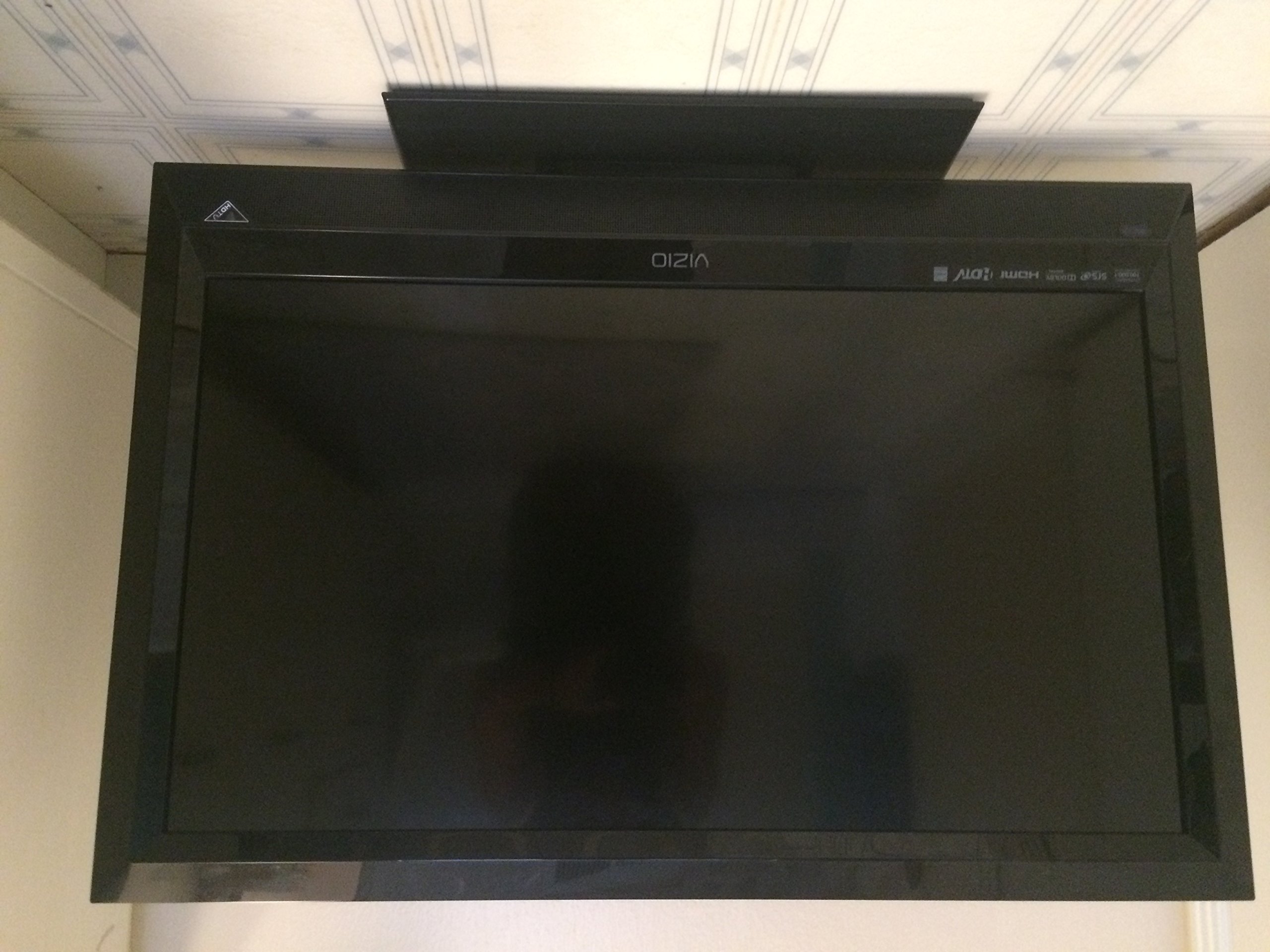
This image displays the back panel of the VIZIO E321VL television, highlighting the various input and output ports for connecting external devices. These include HDMI, Component, Composite, VGA, USB, and audio connections, along with the power input.
- Power Connection: Connect the power cord to the AC IN port on the back of the TV and then to a wall outlet.
- HDMI Devices: For high-definition video and audio, connect devices like Blu-ray players, game consoles, or cable/satellite boxes to the HDMI ports. This model features two HDMI ports.
- Component Video: For high-quality analog video, connect devices using component (YPbPr) cables to the COMPONENT IN ports. Ensure audio cables (red/white) are also connected to the corresponding AUDIO IN ports.
- Composite Video: For standard definition video, connect devices using composite (yellow) video and red/white audio cables to the AV IN ports.
- VGA (PC) Connection: Connect a computer to the VGA port for use as a monitor. Ensure an audio cable is connected from your computer's audio output to the PC AUDIO IN port.
- USB Port: Insert a USB flash drive into the USB port to view JPEG photos.
- Antenna/Cable: Connect an antenna or cable TV coaxial cable to the CABLE/ANTENNA input for over-the-air or standard cable channels.
Operating Instructions
Basic Operation
- Power On/Off: Press the POWER button on the remote control or on the TV to turn the television on or off.
- Input Selection: Press the INPUT button on the remote to cycle through available input sources (HDMI 1, HDMI 2, Component, AV, VGA, TV).
- Volume Control: Use the VOL +/- buttons to adjust the audio volume.
- Channel Selection: Use the CH +/- buttons to change channels or enter channel numbers directly using the number pad.
- Menu Navigation: Press the MENU button to access the on-screen display (OSD) menu. Use the arrow buttons to navigate and the OK/SELECT button to confirm selections.
Picture Settings
Access the Picture menu to adjust settings such as:
- Picture Mode: Select from preset modes (e.g., Standard, Movie, Game) or customize your own.
- Brightness: Adjust the overall lightness or darkness of the image.
- Contrast: Adjust the difference between the lightest and darkest areas of the image.
- Color: Adjust the intensity of colors.
- Tint: Adjust the green-to-magenta balance (primarily for NTSC signals).
- Sharpness: Adjust the clarity of image edges.
- Ambient Light Sensing: This feature automatically adjusts the TV's backlight levels based on the room's ambient light, optimizing picture quality and energy efficiency.
Audio Settings
Access the Audio menu to adjust settings such as:
- Volume: Adjust the master volume level.
- SRS TruVolume: This feature helps to maintain a consistent volume level across different channels and programs, reducing sudden volume changes.
- SRS TruSurround HD: Enhances the audio experience by creating a virtual surround sound effect from the TV's built-in speakers.
- Balance: Adjust the audio output between the left and right speakers.
- Equalizer: Customize audio frequencies for personalized sound.
USB Media Playback (JPEG Photo Viewer)
To view JPEG photos from a USB flash drive:
- Insert a USB flash drive containing JPEG images into the USB port on the side or back of the TV.
- Select the USB input source using the INPUT button on your remote.
- Navigate through your photos using the remote control's arrow buttons.
Maintenance
Cleaning the TV
- Screen: Gently wipe the screen with a soft, lint-free cloth. For stubborn marks, lightly dampen the cloth with water or a specialized screen cleaner. Never spray cleaner directly onto the screen.
- Cabinet: Wipe the TV cabinet with a soft, dry cloth. Avoid using abrasive cleaners, waxes, or solvents.
- Ventilation: Ensure the ventilation openings on the back of the TV are not blocked to prevent overheating.
Battery Replacement
Replace the remote control batteries when its range decreases or it stops responding. The remote uses two AA alkaline batteries.
Troubleshooting
If you encounter issues with your TV, refer to the following common problems and solutions:
- No Power:
- Ensure the power cord is securely connected to the TV and a working electrical outlet.
- Check if the outlet is functioning by plugging in another device.
- Try pressing the power button on the TV itself, not just the remote. - No Picture, But Has Sound:
- Verify the correct input source is selected (press INPUT on the remote).
- Check all video cable connections between the TV and your source device.
- Try another source device to determine if the issue is with the TV or the source. - No Sound, But Has Picture:
- Ensure the volume is not muted or set to zero.
- Check audio cable connections for external devices.
- If using an external audio system, ensure it is powered on and correctly configured. - Remote Control Not Working:
- Replace the batteries with new ones.
- Ensure there are no obstructions between the remote and the TV's remote sensor.
- Point the remote directly at the TV. - Poor Picture Quality:
- Adjust picture settings (Brightness, Contrast, Sharpness, etc.) in the Picture menu.
- Ensure you are using high-quality cables for HD sources (e.g., HDMI).
- If using an antenna, try repositioning it or performing a channel scan.
Specifications
Key technical specifications for the VIZIO E321VL 32-Inch 720p LCD HDTV:
| Feature | Specification |
|---|---|
| Model Number | E321VL |
| Screen Size | 32 Inches |
| Display Technology | LCD |
| Resolution | 720p |
| Refresh Rate | 60 Hz |
| Dynamic Contrast Ratio | 100,000:1 |
| HDMI Ports | 2 |
| Component Inputs | 1 |
| Composite Inputs | 1 |
| VGA Inputs | 1 |
| USB Ports | 1 |
| Audio Technology | SRS TruVolume, SRS TruSurround HD |
| Power Supply | 110 VAC, 60 Hz |
| Item Weight | 20.3 Pounds |
| Model Year | 2011 |
| Tuner Type | ATSC |
| Energy Compliance | ENERGY STAR 4.1 Guidelines |
Warranty and Support
Your VIZIO E321VL 32-Inch 720p LCD HDTV is covered by a 1-year limited warranty from the date of purchase. This warranty covers defects in materials and workmanship under normal use.
For detailed warranty terms, technical support, or service inquiries, please visit the official VIZIO support website or contact VIZIO customer service. Keep your purchase receipt as proof of purchase for warranty claims.