
1. Introduction
Thank you for choosing the A4Tech EVO Opto Ecco 612D USB Optical Mouse. This manual provides essential information for setting up, operating, and maintaining your new mouse. Please read these instructions carefully before use to ensure optimal performance and longevity of your device.
The A4Tech EVO Opto Ecco 612D is a reliable wired optical mouse designed for everyday computer use. It features a comfortable design and precise tracking for efficient navigation.
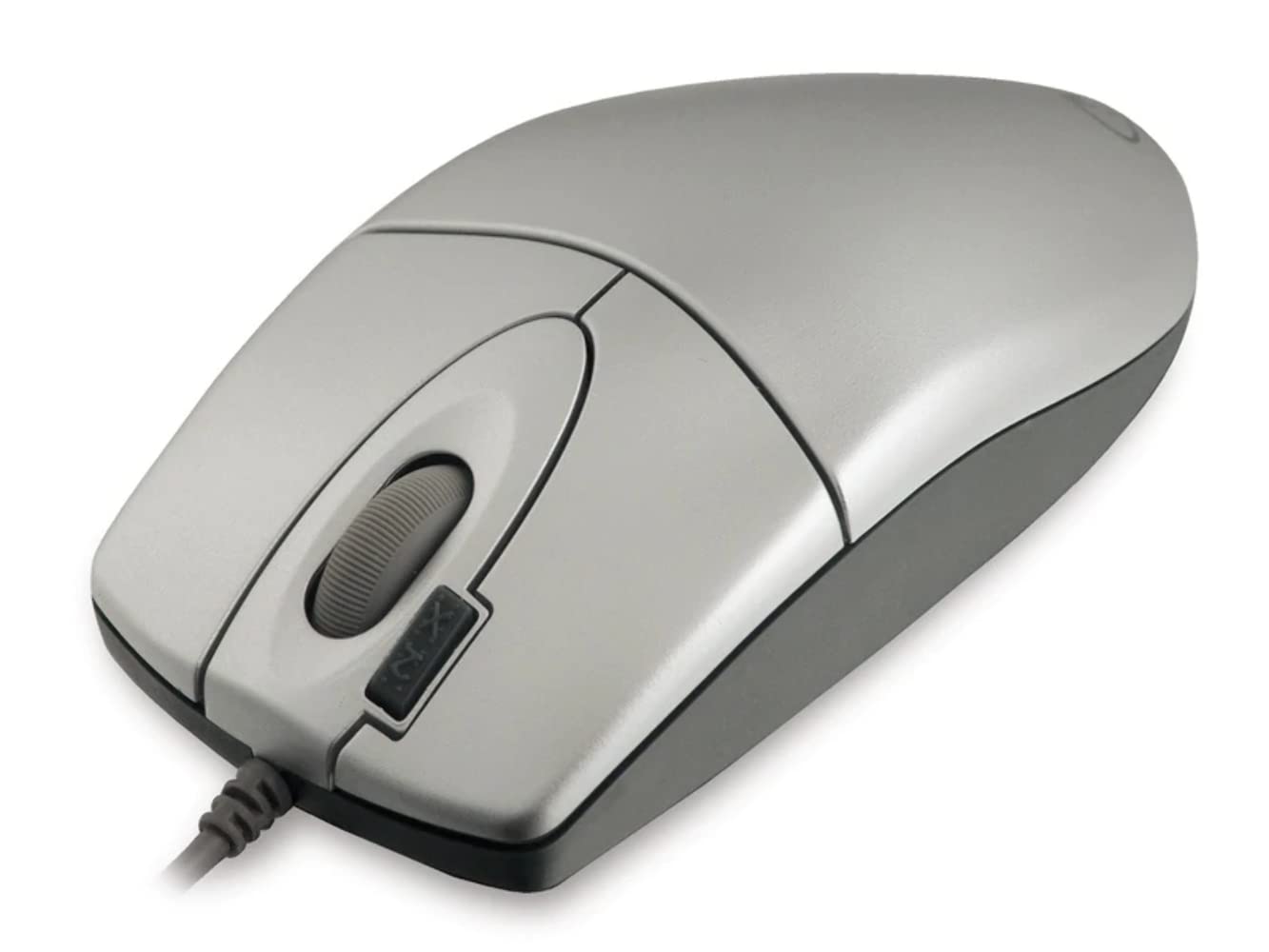
Figure 1: A4Tech EVO Opto Ecco 612D USB Optical Mouse. This image shows the silver-colored mouse from a top-down perspective, highlighting its ergonomic shape and button layout.
2. Package Contents
Please verify that all items are present in the package:
- A4Tech EVO Opto Ecco 612D USB Optical Mouse
- User Manual (this document)
3. Setup
The A4Tech EVO Opto Ecco 612D mouse is a plug-and-play device, requiring no additional software installation for basic functionality.
3.1 Connecting the Mouse
- Locate an available USB port on your computer.
- Insert the USB connector of the mouse firmly into the USB port.
- Your operating system will automatically detect and install the necessary drivers. This process may take a few moments.
- Once the drivers are installed, the mouse is ready for use.
Note: If the USB cable length is insufficient for your setup, a USB extension cable (not included) may be required.
4. Operating Instructions
The A4Tech EVO Opto Ecco 612D mouse features a standard 4-button layout and a scroll wheel for intuitive control.
4.1 Basic Functions
- Left Button: Primary click function, used for selecting items, opening files, and confirming actions.
- Right Button: Secondary click function, typically used to open context menus.
- Scroll Wheel: Used for vertical scrolling through documents and web pages. Can also function as a middle button when pressed.
- Double-Click Button: This dedicated button performs a double-click action with a single press, useful for opening files or folders quickly.
4.2 Hand Orientation
The mouse is designed for comfortable use, particularly for right-handed users, with its contoured shape. Its general design also allows for use by both hands, though the specific contouring is optimized for right-hand grip.
5. Maintenance
Proper care and maintenance will extend the life of your A4Tech mouse.
- Cleaning: Use a soft, dry cloth to clean the mouse surface. For stubborn dirt, a slightly damp cloth can be used, ensuring no liquid enters the device.
- Optical Sensor: Keep the optical sensor on the underside of the mouse clean and free from dust or debris to ensure accurate tracking. Do not use abrasive materials.
- Cable Care: Avoid sharp bends or excessive pulling on the USB cable to prevent damage.
- Storage: When not in use, store the mouse in a clean, dry environment away from extreme temperatures.
6. Troubleshooting
If you encounter issues with your mouse, please refer to the following common solutions:
| Problem | Solution |
|---|---|
| Mouse is not responding. |
|
| Cursor movement is erratic or jumpy. |
|
| Buttons or scroll wheel are not working. |
|
7. Specifications
| Feature | Detail |
|---|---|
| Brand | A4Tech |
| Model Name / Series | EVO Opto Ecco 612D / USB OP-620D |
| Model Number | A4TMYS30399 |
| Connectivity Technology | Wired USB |
| Movement Detection | Optical |
| DPI Resolution | 800 DPI |
| Number of Buttons | 4 (Left, Right, Scroll Wheel Click, Double-Click Button) |
| Number of Scroll Wheels | 1 |
| Hand Orientation | Right-handed design, generally usable by both hands |
| Color | Silver |
| Product Dimensions (L x W x H) | 10 x 6 x 2.5 cm (3.94 x 2.36 x 0.98 inches) |
| Item Weight | 80 grams (2.82 ounces) |
| Cable Length | 1.5 meters (4.92 feet) |
| Hardware Platform | Personal Computer / Mac |
| Compatible Operating Systems | Windows 98SE / ME / 2000 / XP / MCE2005 / XP / X64 / Vista / 7, Linux, Mac |
| Recommended Use | Office / General Computing |
8. Warranty and Support
For warranty information or technical support, please refer to the documentation provided with your purchase or visit the official A4Tech website. Keep your proof of purchase for warranty claims.
Manufacturer: White Line (as per product specifications, likely distributor/importer)
Brand: A4Tech