
1. Introduction
This manual provides comprehensive instructions for the setup, operation, maintenance, and troubleshooting of your Microsoft Xbox 360 Wireless Controller. Designed for use with both the Xbox 360 console and Windows-based personal computers, this controller offers a versatile and comfortable gaming experience with its integrated wireless technology and ergonomic design.
2. Product Overview
The Xbox 360 Wireless Controller features a familiar layout and responsive controls, ensuring precise input for various gaming genres. Key components include:
- Left and Right Analog Sticks: For precise movement and camera control.
- Directional Pad (D-Pad): For menu navigation and specific in-game actions.
- A, B, X, Y Buttons: Primary action buttons, color-coded for easy identification.
- Left and Right Bumpers (LB, RB): Located on the top edge for additional actions.
- Left and Right Triggers (LT, RT): Pressure-sensitive for nuanced control in games.
- Start and Back Buttons: For in-game menus and system functions.
- Xbox Guide Button: Central button for accessing the Xbox Guide or Windows Game Bar. It also indicates controller connection status.
- Headset Jack: For connecting compatible headsets for communication.
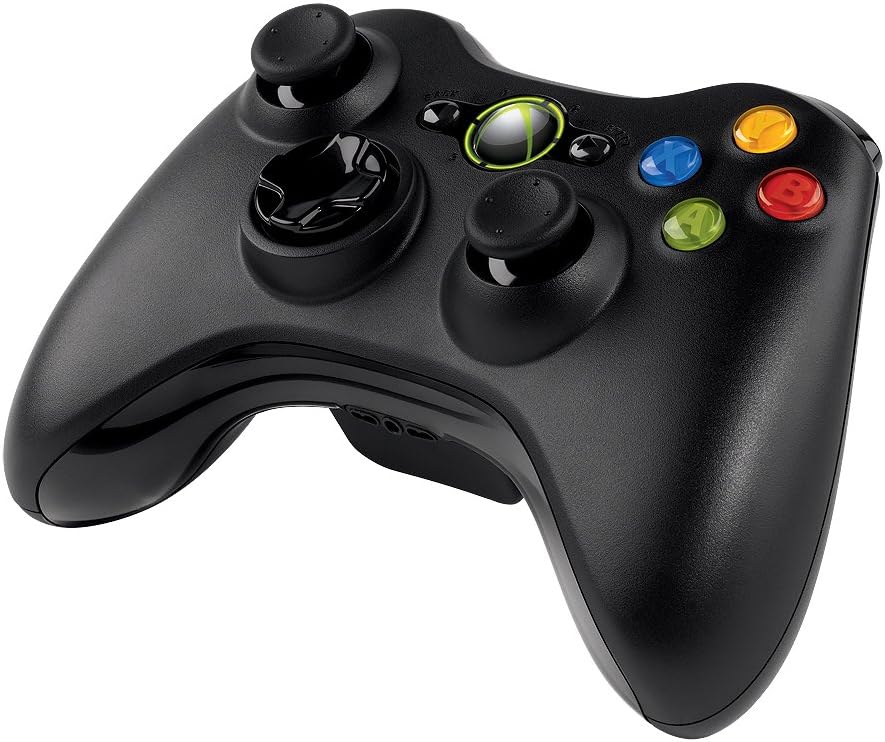
Figure 1: Front view of the Microsoft Xbox 360 Wireless Controller, showing all buttons and analog sticks.

Figure 2: Top-down view of the Microsoft Xbox 360 Wireless Controller, highlighting the Xbox Guide button and trigger/bumper placement.
3. Setup Instructions
3.1. Battery Installation
- Locate the battery compartment on the back of the controller.
- Press the tab on the battery pack and pull the pack downwards to remove it.
- Insert two (2) AA batteries, ensuring correct polarity (+ and -).
- Slide the battery pack back into the compartment until it clicks securely into place.
3.2. Connecting to Xbox 360 Console
- Turn on your Xbox 360 console.
- Press and hold the Xbox Guide button on your controller until it turns on.
- On the Xbox 360 console, press the Connect button (a small circular button usually near the memory card slots or USB ports). The lights around the console's power button will flash.
- Within 20 seconds, press the Connect button on the front of your controller (located between the LB and RB buttons). The lights around the Xbox Guide button on the controller will flash.
- Once connected, one of the four quadrants around the Xbox Guide button and the console's power button will light up solid, indicating the controller's assigned player number.
3.3. Connecting to PC (Windows)
To use the Xbox 360 Wireless Controller with a Windows PC, a separate Xbox 360 Wireless Gaming Receiver for Windows is required (sold separately).
- Plug the Xbox 360 Wireless Gaming Receiver into an available USB 2.0 port on your PC.
- Driver Installation:
- For Windows 10 and newer, drivers typically install automatically upon connecting the receiver.
- For older Windows versions (e.g., Windows 7, 8), you may need to install drivers from the included CD (if applicable) or download them from the official Microsoft support website. Follow the on-screen instructions for driver installation.
- Once the receiver drivers are installed, press the Connect button on the receiver. The light on the receiver will flash green.
- Press and hold the Xbox Guide button on your controller until it turns on.
- Press the Connect button on the front of your controller (located between the LB and RB buttons). The lights around the Xbox Guide button will flash.
- When the controller connects, one of the four quadrants around the Xbox Guide button will light up solid, indicating a successful connection.
4. Operating Instructions
4.1. Basic Gameplay
Once connected, your controller is ready for use in compatible games. The analog sticks, D-pad, and face buttons function as standard input devices. Refer to your game's specific instructions for controller mapping.
4.2. Xbox Guide Button Functions
- Press: Access the Xbox Guide on console or the Game Bar on Windows.
- Press and Hold: Turn the controller on or off.
4.3. Vibration Feedback
The controller features integrated vibration motors that provide tactile feedback during gameplay, enhancing immersion. This feature is automatically enabled in games that support it.
4.4. Headset Usage
Plug a compatible headset into the 2.5mm headset jack located at the bottom of the controller for in-game audio and voice chat.
5. Maintenance
5.1. Cleaning
To clean your controller, use a soft, dry cloth. For stubborn dirt, slightly dampen the cloth with water. Avoid using harsh chemicals or abrasive materials, as these can damage the controller's finish and internal components.
5.2. Battery Replacement
When the controller's performance degrades or the Xbox Guide button lights flash repeatedly, it indicates low battery power. Replace the AA batteries as described in Section 3.1.
5.3. Storage
Store the controller in a cool, dry place away from direct sunlight and extreme temperatures. If storing for an extended period, remove the batteries to prevent leakage.
6. Troubleshooting
- Controller does not turn on: Ensure batteries are correctly inserted and fully charged. Replace with fresh batteries if necessary.
- Controller does not connect/sync:
- For Xbox 360: Ensure both console and controller connect buttons are pressed within the specified timeframe.
- For PC: Verify the wireless receiver is properly connected and its drivers are installed. Ensure the receiver's connect button is pressed.
- Move closer to the console/receiver to rule out range issues.
- Vibration feedback not working: Check if the game supports vibration. Ensure the feature is not disabled in game settings or system settings.
- Input lag or dropped connections: Minimize interference from other wireless devices. Ensure the controller and receiver have a clear line of sight.
- Controller not recognized on PC: Verify that the correct drivers for the Xbox 360 Wireless Gaming Receiver are installed and up to date. Check Device Manager for any driver conflicts.
7. Specifications
- Model Number: JR9-00011
- Series: NSF-00023
- Brand: Microsoft
- Connectivity: 2.4 GHz Wireless Technology
- Wireless Range: Up to 30 feet (9 meters)
- Power Source: 2 AA Batteries (included)
- Compatibility: Xbox 360 Console, Windows PC (Windows XP, 7, 8, 10)
- Dimensions (LxWxH): 9.09 x 5.51 x 2.56 inches (23.09 x 14.00 x 6.50 cm)
- Item Weight: 8.1 ounces (229.63 grams)
- Features: Vibration Feedback, Integrated Headset Jack
8. Warranty and Support
For warranty information, technical support, or further assistance, please refer to the official Microsoft support website or contact Microsoft customer service directly. Keep your proof of purchase for warranty claims.


