
Introduction
The Philips SRP5107/27 Universal Remote Control is designed to consolidate control of up to seven audio/video devices into a single unit. This remote offers advanced functionality for DVR and HD devices, along with a learning capability to adapt to various equipment. Its primary buttons feature LED backlighting for improved visibility in low-light conditions.
Key features include:
- Consolidates control for up to 7 AV devices.
- Compatible with devices manufactured since 1990.
- Specifically designed for use with DVR/HD devices.
- LED illumination on primary keys for ease of use.
- Integrated learning keys for future device compatibility.
- Memorizes setup codes even after battery changes.
Setup
1. Battery Installation
The Philips SRP5107/27 remote requires two AA batteries. Ensure correct polarity when inserting the batteries. The remote is designed to retain programmed codes even when batteries are removed or replaced.
2. Device Programming (Code Search Method)
To program the remote for your devices using the code search method:
- Turn on the device you wish to control (e.g., TV, DVD player).
- Press and hold the desired device button on the remote (e.g., TV, DVD, AUX).
- While holding the device button, press and hold the Power button. The device button will illuminate.
- Release both buttons. The device button will remain illuminated.
- Point the remote at your device and repeatedly press the Power button (or Channel Up button) until the device turns off. This indicates the remote has found a compatible code.
- Once the device turns off, immediately press the Enter button to save the code. The device button light will turn off.
- Test other functions (e.g., volume, channel) to ensure full compatibility. If not all functions work, repeat the process to find an alternative code.
3. Learning Function
The learning function allows the universal remote to learn commands directly from your original device remote. This is useful for commands not covered by pre-programmed codes or for devices not listed in the code database.
- Place the Philips universal remote and your original remote on a flat surface, facing each other, with their IR emitters aligned and about 1-2 inches apart.
- Press and hold the Setup button on the universal remote until the device button (e.g., TV) illuminates.
- Press the device button you want to program (e.g., TV). The device button will flash.
- Press the button on the universal remote that you want to teach a function to (e.g., Volume Up). The device button will now flash rapidly.
- Press and hold the corresponding button on your original remote (e.g., Volume Up) until the device button on the universal remote flashes twice and then stays solid. This indicates successful learning.
- Repeat steps 4 and 5 for any other buttons you wish to teach.
- Press the Setup button again to exit learning mode.
Note: The remote has a finite limit on the number of custom buttons that can be learned. If you have multiple devices without control codes, the device may run out of memory for new learned commands.
Operating the Remote
1. Device Selection
To control a specific device, press the corresponding device button at the top of the remote (e.g., TV, DVD, SAT, AUX). The selected device button will illuminate, indicating it is active.
2. Basic Functions
Once a device is selected, use the corresponding buttons for common functions:
- Power: Turns the selected device on or off.
- Volume Up/Down: Adjusts the volume of the selected device.
- Channel Up/Down: Changes channels on the selected device.
- Number Pad: Enters channel numbers or other numerical inputs.
- Mute: Mutes the audio.
3. Punch-Through Volume
The remote may feature a punch-through volume function, allowing volume control of a primary audio device (e.g., TV or audio receiver) regardless of the currently selected device mode. If this function does not operate as desired, you may need to use the learning function to remap the volume buttons for specific modes to your preferred audio device.
Maintenance
1. Battery Replacement
When the remote's performance degrades or the LED indicators dim, it is time to replace the batteries. Open the battery compartment on the back of the remote and replace the two AA batteries with new ones, ensuring correct polarity. The remote is designed to retain all programmed settings during battery replacement.
2. Cleaning
To clean the remote, use a soft, slightly damp cloth. Do not use abrasive cleaners or solvents, as these can damage the remote's finish or internal components. Ensure no liquid enters the remote's casing.
Troubleshooting
- Remote does not control device:
- Ensure the remote is pointed directly at the device and there are no obstructions.
- Verify that the correct device mode button (e.g., TV, DVD) is selected.
- Re-attempt the device programming steps to ensure the correct code is entered. Try alternative codes for the same brand if available.
- Check if the batteries are fresh and correctly installed.
- Some buttons do not work after programming:
- This may indicate that the selected code is not fully compatible with your device. Try repeating the programming process to find a more compatible code.
- Use the learning function to teach specific non-working buttons from your original remote.
- Learning function not working:
- Ensure the original remote's batteries are fresh.
- Verify that the IR emitters of both remotes are properly aligned and close enough (1-2 inches).
- Ensure there is no strong ambient light interfering with the IR signal.
- The universal remote has a limited memory for learned commands. If you have taught many commands, it might be full.
- No new codes can be downloaded:
This remote does not feature a mechanism to download new codes via USB or other means. All programming is done directly on the device or through its learning function.
Specifications
| Model Number | SRP5107/27 |
| Brand | Philips |
| Product Dimensions | 1.3 x 4.8 x 10.8 inches |
| Item Weight | 3.52 ounces |
| Batteries Required | 2 AA batteries |
| Max Number of Supported Devices | 7 |
| Compatible Devices | Television, DVD, DVR, Cable, Satellite, VCR, AUX (general audio/video devices) |
| Special Feature | Universal, Learning Function, LED Backlit Keys |
Warranty and Support
For specific warranty information, please refer to the documentation included with your purchase or contact Philips customer support. General product support and additional resources may be available on the official Philips website.
Product Image
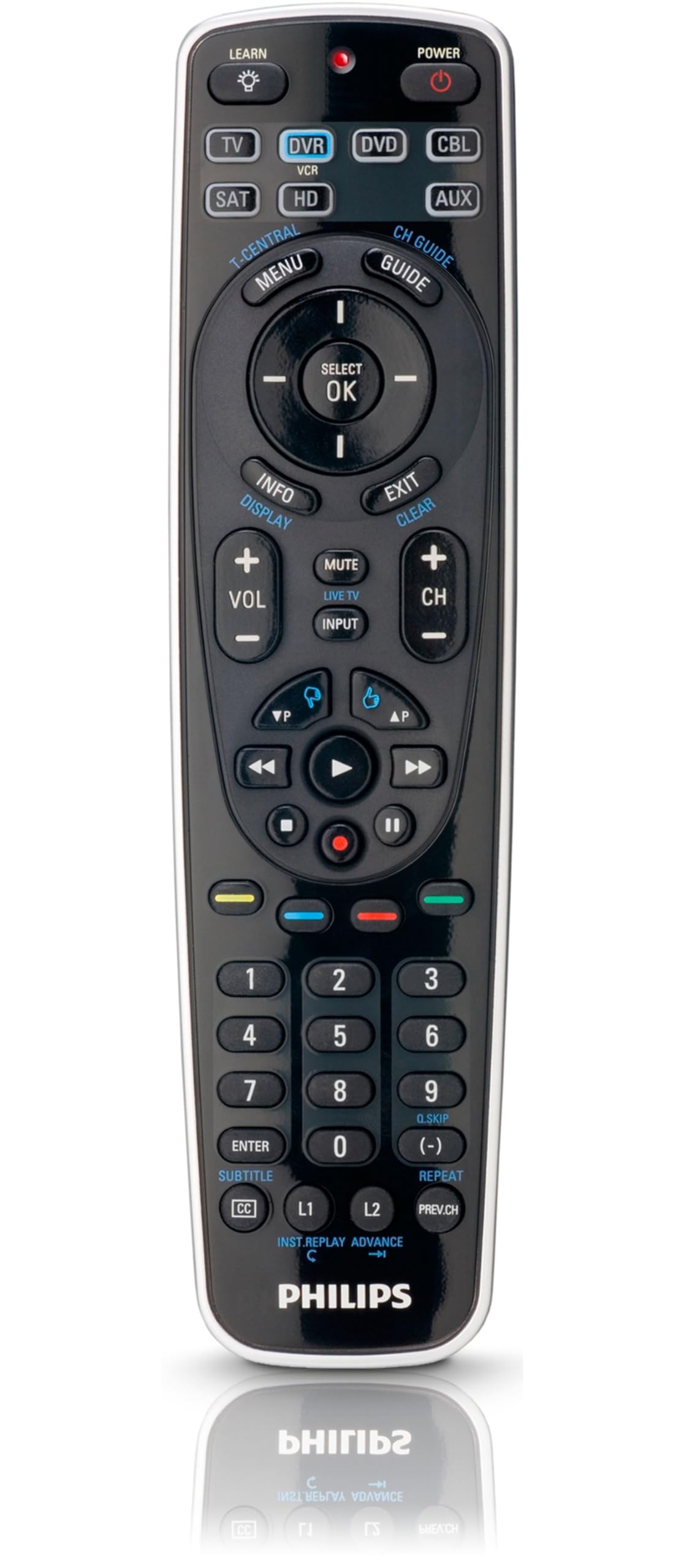
Image: Philips SRP5107/27 Universal Remote Control. This image displays the remote's ergonomic design and button layout, highlighting the device selection buttons at the top, the central navigation cluster, and the numeric keypad.


